




OpenClaw VPS Sizing: The Definitive CPU, RAM & Storage Calculator
Quick Verdict: The Bottom Line Up Front
If you are running OpenClaw for simple webhook routing (under 5 active workflows), a 2 vCPU / 4GB RAM instance is your baseline to account for Docker overhead and baseline Java/Node runtime requirements.
However, if you are doing ETL data scraping or image processing, RAM is your bottleneck, not CPU. You need minimum 8GB RAM to prevent
OOM_Killerevents during garbage collection. Never use HDD or standard SSD; OpenClaw’s log write frequency demands NVMe to keep IOwait under 1%.Analysis by: The AwakeHost Engineering Team
The Introduction of Clawbot
You didn’t come here to read about how “great” automation is. You’re here because your OpenClaw instance crashed at 3:14 AM, or your workflows are hanging in a “Pending” state while your CPU graphs look like a flatline.
Here is the reality of self-hosting automation platforms like OpenClaw: they are deceptive resource hogs. On the surface, they look idle. But the second a complex JSON object hits a workflow or a loop triggers 500 concurrent HTTP requests, your server architecture is tested. Most users undervalue the impact of I/O Wait and Context Switching when picking a VPS. They buy cheap cores and wonder why their automation lags.
I’ve spent 15 years debugging Linux servers. I’ve seen the dmesg logs of failed automation nodes. This guide ignores the marketing specs on the sales page and looks at the kernel-level requirements to keep OpenClaw breathing under load.
What we will cover:
- The Architecture of Load: How OpenClaw actually consumes resources.
- The CPU Myth: Why frequency matters more than core count for single-threaded workflows.
- Memory Management: Heap sizes, garbage collection, and the OOM killer.
- Storage I/O: Why logs are the silent killer of performance.
- Scenario Sizing: Exact specs for Light, Medium, and Heavy loads.
The Deep Dive: Anatomy of an Automation Node
Understanding the Resource Model
OpenClaw, like many modern automation tools, likely relies on a runtime environment (typically Node.js or Java based) wrapped in Docker containers. This abstraction layer adds overhead before you even run your first workflow.
When you trigger a workflow, three things happen physically on the server:
- Memory Allocation: The runtime allocates a heap for the execution data.
- Context Switching: The CPU switches from an idle state to processing logic, often involving heavy serialization/deserialization of JSON data.
- Disk Writes: Every step is logged. State is persisted.
The CPU Equation: Steal Time vs. Raw Power
Do not just look at “vCPUs.” In the VPS world, not all cores are equal.
If you are on a “Standard” or “Budget” VPS, you are sharing CPU time with neighbors. If your neighbor decides to mine crypto or compile a kernel, your “2 vCPUs” might effectively become 0.5 vCPUs because of Steal Time.
For OpenClaw, Single Thread Performance is usually king. Most individual workflow steps process sequentially. Having 16 slow cores is worse than having 4 high-frequency (3.5GHz+) cores.
- The Metric to Watch: Open your terminal and run
top. Look at the%st(steal) value. If it is above 5%, your automation timing will drift. Webhooks will timeout.
RAM: The Garbage Collection Trap
Automation platforms ingest data, process it, and discard it. This creates massive pressure on the Garbage Collector (GC).
If you size your RAM too tightly (e.g., 2GB total system memory), the OS has no room for file system caching. When the application tries to clear memory (GC), the CPU spikes. If the app asks for more RAM than available, the Linux kernel invokes the OOM Killer (Out of Memory Killer).
The OOM Killer doesn’t care about your uptime. It sees the process using the most RAM (OpenClaw) and kills it instantly to save the kernel.
Storage: The IOPS Bottleneck
Every time a workflow executes a step, OpenClaw writes to a database (likely PostgreSQL or similar) and execution logs.
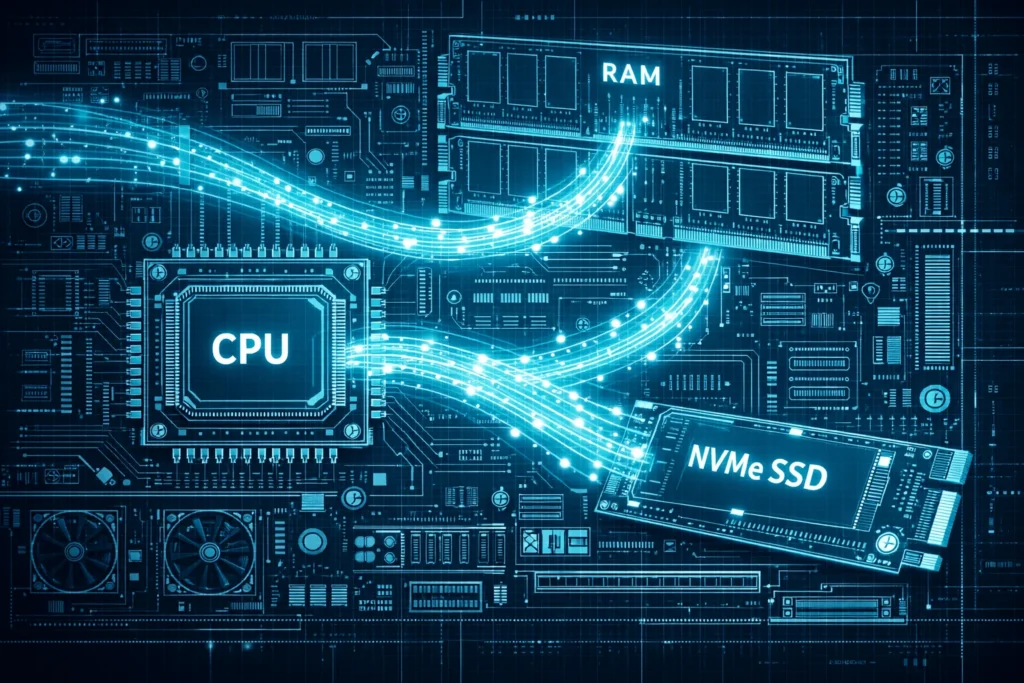
If you run a loop processing 1,000 items, that is potentially 1,000 to 5,000 small write operations. On a standard SSD (SATA) or HDD, this saturates the IOPS limit. The CPU then has to wait for the disk to finish writing before it can move to the next step. This is called iowait.
Comparison: Standard vs. High Performance Storage
| Feature | Standard VPS (SATA SSD) | AwakeHost NVMe VPS | Impact on OpenClaw |
| Throughput | ~500 MB/s | ~3,500 MB/s | Faster heavy data processing. |
| IOPS | ~5,000 | ~100,000+ | Vital for loops and logging. |
| Latency | 1-2 ms | 0.05 ms | Instant database transactions. |
| Protocol | AHCI (Legacy) | NVMe (Parallel) | No queue blocking during spikes. |
The “Insider Secret”: The Neighbor Effect
What Most Hosts Won’t Tell You
Most hosting companies oversell their hardware by a factor of 4x to 10x. They assume not everyone will use their server at 100% at the same time.
For a static website (HTML/CSS), this is fine. For OpenClaw, it is catastrophic.
Automation is “bursty.” It sits idle for an hour, then needs 100% CPU for 30 seconds to process a batch job. If you are on an oversaturated node, when you request that burst, the hypervisor (KVM) denies it. Your workflow execution time ballons from 200ms to 5 seconds. This causes API timeouts with the services you are connecting to (e.g., Stripe, Shopify).
The Fix: You need a provider that guarantees Dedicated CPU threads or maintains strict low-density policies. At AwakeHost, we monitor “Noisy Neighbors” and migrate them, ensuring your automation latency remains flat.
Detailed Sizing Scenarios
Here is the raw data. I have broken this down by usage patterns. Do not underestimate the “Storage” requirements—logs grow faster than you think.
Scenario A: The “Webhook Handler” (Light Usage)
- Use Case: Routing data between apps (e.g., Typeform to Slack). Simple logic. No heavy data transformation.
- Concurrency: 1-3 simultaneous executions.
- The Trap: running on 1GB RAM. The database alone needs 500MB buffer.
Recommended Specs:
- CPU: 2 vCPU (Shared is okay here).
- RAM: 4 GB.
- Storage: 40 GB NVMe.
- Swap: 2 GB file (for safety).
Scenario B: The “Data Cruncher” (Medium Usage)
- Use Case: Scraping websites, processing images, ETL (Extract, Transform, Load) jobs, massive email lists.
- Concurrency: 5-10 simultaneous executions.
- The Trap: CPU Steal time and IOwait.
Recommended Specs:
- CPU: 4 vCPU (High Performance/Ryzen).
- RAM: 8 GB (Allocating 4GB specifically to the heap).
- Storage: 80 GB NVMe (Need space for temp files during processing).
Scenario C: The “Enterprise Orchestrator” (Heavy Usage)
- Use Case: Mission-critical infrastructure, 24/7 loops, thousands of executions per hour.
- The Trap: Database locking and network socket exhaustion.
Recommended Specs:
- CPU: 8+ vCPU (Dedicated threads preferred).
- RAM: 16 GB – 32 GB.
- Storage: 160 GB+ NVMe (RAID 10 for redundancy).
- Optimization: Separate the Database from the Application server.
Implementation: Tuning Your VPS for Clawbot
Buying the hardware is step one. Configuring Linux is step two. Here are the configs I apply to every OpenClaw server I manage.
1. Adjust Swappiness
By default, Linux swaps too early (60). For automation, we want to stay in RAM as long as possible to avoid latency.
# Check current value
cat /proc/sys/vm/swappiness

# Edit sysctl.conf to make it permanent
nano /etc/sysctl.conf

# Add this line:
vm.swappiness=10
2. Increase Open File Limits
OpenClaw and its database open many files (sockets are treated as files). The default limit (1024) is too low.
# Edit limits.conf
nano /etc/security/limits.conf

# Add:
* soft nofile 65535
* hard nofile 65535
3. Docker Logging (The Disk Killer)
By default, Docker keeps logs forever. This fills your NVMe drive, causing a server crash. Limit this in your docker-compose.yml.
logging:
  driver: "json-file"
  options:
    max-size: "10m"
    max-file: "3"
FAQ: Frequently Asked Questions about OpenClaw Hosting
Technically, yes. Practically, no. Residential ISPs change IP addresses (breaking webhooks) and have poor upstream bandwidth. Furthermore, SD card corruption is inevitable with the heavy database writing OpenClaw performs. You need enterprise-grade NVMe and a static IP.
Linux is designed to use free RAM for disk caching. This is healthy. However, if you see your Swap usage climbing, that is the red flag. It means you have exhausted physical RAM and are trading performance for stability. Upgrade your RAM immediately.
If you are hitting Scenario C (Heavy Usage), yes. Offloading PostgreSQL to a separate optimized instance frees up your VPS resources to focus strictly on workflow logic and execution.
Since OpenClaw is typically Docker-based, migration is straightforward. You need to docker-compose down, compress your /volumes directory, rsync it to your new AwakeHost VPS, and docker-compose up. Ensure your DNS TTL is set low before the move to minimize downtime.
Conclusion
Choosing the right specs for OpenClaw isn’t about guessing; it’s about math.
You must calculate your memory overhead per workflow and your I/O requirements for logging. If you try to save $5 a month by choosing a server with HDD storage or a congested CPU, you will pay for it in hours spent debugging “Gateway Timeout” errors.
For a stable automation environment, prioritize NVMe storage and RAM headroom. Stop stressing over server specs. Let AwakeHost handle the heavy lifting. We provide high-performance, NVMe-backed VPS instances specifically tuned for heavy automation workloads. Check our High-Performance VPS Plans

Leave a Reply