What Is Windows Subsystem for Linux? WSL Guide for VPS Users
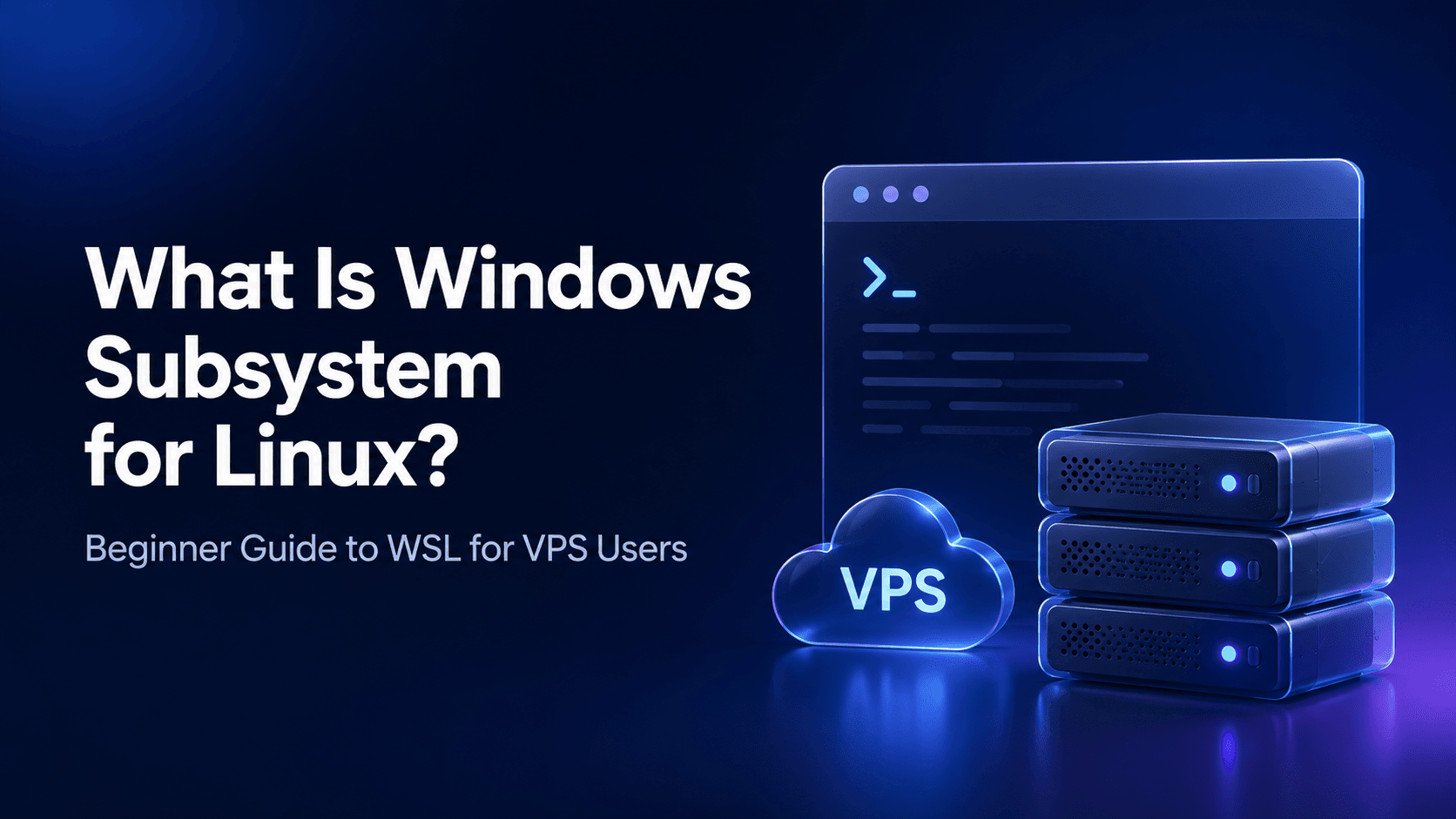
What Is Windows Subsystem for Linux? Beginner Guide to WSL for VPS Users
Windows Subsystem for Linux, commonly known as WSL, is one of the easiest ways for Windows users to start working with Linux commands, server tools, and VPS environments without installing a separate Linux operating system.
For developers, website owners, students, and VPS beginners, WSL can make Linux server management much easier. You can use it to connect to a VPS through SSH, run Linux commands, test scripts, install development tools, and understand how real Linux servers work.
TL;DR
Windows Subsystem for Linux is a Windows feature that allows you to run a Linux terminal directly inside Windows. It is useful for learning Linux commands, using SSH, managing VPS servers, and working with development tools like Git, PHP, Node.js, Python, MySQL, Nginx, and Apache.
WSL is not a replacement for a real VPS. It runs locally on your computer, while a VPS runs online in a data center and can host websites, apps, databases, game servers, and other live services.
If you use Windows and want to manage a Linux VPS, WSL is a smart starting point.
What Is Windows Subsystem for Linux?
Windows Subsystem for Linux is a feature in Microsoft Windows that allows users to run a Linux environment directly on a Windows computer.
In simple words, WSL gives you a Linux terminal inside Windows. You can install a Linux distribution such as Ubuntu, Debian, or Kali Linux and use Linux commands without dual booting your computer or setting up a full virtual machine.
After installing WSL, you can open a Linux terminal and run commands like:
ls
cd
pwd
sudo apt update
ssh root@your-server-ip
This makes WSL very useful for anyone who wants to learn Linux, manage servers, work with development tools, or connect to a Linux VPS from a Windows system.
Why WSL Matters for VPS Users
Most VPS servers run on Linux. Popular VPS operating systems include Ubuntu, Debian, AlmaLinux, Rocky Linux, and other Linux-based systems.
If you are using Windows on your personal computer, you may not be comfortable with Linux commands at first. WSL helps solve this problem by giving you a Linux-like environment on your Windows machine.
With WSL, you can practice many of the same commands that are used on real VPS servers. This helps beginners become more confident before managing a live server.
With WSL, VPS users can:
- Connect to a VPS using SSH
- Run Linux commands from Windows
- Edit server files using Nano or Vim
- Install and test development tools
- Use Git, PHP, Node.js, Python, MySQL, Nginx, and Apache
- Practice server management safely
- Understand how Linux VPS hosting works
For beginners, this is valuable because it creates a bridge between a local Windows computer and a real Linux VPS server.
WSL vs PuTTY vs Full Linux vs VPS
Many Windows users use PuTTY to connect to servers. PuTTY is still useful, but WSL gives you a more complete Linux terminal experience.
Here is a simple comparison:
| Option | Best For | Main Limitation |
|---|---|---|
| PuTTY | Simple SSH access from Windows | It is mainly an SSH client, not a full Linux environment |
| WSL | Running Linux commands inside Windows | It runs locally and is not a public hosting server |
| Full Linux Installation | Users who want Linux as their main operating system | Requires separate installation, dual boot, or replacing Windows |
| VPS | Hosting websites, apps, databases, and online services | Requires proper server management and security |
For most beginners, WSL is easier than installing Linux separately and more flexible than using PuTTY only.
How Does WSL Work?
WSL creates a Linux environment inside Windows. Once installed, you can use a Linux distribution from your Windows Start Menu or Windows Terminal.
For example, if you install Ubuntu through WSL, you can open Ubuntu on Windows and run Linux commands just like you would on a Linux server.
You can install packages, create files, run scripts, use SSH, and work with development tools.
sudo apt update
sudo apt install nginx
The command above updates package information and installs Nginx inside your local WSL environment.
However, this does not mean your website is live on the internet. WSL runs on your own computer. To host a public website, app, or service, you still need a VPS, cloud server, dedicated server, or hosting plan.
How to Install WSL on Windows
On modern Windows versions, installing WSL is simple.
Open PowerShell as Administrator and run:
wsl --installAfter the installation finishes, restart your computer if Windows asks you to do so.
By default, Windows usually installs Ubuntu as the Linux distribution. Once Ubuntu opens, you will be asked to create a Linux username and password.
Basic installation steps:
- Open the Windows Start Menu.
- Search for PowerShell.
- Right-click PowerShell and choose “Run as administrator.”
- Run the command
wsl --install. - Restart your computer if required.
- Open Ubuntu or your selected Linux distribution.
- Create your Linux username and password.
After this, your Linux terminal is ready to use.
Basic WSL Commands for Beginners
Once WSL is installed, you can start practicing common Linux commands.
Check Your Current Folder
pwdThis command shows the directory you are currently working in.
List Files and Folders
lsThis command shows the files and folders in your current directory.
Move Into a Folder
cd folder-nameReplace folder-name with the name of the folder you want to open.
Update Package Lists
sudo apt updateThis command updates the local package list for your Linux distribution.
Install a Package
sudo apt install package-nameFor example, to install Nginx:
sudo apt install nginxCheck Disk Usage
df -hThis shows disk usage in a readable format.
Check Memory Usage
free -mThis shows memory usage in megabytes.
These commands are useful because many of them are also used when managing a real Linux VPS.
How to Connect to a VPS Using WSL
One of the most useful things you can do with WSL is connect to a Linux VPS through SSH.
SSH stands for Secure Shell. It allows you to securely access and manage your server from your local computer.
The basic SSH command looks like this:
ssh root@your-server-ipExample:
ssh root@192.0.2.10If your VPS uses a different username, replace root with your actual username:
ssh username@your-server-ipAfter running the command, your VPS may ask for a password or SSH key. Once you are logged in, you can manage your server from the WSL terminal.
Common VPS tasks you can perform through WSL:
- Update server packages
- Install web server software
- Edit configuration files
- Restart services
- Check server resource usage
- View logs
- Manage website files
- Deploy applications
- Configure WordPress, Laravel, Node.js, or custom projects
Useful VPS Commands You Can Run from WSL
After connecting to your VPS, you can use Linux commands to manage your server.
Update Server Packages
sudo apt update && sudo apt upgradeCheck Server Uptime
uptimeCheck Running Services
systemctl statusRestart Nginx
sudo systemctl restart nginxRestart Apache
sudo systemctl restart apache2View Recent System Logs
journalctl -xeCheck Open Ports
ss -tulnEdit a File with Nano
nano filenameThese commands are common in Linux server management. Practicing them in WSL can help you become more comfortable before using them on a production VPS.
Can WSL Replace a Real VPS?
No, WSL cannot fully replace a real VPS.
WSL is mainly for local development, learning, testing, and server management from your own computer. It does not give you a public online server that runs 24/7 in a data center.
A VPS is different. A VPS has dedicated resources, a public IP address, data center networking, and the ability to host live websites, apps, databases, APIs, game servers, and production services.
| Feature | WSL | VPS |
|---|---|---|
| Runs Linux commands | Yes | Yes |
| Good for learning | Yes | Yes |
| Public IP address | No | Yes |
| Runs online 24/7 | No | Yes |
| Hosts live websites | Not recommended | Yes |
| Suitable for production apps | No | Yes |
| Requires server security setup | Limited | Yes |
WSL is excellent for practice and development. A VPS is required when you want your project to be live on the internet.
When Should You Use WSL?
You should use WSL if you want to learn Linux or manage servers from a Windows computer.
WSL is useful for:
- Learning Linux commands
- Practicing server management
- Using SSH without PuTTY
- Running developer tools locally
- Testing scripts before using them on a server
- Managing a Linux VPS from Windows
- Working with Git, PHP, Node.js, Python, and MySQL
- Understanding how Linux VPS hosting works
For beginners, WSL provides a safer place to practice before working on a live server.
When Should You Use a VPS Instead?
You should use a VPS when you need an online server for real websites, apps, or services.
A VPS is better when you want to:
- Host a live website
- Run WordPress with more control
- Deploy a web application
- Host a database
- Run a game server
- Set up a VPN
- Use a hosting control panel
- Host client projects
- Run automation tools
- Build production environments
WSL helps you learn and manage Linux. A VPS gives you the actual online server environment needed for real hosting.
Is WSL Good for Web Development?
Yes, WSL is very good for web development, especially for Windows users who want a Linux-style workflow.
Many production servers run Linux, so using WSL locally can make your development environment more similar to your server environment.
With WSL, developers can work with:
- Git
- PHP
- Composer
- Node.js
- npm
- Python
- MySQL
- PostgreSQL
- Docker
- Nginx
- Apache
A common workflow is to build and test a project locally using WSL, then deploy it to a VPS when it is ready to go live.
Is WSL Useful for WordPress Users?
WSL can be useful for WordPress users who want more technical control over their hosting environment.
A normal WordPress user on shared hosting may not need WSL. But if you manage a WordPress VPS, troubleshoot server issues, optimize performance, or work with developers, WSL can be helpful.
WordPress users can use WSL to:
- Connect to a WordPress VPS
- Run WP-CLI commands
- Edit server configuration files
- Check error logs
- Manage backups
- Test commands before using them on a live server
- Work with Git-based WordPress deployments
For users moving from basic hosting to VPS hosting, WSL can make the learning process easier.
Common Mistakes Beginners Make with WSL
WSL is beginner-friendly, but there are still some mistakes new users should avoid.
1. Thinking WSL Is a Hosting Server
WSL runs on your local Windows computer. It is not the same as a VPS and should not be treated as a production hosting server.
2. Running Commands Without Understanding Them
Linux commands can modify files, install software, restart services, or remove data. Always understand what a command does before running it on a live VPS.
3. Practicing on a Production Server First
Beginners should practice inside WSL before applying commands on a real server. This reduces the risk of breaking a live website or application.
4. Ignoring Server Security
When you move from WSL to a VPS, security becomes very important. A live VPS should be updated, protected with strong passwords or SSH keys, configured properly, and monitored.
5. Confusing Local Files with Server Files
Files inside WSL are stored locally on your computer. Files on your VPS are stored on the remote server. Always check where you are before editing or deleting files.
WSL and VPS Hosting: How They Work Together
WSL and VPS hosting are not competitors. They work well together.
WSL gives you a Linux terminal on your Windows computer. Your VPS gives you a real online server where your website, app, or service can run publicly.
A simple WSL and VPS workflow:
- Install WSL on your Windows computer.
- Practice basic Linux commands locally.
- Order a Linux VPS.
- Connect to your VPS using SSH from WSL.
- Install and configure server software.
- Deploy your website, app, or project.
- Use WSL whenever you need to manage the server from Windows.
This workflow is especially useful for beginners because it avoids unnecessary complexity. You can keep using Windows while learning Linux and managing your VPS through a real terminal.
Example: Connecting to an AwakeHost VPS from WSL
After ordering a Linux VPS, you usually receive server details such as:
- Server IP address
- Username
- Password or SSH key
- Operating system
- Server location
To connect from WSL, open your Linux terminal and run:
ssh root@your-server-ipReplace your-server-ip with your actual VPS IP address.
Once connected, you can update packages, install web server software, manage files, check logs, and prepare your VPS for hosting websites or applications.
For example:
sudo apt updateThis command updates the package list on your VPS.
Best Practices Before Managing a Live VPS
Before using WSL to manage a live VPS, follow a few basic best practices.
- Practice important commands locally first.
- Keep your VPS operating system updated.
- Use strong passwords or SSH keys.
- Do not run random commands from the internet without understanding them.
- Take backups before making major server changes.
- Use a firewall when your server is public.
- Monitor disk space, memory usage, and server load.
- Keep WordPress, plugins, themes, and server software updated.
These habits can help reduce downtime, security risks, and beginner mistakes.
Final Thoughts
Windows Subsystem for Linux is one of the easiest ways for Windows users to start learning Linux. It gives you a practical Linux terminal without requiring a separate Linux installation.
For VPS users, WSL is especially useful because it makes SSH access and Linux server management easier. You can practice commands locally, connect to your VPS, and manage your server from a familiar Windows computer.
However, WSL is not a replacement for a real VPS. It is a learning, development, and management tool. When you want to host a live website, app, database, or online project, you need a real VPS that runs in a data center and stays online 24/7.
If you are moving from local testing to live hosting, an AwakeHost VPS gives you the online server environment needed to host and manage real projects with full server control.
FAQs
What is Windows Subsystem for Linux?
Windows Subsystem for Linux is a Windows feature that allows you to run a Linux environment directly inside Windows. It lets you use Linux commands, tools, and distributions without installing a separate Linux operating system.
What is WSL used for?
WSL is used for Linux command-line work, development, server management, SSH access, scripting, and testing. It is popular among developers and VPS users who work from Windows.
Can I use WSL to connect to a VPS?
Yes, you can use WSL to connect to a VPS using SSH. The basic command is ssh root@your-server-ip.
Is WSL the same as a VPS?
No. WSL runs locally on your Windows computer. A VPS runs online in a data center and can host live websites, applications, databases, and services.
Can WSL host a website?
WSL can be used for local website testing and development, but it is not the right choice for hosting a public production website. For live hosting, a VPS or web hosting plan is recommended.
Is WSL better than PuTTY?
WSL gives you a fuller Linux terminal experience, while PuTTY is mainly an SSH client. For simple SSH access, PuTTY is fine. For learning Linux and managing servers more naturally, WSL is usually better.
Do I need WSL to manage a VPS?
No, but it can make VPS management easier for Windows users. You can also use PowerShell, PuTTY, or other SSH clients.
Which Linux distribution should I use with WSL?
Ubuntu is a good starting choice for most beginners because it is widely used, well documented, and commonly available on VPS servers.
Can I install server tools inside WSL?
Yes, you can install tools like Nginx, Apache, PHP, Node.js, Python, Git, MySQL, and other development tools inside WSL for local testing and learning.
Should beginners learn WSL before buying a VPS?
It is a good idea. WSL helps beginners practice Linux commands safely before managing a live VPS server.