When Should You Move WordPress from Shared Hosting to VPS?
Your WordPress website was running fine a few months ago. Pages loaded quickly, updates were easy, and your hosting bill was affordable.
Now things have changed.
The WordPress dashboard occasionally freezes. Product pages take longer to open, and your hosting provider keeps sending resource usage warnings.
You start wondering whether it's time to move to a VPS.
But upgrading your hosting isn't always the right fix. A poorly optimized WordPress website can perform badly on an expensive server, while a properly configured shared hosting account can handle a surprising amount of traffic.
The right time to move WordPress from shared hosting to VPS is when your website consistently needs more computing resources, server-level control, or configuration flexibility than your current hosting plan can reasonably provide.
That decision should come from actual performance and resource measurements, not an arbitrary visitor count.
This guide compares WordPress shared hosting vs VPS, explains the warning signs that matter, and helps you decide whether upgrading is worth the additional cost and responsibility.
Quick summary
- Use repeated CPU, memory or process-limit faults and unsupported server requirements to guide the decision; visitor counts alone are not enough.
- Optimize caching, images, plugins and database queries before paying for more hosting capacity.
- Consider higher-resource shared hosting or managed WordPress hosting if you want more capacity without administering Linux.
- Budget for the VPS, administration, control panel, independent backups and monitoring. A VPS is not automatically faster.
- Back up files and the database, test the replacement in isolation, and plan a final data synchronization before changing DNS.
WordPress Shared Hosting vs VPS: What's the Difference?
Shared hosting and VPS hosting can both run WordPress, but they give you different levels of control over the server.
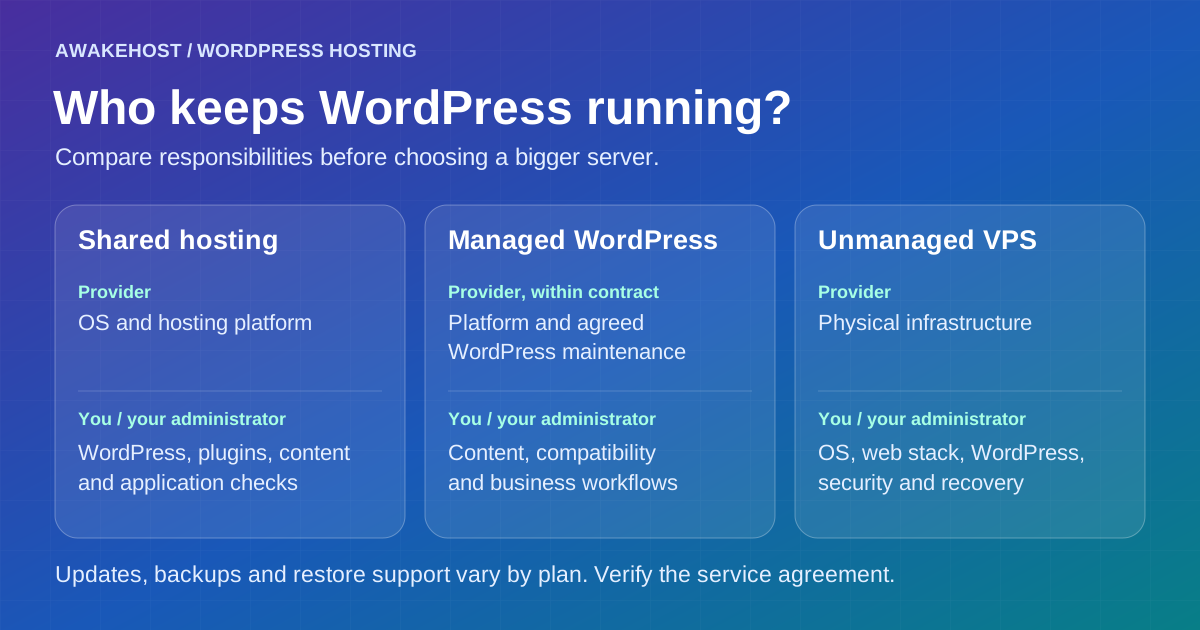
With shared hosting, multiple customers use the same underlying hosting environment. The provider manages the operating system, web server, and much of the infrastructure configuration.
You typically manage WordPress through a hosting control panel such as cPanel.
Your account may have limits on CPU usage, memory, concurrent processes, storage, and monthly data transfer.
A Virtual Private Server (VPS) provides an independently managed virtual machine with its own operating system environment and allocated resources.
You can usually choose your software, configure server services, install compatible applications, and manage how WordPress uses available resources.
The physical server may still be shared with other virtual machines, and a plan's vCPU resources may use shared processing capacity. A VPS doesn't automatically mean you own dedicated physical CPU cores.
Here's how the two hosting models compare.
| Feature | Shared Hosting | VPS Hosting |
|---|---|---|
| Server environment | Provider-managed shared environment | Separate virtual machine |
| Operating system access | Generally restricted | Usually full administrative access |
| CPU and RAM | Account-level limits | Allocated according to VPS plan |
| Software installation | Limited to supported applications | Greater configuration freedom |
| PHP configuration | Within hosting provider limits | Configurable by administrator |
| Web server configuration | Controlled by provider | Controlled by administrator |
| Server maintenance | Mainly provider-managed | Customer or managed VPS provider |
| Control panel | Often included | May require separate installation and licensing |
| Cost | Usually lower | Usually higher |
| Suitable workloads | Small to moderately demanding websites | Workloads requiring more control or resources |
Neither hosting type guarantees better performance on its own.
A well-managed shared hosting server can outperform a poorly configured VPS.
The difference becomes important when your website's requirements exceed what your current hosting environment can provide.
7 Signs Your WordPress Website May Need a VPS
There isn't a fixed amount of traffic that requires a VPS.
A static blog receiving thousands of cached page views may need fewer resources than an online store processing a much smaller number of database-heavy requests.
Instead of counting visitors, look for recurring limitations that affect your website's operation.
1. Your Hosting Account Keeps Reaching CPU or Memory Limits
This is one of the clearest reasons to investigate a VPS upgrade.
Shared hosting providers often place resource limits on individual accounts to prevent one website from consuming excessive capacity.
Depending on the platform, these limits may include:
- CPU processing time.
- Physical memory usage.
- Entry processes or concurrent requests.
- Disk input/output operations.
- Process counts.
- Storage and inode usage.
If your WordPress website repeatedly reaches those limits, the hosting platform may restrict resource consumption or fail to serve some requests.
For example, imagine a WooCommerce store running product searches, inventory updates, and checkout operations during a promotion.
As more customers use the website, PHP workers and database queries may require more processing time.
If the account repeatedly reaches its available CPU or process limits, customers could experience slow responses or failed requests.
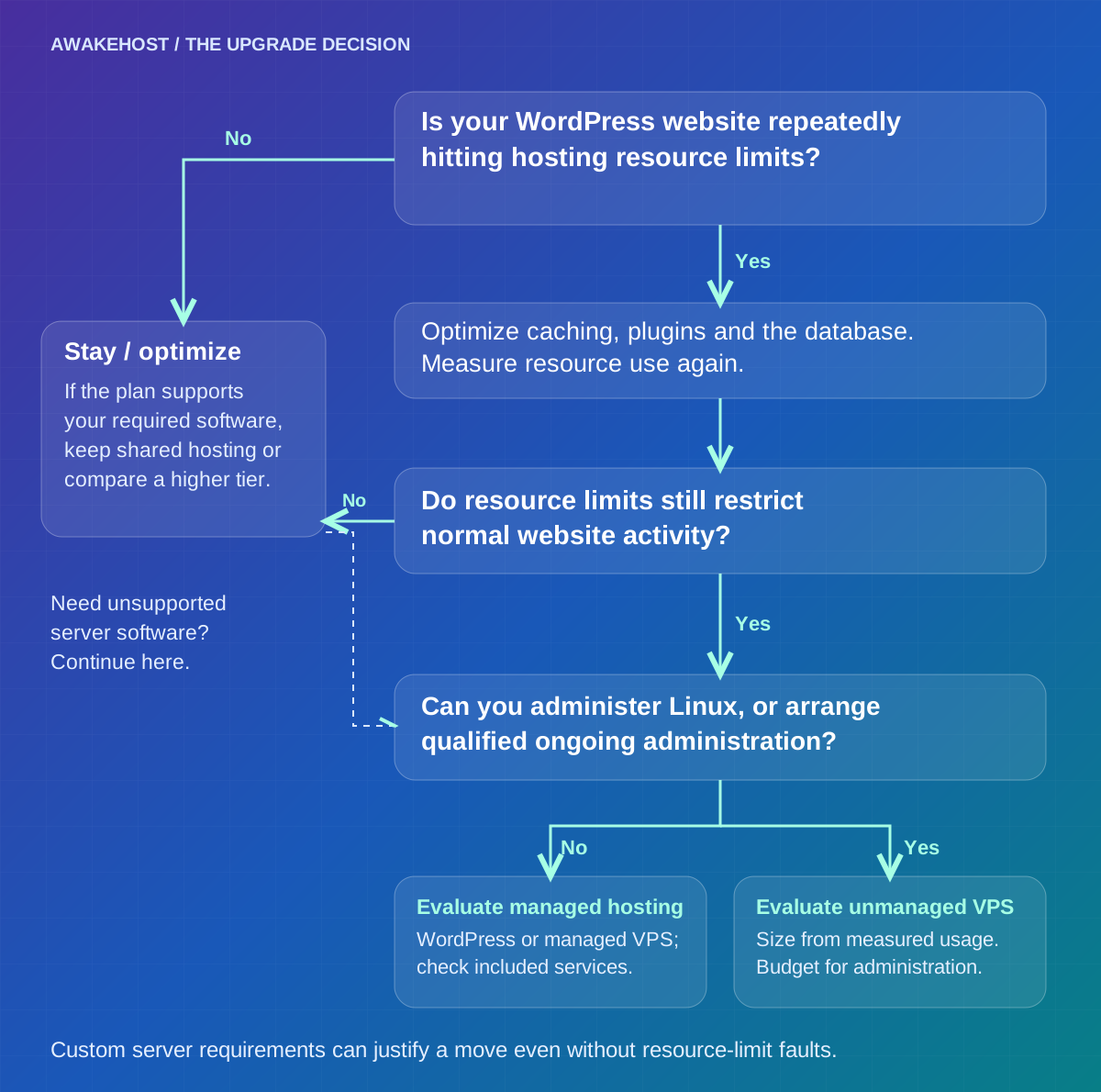
That doesn't automatically mean you need a VPS. First, investigate why those resources are being consumed.
A poorly configured plugin or database query may be responsible.
However, if resource usage remains high after reasonable optimization, moving to a larger hosting environment becomes a sensible option.
What to check: If your provider uses CloudLinux and exposes the feature, look for Resource Usage under cPanel's Metrics section. Review CPU, memory, entry processes, and recorded resource faults.
Not every cPanel account displays these statistics. The feature depends on the hosting provider's server configuration.
2. WordPress Admin Is Slow Even When the Frontend Is Cached
A slow homepage doesn't necessarily indicate a server resource shortage.
Your theme might load oversized images or excessive JavaScript.
But if your public pages are reasonably fast while the WordPress dashboard regularly struggles, it's worth investigating the backend.
For example:
- Saving posts takes an unusually long time.
- Product searches in WooCommerce are slow.
- The plugin management page times out.
- Bulk product updates fail.
- The dashboard becomes unresponsive during scheduled tasks.
The WordPress dashboard performs dynamic work that generally cannot benefit from ordinary full-page caching in the same way as public pages.
It needs PHP execution and database access.
A slow dashboard may indicate insufficient resources, inefficient database queries, excessive autoloaded data, or troublesome plugins.
Before upgrading, check WordPress Site Health, application error logs, and database performance.
If the application is properly optimized but still needs more memory or processing capacity than your shared hosting account provides, a VPS may give you room to configure and allocate those resources.
3. Your Website Slows Down During Traffic Spikes
Imagine publishing an article that gains attention on social media.
Your normal traffic increases sharply, and several visitors arrive at once.
Suddenly, your pages take longer to load or display errors.
This can happen when the hosting account reaches its resource limits.
But traffic spikes don't always require an immediate VPS upgrade.
If your pages are mostly static, effective caching and a content delivery network (CDN) may reduce the work your origin server performs.
The situation changes when visitors trigger uncached operations.
Examples include:
- Adding products to shopping carts.
- Logging in to customer accounts.
- Submitting forms that require server processing.
- Searching large databases.
- Generating personalized pages.
These requests may continue reaching WordPress and its database even when public pages are cached.
When your site repeatedly struggles during legitimate bursts of concurrent activity, compare your shared hosting limits against the measured application workload.
A VPS with appropriate resources and configuration may be useful, but moving to one without addressing the underlying application bottleneck could produce the same problem.
4. Your WooCommerce Store Is Outgrowing Its Hosting Environment
WooCommerce adds more server-side activity to WordPress.
A standard blog mostly publishes content for readers.
An online store may need to process customer sessions, stock calculations, order creation, payment callbacks, product variations, and scheduled tasks.
Many of these operations depend on current database information.
You cannot safely cache every checkout or account response as a public page.
Consider a small store that receives 20 orders per day.
If the website performs well and customers complete purchases without errors, shared hosting may be perfectly adequate.
Now consider a store handling many simultaneous checkouts, stock updates, and integrations with external services.
The resource requirements can be considerably higher.
At that point, your hosting environment may need more PHP workers, database capacity, or memory.
A VPS can provide greater control over those settings.
However, upgrading to a VPS shouldn't be treated as a replacement for fixing inefficient queries, plugin conflicts, or slow third-party payment services.
For an online store, measure the actual checkout experience before making a hosting decision.
5. You Need Software or Server Settings Your Shared Host Doesn't Support
Sometimes the reason to move has nothing to do with traffic.
Your website may need a server feature that isn't available on shared hosting.
For example, you might want to:
- Configure Nginx or Apache directly.
- Run a particular supported PHP version or extension.
- Install and administer Redis for persistent object caching.
- Configure a custom background worker.
- Run a private service alongside WordPress.
- Modify system-level scheduled tasks.
- Install compatible monitoring or deployment tools.
- Integrate WordPress with a custom application.
Shared hosting packages usually restrict what customers can install at the operating system level.
That is part of how providers maintain a managed environment for multiple users.
On a self-managed VPS, you have more freedom to configure the software stack.
But this freedom comes with responsibility.
Installing Redis, for example, doesn't automatically make WordPress faster. The service must be configured securely, integrated through suitable software, and monitored.
If your website needs custom server software and your current provider can't support it, that can be a valid reason to move even when your traffic is low.
6. You're Managing Several WordPress Websites
Running multiple websites doesn't automatically require multiple servers.
A shared hosting package may already support several domains and WordPress installations.
However, agencies and developers managing many sites can encounter resource and configuration limitations.
Suppose an agency hosts eight WordPress websites under one shared hosting account.
If one site starts consuming excessive CPU or memory, it may affect the resources available to the others.
A VPS can allow the agency to organize the hosting environment more carefully, configure separate application users, and monitor combined resource usage.
However, a single VPS is still a shared failure domain for the websites running inside it.
If the VPS goes offline, all eight websites may become unavailable.
Hosting several unrelated clients on one server also introduces security and maintenance responsibilities.
Before consolidating websites on a VPS, consider how they will be isolated, backed up, updated, and restored.
A VPS may reduce hosting costs across several sites, but only if the total resource and administration costs make sense.
7. Your Website Has Become Important to Daily Business Operations
A personal blog can often tolerate occasional maintenance or slower performance.
A website that accepts payments, manages appointments, or provides customer access has different operational requirements.
If a hosting limitation repeatedly disrupts important business functions, that is a reason to evaluate your infrastructure.
However, business importance alone doesn't mean unmanaged VPS hosting is the right choice.
A company without Linux administration experience may be better served by a higher-resource managed WordPress plan or a managed VPS service.
You need suitable resources and an arrangement that ensures someone is responsible for updates, monitoring, security, and recovery.
The decision isn't simply whether your website deserves a bigger server.
It's whether your current hosting service can meet the technical and operational requirements of your business.
How to Check Whether Shared Hosting Is Actually the Problem
Before spending more money, spend a little time identifying the cause of the slowdown.
A website can perform poorly because of hosting limitations, but it can also suffer from inefficient code, large images, plugin conflicts, or third-party scripts.
These problems won't necessarily disappear after migration.
Check Your Hosting Resource Usage
Start with your hosting control panel.
If the relevant metrics are available, review resource usage over several days.
Look for repeated CPU, memory, or process-limit faults rather than one isolated spike.
Match the timestamps against slow website activity.
For example, if WordPress becomes unresponsive at the same time your account repeatedly hits an entry-process limit, that is useful evidence.
If resource usage remains low during the slowdown, investigate other causes.
Test WordPress Performance
Use tools such as Google PageSpeed Insights to examine real-user performance where data is available.
Pay attention to Core Web Vitals, including:
| Metric | What it measures | Good threshold |
|---|---|---|
| Largest Contentful Paint (LCP) | Main content loading | 2.5 seconds or less |
| Interaction to Next Paint (INP) | Responsiveness to user interactions | 200 ms or less |
| Cumulative Layout Shift (CLS) | Visual stability | 0.1 or less |
These are Google's published Core Web Vitals thresholds for a good experience, evaluated at the 75th percentile of page visits.
They aren't direct measurements of your hosting account's CPU or RAM.
A slow LCP may result from server response time, render-blocking resources, large images, or several combined factors.
Likewise, poor INP can result from excessive JavaScript running in the visitor's browser.
Moving to a VPS may improve server-side delays but cannot automatically resolve every Core Web Vitals issue.
Check WordPress Site Health
Inside your WordPress dashboard, navigate to:
Tools → Site Health
Review the Status and Info sections.
You may find information about your PHP environment, database, server settings, and other configuration details.
Site Health can also identify certain scheduled-task or loopback request problems.
It won't tell you exactly how much VPS RAM to purchase, but it can expose problems that should be addressed before migration.
Investigate Plugins and Database Queries
WordPress performance problems often come from the application itself.
For example, a plugin might repeatedly query a large database table or run unnecessary background operations.
Review recently installed plugins and changes made around the time the problems began.
Where appropriate, use a diagnostic tool in a controlled environment to identify slow database queries or excessive hooks.
Avoid disabling important plugins on a live online store without considering the effect on customers.
If optimization resolves the problem, remaining on shared hosting may be the better financial decision.
What Should You Try Before Upgrading to a VPS?
An upgrade should solve a measured limitation.
Before moving, consider these improvements.
Configure Page Caching
For public WordPress pages, caching can reduce repeated PHP execution and database queries.
A properly configured cache may allow your current shared hosting account to handle substantially more traffic.
Take care with personalized pages, carts, checkout responses, and customer dashboards.
Those require suitable exclusions or application-aware caching rules.
Optimize Images and Static Files
Large images can slow down a website regardless of where it's hosted.
Use appropriately sized images, efficient formats, and browser caching where possible.
A CDN may help deliver eligible static content closer to visitors.
Update Your PHP Environment
The WordPress requirements recommend PHP 8.3 or newer, alongside supported MySQL or MariaDB versions.
Check compatibility with your theme and plugins before changing PHP versions.
Avoid relying on outdated runtime versions simply because the website still loads.
Review Plugins and Database Health
Remove unnecessary plugins and investigate slow queries.
Review excessive autoloaded options, database table growth, scheduled tasks, and unnecessary background activity.
For some websites, these changes provide a better return than paying for additional server capacity.
Compare a Higher Shared Hosting Plan
Your existing provider may offer a package with more resources or fewer restrictions.
If you don't need root access, upgrading within a managed shared hosting environment may be simpler and less expensive than moving to a VPS.
If you've already tried these improvements and your website still regularly exceeds its resource limits, a VPS becomes a stronger option.
How Much RAM Does WordPress Need on a VPS?
There's no universal RAM requirement for a WordPress VPS.
The correct amount depends on the application, number of concurrent requests, web server, database, plugins, caching, and other services running on the machine.
Remember that VPS RAM isn't reserved solely for WordPress.
Your operating system, database, PHP workers, web server, and monitoring tools also consume memory.
Here are practical starting points for evaluation.
| VPS RAM | Workload to evaluate |
|---|---|
| 1 GB | Very lightweight, carefully configured WordPress testing or limited production use |
| 2 GB | Small, optimized WordPress websites with modest traffic |
| 4 GB | Growing WordPress websites and smaller WooCommerce workloads |
| 8 GB | Busier websites, multiple applications, or more demanding databases |
| 16 GB+ | Larger workloads where monitoring demonstrates the need |
These are planning guidelines, not measured performance guarantees.
For a standard small WordPress business website, 2 GB may be sufficient with appropriate caching and a lightweight software stack.
For WooCommerce, 4 GB can be a more comfortable starting point, depending on plugins, concurrency, and background tasks.
If you intend to install cPanel/WHM on the VPS, include its own memory and storage requirements when sizing the server.
A 1 GB VPS that can run a minimal WordPress installation isn't necessarily suitable for a full hosting control panel and database workload.
The best VPS size comes from measured usage with enough headroom for normal traffic variation and maintenance.
Shared Hosting vs VPS Cost: What Are You Really Paying For?
VPS hosting generally costs more than entry-level shared hosting.
But the monthly server price doesn't represent the entire difference.
Shared hosting often includes the web server environment, control panel, and basic system administration within the subscription.
With unmanaged VPS hosting, you may need to configure and maintain those components yourself.
AwakeHost Shared Hosting vs VPS Pricing
Here are selected monthly plans advertised on AwakeHost Shared Hosting and VPS Hosting, checked on October 25, 2026.
| Plan | Monthly price | Published resources |
|---|---|---|
| Shared Starter | $2.98 | 1 GB NVMe storage, 10 GB transfer |
| Shared Deluxe | $4.99 | 50 GB NVMe storage, 50 GB transfer |
| VPS 2 | $14.99 | 2 GB RAM, 1 vCPU, 55 GB NVMe, 2 TB transfer |
| VPS 4 | $24.99 | 4 GB RAM, 2 vCPU, 80 GB NVMe, 3 TB transfer |
Prices are in USD and reflect the advertised standard monthly configurations at the time of writing. Promotional pricing, renewals, locations, and actual order configurations should be checked before purchase.
These plans aren't directly equivalent.
Shared hosting includes a configured environment with cPanel and website-hosting features.
The VPS plans provide an independent virtual server environment and greater administrative control.
The Costs Beyond the VPS Price
Before choosing a VPS, account for:
Server administration: Someone needs to maintain Linux, PHP, the database, web server, and security configuration.
Control panel licensing: If you want cPanel/WHM, the license and its server requirements may add to your cost.
Backup storage: Independent backups may require a separate service or storage destination.
Security and monitoring: You need an appropriate process for firewall rules, patches, log reviews, and failure alerts.
Migration: Moving a production website can involve technical work, testing, and sometimes paid assistance.
For example, suppose you choose a $24.99 VPS and need two hours of external administration at $30 per hour each month.
Your estimated monthly expense becomes:
| Expense | Monthly cost |
|---|---|
| VPS hosting | $24.99 |
| Administration | $60.00 |
| Estimated total | $84.99 |
This is an illustrative cost calculation, not an AwakeHost management quote.
The amount could be lower if you administer the VPS yourself, or higher if you need additional services.
Compare the complete operating cost against the benefits the migration is expected to deliver.
Managed WordPress Hosting vs Unmanaged VPS: Don't Overlook the Third Option
A VPS isn't the only upgrade path available.
If your WordPress website is exceeding the limits of basic shared hosting but you don't want to manage Linux, consider a higher-resource managed WordPress plan or a managed VPS.
These services are not identical, and what's included varies by provider.
A managed WordPress package may provide a configured WordPress environment, updates, caching features, or application-focused support.
A managed VPS may provide server-level administration, depending on its service agreement.
An unmanaged VPS generally leaves operating system and application maintenance to you.
Which Arrangement Fits Your Situation?
| Your situation | Option worth considering |
|---|---|
| Small website with few technical requirements | Shared hosting |
| Growing site needing more resources but little administration | Higher-resource managed WordPress hosting |
| Website needing custom server software | Unmanaged VPS with qualified administration |
| Business-critical website without a system administrator | Managed VPS or suitable managed WordPress hosting |
| Agency with experienced Linux administrators | Self-managed VPS or several VPS instances |
Pay particular attention to support boundaries.
A hosting provider may assist with infrastructure faults while leaving WordPress plugin conflicts, custom code, and server configuration to the customer.
If you want those tasks handled for you, confirm that the service agreement includes them before buying.
For a detailed explanation, see Managed vs Unmanaged VPS Hosting: What Are You Paying For?.
How to Move WordPress From Shared Hosting to VPS
Once you've decided to migrate, plan the move carefully.
You don't need to rebuild your website from scratch.
The WordPress migration documentation covers moving an existing installation to another server, provided its files, database, and configuration are transferred correctly.
A safe migration process looks like this.
Step 1: Audit the Existing Website
Record your current PHP version, WordPress version, database requirements, active plugins, theme, storage usage, and special server settings.
Also identify email accounts, scheduled tasks, external integrations, and DNS records that could be affected by the move.
Step 2: Back Up the WordPress Files and Database
Create a verified backup before making changes.
Include WordPress files, uploads, themes, plugins, and the database.
Make sure you can access the backup independently of the existing hosting account.
Step 3: Prepare the New VPS
Install a supported operating system and a compatible web server, PHP runtime, and database environment.
WordPress currently recommends PHP 8.3 or newer, MariaDB 10.11 or newer or MySQL 8.0 or newer, and HTTPS support.
Configure SSH access, security updates, firewall rules, and backups before exposing the new site to production traffic.
Step 4: Transfer the Website
Move your WordPress files and database to the VPS.
Update database connection details in wp-config.php if the new server uses different credentials.
If the domain remains unchanged, you generally don't need to change every WordPress URL.
Avoid running an unrestricted text replacement directly against the database, because WordPress can store serialized data that ordinary search-and-replace operations may damage.
Step 5: Test Before Changing DNS
Use a staging method or a local hosts-file override to reach the new VPS while keeping the public domain directed to the existing server.
Check important functions, including login, forms, images, search, and any eCommerce features. Isolate staging from production email, payment capture, webhooks, and scheduled jobs; use test credentials and a sandbox where appropriate.
Confirm that HTTPS and redirects work correctly.
Step 6: Plan the Final Data Synchronization
If your website changes frequently, data written during the migration can be missed by an earlier database copy.
For a busy WooCommerce store, arrange a controlled cutover.
You may need to pause order creation briefly, perform a final database synchronization, and confirm that transactions aren't being written to both environments.
Avoid switching traffic while two unsynchronized databases are actively accepting orders.
Step 7: Update DNS
After successful testing and final synchronization, update the relevant DNS records.
DNS changes can take time to reach all networks.
Keep the previous hosting account available during the transition so you can monitor the cutover and respond if necessary.
Step 8: Monitor the New Server
After the move, review:
- WordPress and PHP error logs.
- CPU and RAM usage.
- Database activity.
- Checkout and contact form functionality.
- Background tasks.
- Backup completion.
- Website response times.
Only cancel the previous hosting service after you've confirmed that the new environment is operating correctly and no essential data or email service depends on the old account.
Will Moving WordPress to a VPS Improve SEO?
A VPS doesn't automatically improve Google rankings.
Google doesn't award a ranking advantage simply because a website uses VPS hosting instead of shared hosting.
However, server performance can contribute to the overall experience visitors receive.
If your old hosting environment repeatedly causes slow responses or availability problems, addressing those issues may improve the user experience.
A properly configured VPS may help when the original problem is insufficient server capacity.
But hosting alone won't repair render-blocking JavaScript, oversized images, poorly structured pages, or content quality problems.
After migration, compare Core Web Vitals and real-user measurements against your previous hosting environment.
Also check that the move hasn't introduced broken redirects, incorrect canonical URLs, indexing restrictions, or missing pages.
A hosting migration should preserve your website's existing URLs wherever possible.
Don't change the site's content structure and hosting environment simultaneously unless you have a good reason and a plan to verify both changes.
When Should You Stay on Shared Hosting?
There are plenty of situations where moving to a VPS would add cost without delivering meaningful benefits.
You should consider staying on shared hosting if:
- Your website loads consistently well.
- You aren't regularly reaching resource limits.
- Your current provider supports the software you need.
- WordPress updates and background tasks work normally.
- Your business doesn't require server-level administration.
- You don't have the time or technical resources to maintain a VPS.
For example, a personal blog with a lightweight theme and effective page caching might run comfortably on shared hosting for years.
Moving it to a VPS solely because traffic is growing could introduce unnecessary work.
The same applies to a small business website that generates leads but doesn't perform heavy server-side processing.
If the website is already meeting your needs, put your budget toward the improvements that matter most.
When Is a VPS the Better Choice?
A VPS becomes more attractive when you've confirmed that the website needs additional resources or server-level control.
For instance, a growing online store may need a more flexible PHP and database configuration.
An agency may want to manage several client environments with its own deployment and monitoring tools.
A developer may need Redis, background workers, custom software, or operating system access unavailable on shared hosting.
In those circumstances, VPS hosting gives you room to configure the environment around the application.
The additional control is valuable when someone can maintain it properly.
A VPS isn't a replacement for good WordPress development or server administration.
It's a hosting environment that allows you to take greater responsibility for both.
Moving Your WordPress Website to AwakeHost VPS
AwakeHost offers shared hosting and KVM VPS configurations for different website requirements.
For smaller WordPress sites, AwakeHost Shared Hosting provides cPanel, LiteSpeed, SSL, and several resource tiers.
If your application needs its own operating system environment, AwakeHost VPS Hosting provides configurable CPU, RAM, storage, and deployment locations.
For a growing WordPress website, compare the VPS plan's actual resource allocation against your current usage.
Don't select a large server simply because it has more RAM.
Consider the web server, database, caching configuration, number of websites, and expected concurrent requests.
Also confirm the available operating system images and whether you need to arrange server administration or a hosting control panel separately.
If you're preparing a migration, contact AwakeHost with your current hosting details, website storage, software requirements, and preferred VPS location.
The team can discuss available migration assistance, technical scope, and any applicable costs before you move.
Final Verdict: When Should You Upgrade WordPress to VPS?
Move WordPress to a VPS when your current hosting environment is a verified limitation—not simply because your website has grown.
If your shared hosting account repeatedly reaches CPU or memory limits, your online store struggles with legitimate traffic, or you need software that your provider doesn't support, VPS hosting deserves serious consideration.
If WordPress is slow because of an inefficient theme, excessive plugins, or poorly configured caching, fix those issues first.
And if you don't want to manage an operating system, consider a managed hosting arrangement rather than purchasing an unmanaged VPS without a maintenance plan.
For many small WordPress websites, shared hosting is still a sensible choice.
For growing websites with demanding applications or custom requirements, a properly sized VPS can provide valuable control and configuration flexibility.
The best time to upgrade is when you understand what your website needs, what the new hosting service will provide, and who will be responsible for keeping it running.
Compare AwakeHost Shared Hosting and VPS Hosting to choose a configuration that fits your current workload and future requirements.
Frequently Asked Questions
When should I upgrade WordPress from shared hosting to VPS?
Consider upgrading when your shared hosting account repeatedly reaches CPU, memory, or process limits, your application requires unsupported server software, or website performance remains constrained after reasonable optimization. Actual resource usage is more useful than visitor counts alone.
Is VPS hosting faster than shared hosting for WordPress?
It can be, especially when the shared hosting environment is limiting a resource-intensive website. However, VPS performance depends on CPU allocation, RAM, storage, web server configuration, caching, and application efficiency. A VPS isn't automatically faster.
How many visitors can shared hosting handle?
There is no universal visitor limit. A lightweight cached blog may handle significantly more traffic than a database-heavy website with the same hosting resources. Review the provider's limits and your website's actual CPU, memory, and concurrent request usage.
How much RAM is enough for WordPress on a VPS?
A small optimized WordPress website may run with 2 GB RAM, while a growing WooCommerce store may benefit from evaluating 4 GB or more. Requirements depend on concurrency, plugins, database size, caching, and other software on the VPS.
Is VPS hosting worth it for WooCommerce?
It can be when your store needs more server resources or configuration flexibility than shared hosting offers. However, a small WooCommerce store that performs reliably on shared hosting doesn't necessarily need a VPS.
Can I move WordPress to VPS without changing my domain?
Yes. You can migrate WordPress files and the database to a VPS while keeping the same domain. Once the new server is tested, update the relevant DNS records to direct visitors to the new hosting environment.
Can I migrate WordPress without downtime?
A carefully planned migration can minimize interruption, but zero downtime shouldn't be assumed. Database synchronization, DNS changes, email services, and active transactions may require special handling.
Do I need cPanel on a WordPress VPS?
No. WordPress can run on a VPS with a manually configured web server, PHP, and database. A control panel can make administration easier, but it may require additional licensing and server resources.
Is a managed VPS better than an unmanaged VPS for WordPress?
A managed VPS may be more suitable if you need help maintaining the server. An unmanaged VPS can be cost-effective if you already have the skills or staff to handle operating system updates, security, monitoring, and troubleshooting. Check exactly which services are included.
Will moving WordPress to VPS increase Google rankings?
Not automatically. Moving may improve hosting-related performance issues, but Google doesn't rank websites higher solely because they use a VPS. Maintain your URLs, redirects, indexing settings, and site performance during migration.
Can I host multiple WordPress websites on one VPS?
Yes. A VPS can host multiple WordPress installations if its CPU, RAM, storage, and other resources support their combined workload. You should also configure appropriate security separation, backups, and administration for each website.