How to Test VPS Network Latency Before Choosing a Location
You're about to order a VPS. The plan has enough RAM, the storage looks good, and the monthly price fits your budget.
Then you reach the server location selector.
Should you choose Singapore, Mumbai, Karachi, London, or somewhere else?
It's tempting to select the city closest to your customers and assume it will deliver the fastest connection. But the internet doesn't always work that way.
A server located a few hundred kilometers away can sometimes respond more slowly than one thousands of kilometers away. Network routing, internet service providers, and congestion all influence how quickly data travels between users and servers.
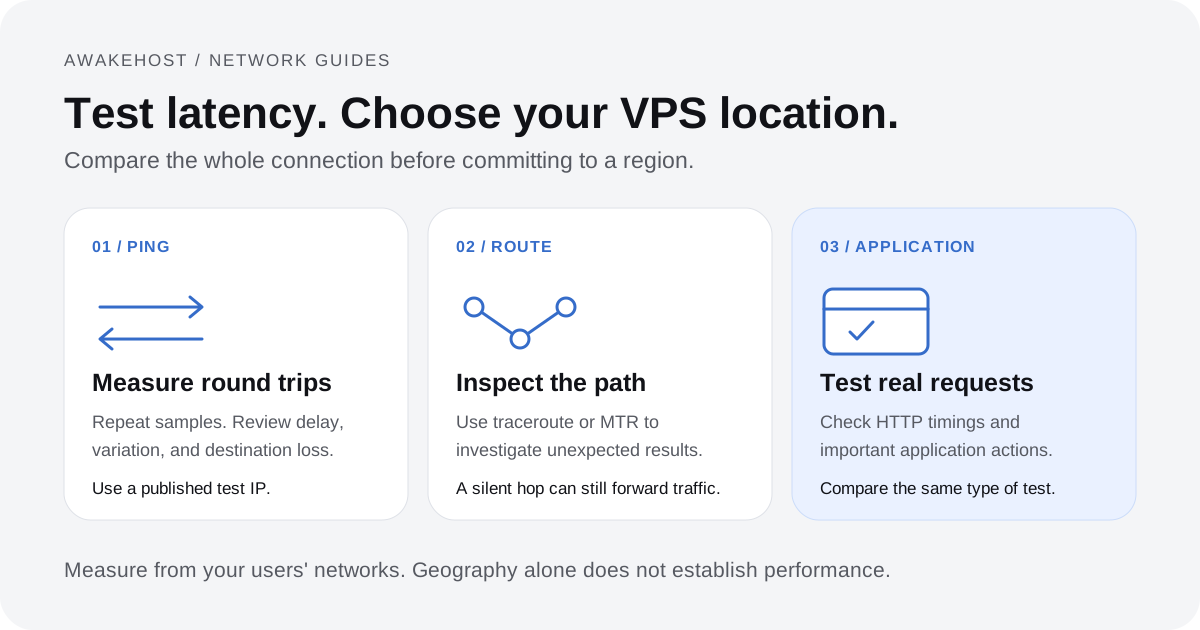
That's why you should test VPS network latency before choosing a server location, particularly if your application depends on quick response times.
You don't need to purchase multiple servers to start comparing locations. Tools such as ping, traceroute, and a hosting provider's Looking Glass can help you evaluate network connectivity in advance.
In this guide, you'll learn how to measure VPS latency, understand the results, and compare server locations using the AwakeHost Network Looking Glass.
What Is VPS Network Latency?
VPS network latency is the delay involved in transferring data between a device and a virtual private server.
When someone opens a website, their browser communicates with the server hosting it. The request travels across one or more networks, reaches the destination, and triggers a response.
That communication takes time.
One common way to measure it is through round-trip time (RTT), which represents the time required for a request to reach a destination and for its response to return.
RTT is usually measured in milliseconds (ms).
For example, a ping result of 30 ms means the test request and its response completed a round trip in approximately 30 milliseconds.
A result of 150 ms means the round trip took approximately 150 milliseconds.
For interactive applications, lower and more consistent latency is generally preferable.
However, a ping result doesn't tell you how long a complete webpage will take to load. The server may also need to process database queries, execute application code, and deliver images or other files.
Network latency is one part of website performance, not the entire measurement.
Latency, Bandwidth, and Network Speed Are Different
These terms are often confused when comparing VPS plans.
| Metric | What it measures | Common unit |
|---|---|---|
| Latency | Network communication delay | Milliseconds (ms) |
| Bandwidth capacity | How much data a connection can carry per second | Mbps or Gbps |
| Monthly data transfer | Total data transferred during a billing period | GB or TB |
| Packet loss | Percentage of transmitted packets that fail to reach their destination or receive a response | Percentage (%) |
| Jitter | Variation in packet delay | Milliseconds (ms) |
A VPS with a 1 Gbps network port doesn't automatically have lower latency than one with a 100 Mbps port.
Likewise, a server with 5 TB of monthly transfer isn't necessarily faster at responding to individual requests than a server with a 1 TB allowance.
If your goal is to make an application more responsive for users in a particular country, start by measuring latency and network reliability.
Then consider throughput, server hardware, and application performance. Our VPS bandwidth guide explains monthly transfer and port speed in more detail.
What Is a VPS Looking Glass?
A network Looking Glass is a diagnostic tool used to inspect or measure network connectivity.
Hosting providers and network operators use Looking Glass tools to help customers investigate routes and compare connections to different regions.
The available features vary by provider.
Some Looking Glass services display routing information from the provider's network. Others publish test IP addresses that you can ping from your own computer.
Some also provide browser-based latency measurements.
For a VPS buyer, the purpose is practical: to gather network information before committing to a particular deployment location.
What Can You Test With AwakeHost Looking Glass?
The AwakeHost Network Looking Glass lets you choose a regional test location and use its available network testing features.
Depending on the selected location, these may include:
- A published IPv4 test address.
- An IPv6 address where available.
- Manual ping testing from Windows, Linux, or macOS.
- Route inspection using commands from your computer.
- A browser-based HTTPS latency test where a regional endpoint is enabled.
The browser test can display median, average, minimum, and maximum HTTP latency, along with successful and failed request counts.
As of 16 October 2026, regional browser latency tests are not enabled. Use the published test IPs for manual checks where available. The browser-test instructions below describe how to use the feature when a verified endpoint becomes available.
AwakeHost also distinguishes between VPS deployment locations and locations that are available only as network test targets.
That distinction matters. A test location does not necessarily mean AwakeHost offers VPS deployment in that city.
The Looking Glass is useful for narrowing down locations, but a test IP shouldn't be treated as a guarantee of the latency you'll receive from every VPS instance in the region.
How to Test VPS Network Latency With AwakeHost Looking Glass
You can begin comparing locations directly from your computer.
For the most useful results, perform the tests using the same internet connection your customers or team members would normally use.
Step 1: Open the Network Looking Glass
Visit:
https://awakehost.com/looking-glass/
Find the network test location selector.
Choose a city you're considering for your VPS.
For example, if your website targets users in Pakistan and other parts of South Asia, you might want to investigate Karachi, Mumbai, and Singapore.
These are examples of potential deployment regions, not a claim that every associated test endpoint is currently active.
Check the status shown for each selected location.
If the page provides a test IPv4 address, you can use it for manual measurements.
If the browser-based test is enabled, you can use that too.
Step 2: Copy the Test IP Address
After selecting a location, find the published test IPv4 address.
Copy it using the button provided.
You'll use this address to send test requests from your own computer.
For the next commands, replace TEST_IP with the IPv4 address displayed on the Looking Glass page.
Don't use a random IP address associated with the same country. You want to measure the specific network target published for that location.
Step 3: Run a Ping Test on Windows
If you're using Windows, open Command Prompt or Windows Terminal.
Run:
ping -n 20 TEST_IPFor example, the final command should contain the numeric IPv4 address you copied, not the words TEST_IP.
The -n 20 option sends 20 ping requests. See the Windows ping documentation for command options.
Windows will display the response time for each successful reply, followed by summary statistics.
The results normally include:
- Packets sent.
- Packets received.
- Packets lost.
- Minimum round-trip time.
- Maximum round-trip time.
- Average round-trip time.
The summary gives you a starting point for comparing network paths.
Four packets can reveal basic reachability, but 20 or more samples are more useful for observing variation.
For a serious location comparison, repeat the test rather than relying on one short run.
Step 4: Run a Ping Test on Linux or macOS
On Linux or macOS, open Terminal and run:
ping -c 20 TEST_IPThe -c 20 option limits the test to 20 packets.
You'll see individual response times followed by statistics.
On Linux, the summary typically includes minimum, average, maximum, and a variation measurement.
On macOS, the output format may differ slightly.
If your server location provides an IPv6 test address, you can also test IPv6 using an appropriate IPv6-capable ping command.
Make sure your own connection supports IPv6 before interpreting a failed IPv6 test as a server problem.
Step 5: Test Another VPS Location
Return to the AwakeHost Looking Glass and select your second location.
Copy its published test IP.
Run the same ping command using the same number of packets.
Keep the testing conditions as similar as possible.
For example, don't compare one server using office fiber broadband with another using a mobile hotspot.
That would introduce a major difference unrelated to the server locations.
It's also worth testing more than once during the day, especially if your customers experience heavier internet usage in the evening.
Network performance can change as traffic increases.
How to Read VPS Ping Test Results
A ping test becomes useful when you understand what its numbers actually mean.
Consider the following hypothetical comparison.
| Measurement | Location A | Location B |
|---|---|---|
| Minimum RTT | 28 ms | 47 ms |
| Average RTT | 34 ms | 51 ms |
| Maximum RTT | 92 ms | 59 ms |
| Packet loss | 0% | 0% |
These are illustrative figures, not measurements of AwakeHost infrastructure.
Location A has the lower average RTT.
However, its maximum response time is considerably higher than its minimum.
Location B has a higher average delay but a narrower range of observed response times.
Which result is better?
For a basic website, Location A's lower latency may be attractive.
For a latency-sensitive interactive application, you would want to investigate why Location A occasionally produces slower responses.
A small sample isn't enough to determine whether that variation is normal or a recurring problem.
Run longer tests during different periods before choosing.
Minimum Latency
Minimum latency is the lowest round-trip time recorded during the test.
It can help show how quickly a destination responded under the most favorable observed conditions.
However, it doesn't describe the experience of every request.
A server with a minimum RTT of 20 ms might still experience occasional responses taking much longer.
Average Latency
Average latency is the arithmetic mean of successful round-trip measurements.
It's useful when comparing locations under similar test conditions.
But large delays can increase the average even if most requests are much faster.
That's why you should also examine the distribution of results.
Median Latency
The median is the middle value when successful measurements are arranged from lowest to highest. With an even number of successful samples, it is the mean of the two middle values.
If most responses complete quickly but one takes an unusually long time, the median is less affected than the average.
This makes it a useful measure of typical latency.
AwakeHost's browser-based HTTP test displays the median where regional testing is available.
However, the median doesn't tell you how slow the worst requests were. Review the minimum and maximum as well.
Maximum Latency
Maximum latency is the slowest successful response observed during the test.
An occasional high value may come from local Wi-Fi interference, network congestion, or other temporary conditions.
One slow packet isn't proof that a hosting location is unreliable.
Repeated spikes are more concerning, especially when they occur during normal usage hours.
Packet Loss
Packet loss refers to packets that fail to complete the expected network communication.
In a ping test, the reported loss rate reflects ICMP requests that didn't receive usable replies within the test conditions.
For example, if you send 100 ping requests and receive 98 replies, the ping test reports 2% packet loss.
Consistent loss at the destination can be worth investigating, particularly for real-time applications.
However, some servers or routers restrict ICMP responses.
A missing ping reply doesn't always mean normal website traffic is being dropped.
Also, AwakeHost's browser test reports failed HTTP requests separately. Those failures are not the same metric as ICMP packet loss.
Is 20 ms, 50 ms, or 100 ms Good VPS Latency?
There isn't one ideal latency number for every application.
The effect depends on how often your application communicates with the server and how much waiting time users can tolerate.
Consider a website that serves mostly static content.
Once a browser has downloaded and cached its images, stylesheets, and scripts, it may not need to make as many requests to the origin server.
A customer support dashboard is different.
Users may search records, submit forms, switch between accounts, and perform operations that require repeated server communication.
For that workload, network delay can be more noticeable.
As a general principle:
- Lower latency helps interactive requests finish sooner.
- Consistent latency makes application behavior more predictable.
- Packet loss can force some protocols to retransmit data or recover from interruptions.
- High bandwidth doesn't compensate for every latency problem.
Don't select a VPS solely because a provider advertises a particular ping figure.
A latency number is meaningful only when you know the source network, destination, test method, and measurement conditions.
How to Use AwakeHost's Browser Latency Test
Manual ping testing measures ICMP round-trip time.
A browser-based HTTP test measures something different.
When a regional HTTPS endpoint is available, AwakeHost's Looking Glass can send small HTTPS requests from your browser and report the observed response times.
This more closely resembles a web request than a basic ICMP ping, although it still isn't equivalent to loading a complete application.
Running the Browser Test
- Open the AwakeHost Network Looking Glass.
- Choose a test location.
- Check whether browser latency testing is available.
- If enabled, start the test using the page's testing control.
- Review the results after the measurement completes.
For available endpoints, the results include the median, average, minimum, and maximum HTTP latency.
You'll also see how many requests succeeded or failed.
If the selected location is marked as coming soon, the browser test is not yet available for that location.
You can use its published test IP for manual checks if one is provided.
Why HTTP Latency Differs From Ping
Ping measures the round trip of an ICMP exchange.
An HTTPS request involves additional work, potentially including connection establishment, encryption, server processing, and response delivery.
As a result, HTTP request time can be higher than ICMP latency.
This doesn't mean either measurement is wrong.
They measure different operations.
When comparing AwakeHost browser test results, use the same type of test for each location.
Don't compare a 30 ms ping to one city against an 80 ms HTTPS result from another and conclude that the first city has the faster application network.
Compare ping with ping, and browser HTTP latency with browser HTTP latency.
How to Check Network Routing With Traceroute
Ping tells you how quickly a destination responds. Traceroute helps investigate the network path used to reach it.
Internet traffic normally passes through several routers between your device and its destination.
Each router along that path is commonly called a hop.
A traceroute attempts to identify intermediate hops and provides information about their responses.
This can be useful when a server in a geographically nearby country has unexpectedly high latency.
Run Traceroute on Windows
Open Command Prompt and run:
tracert -d TEST_IPThe -d option prevents Windows from spending additional time resolving intermediate IP addresses into hostnames, as explained in the Windows tracert documentation.
You'll see a numbered list of hops and their associated response times where routers reply.
Run Traceroute on Linux
Install the traceroute utility if it isn't already available.
On Ubuntu:
sudo apt update
sudo apt install traceroute
Then run:
traceroute -n TEST_IPThe -n option skips hostname lookups.
On macOS, the built-in traceroute command can be used in a similar way.
How to Interpret the Results
Suppose your traceroute shows that traffic passes through several intermediate networks before reaching the destination.
That can help explain why the route takes longer than you expected.
However, traceroute doesn't provide a perfect map of every physical network connection.
Some routers don't respond to traceroute probes. Others may limit or deprioritize the responses.
You may see an asterisk (*) where a router didn't answer.
That doesn't automatically mean your packets were lost or that the network is broken.
If later hops and the destination respond normally, an unanswered intermediate hop may simply be filtering or limiting diagnostic traffic.
A traceroute is most useful when interpreted alongside actual destination latency and application behavior.
Advanced Testing: Using MTR to Investigate Network Problems
If you're comfortable using Linux, MTR combines aspects of ping and traceroute.
It repeatedly sends probes along the route and reports measurements for responding hops.
This can help investigate unstable routes or intermittent connectivity.
On Ubuntu, install MTR:
sudo apt update
sudo apt install mtr-tiny
Then run:
mtr -rw -c 50 TEST_IPThis generates a report after 50 probing cycles.
The output can help you examine response times and reported loss at different points along the route.
Be cautious when interpreting intermediate-hop packet loss.
Routers can respond less frequently to diagnostic packets than to ordinary forwarded traffic.
Loss reported at one intermediate hop isn't necessarily affecting traffic reaching the destination.
If your final destination shows no loss and your application is working normally, an isolated high loss percentage at an intermediate router may not indicate a service problem.
For a location comparison, destination behavior matters more than trying to find one perfect-looking traceroute.
How to Compare VPS Locations for Customers in Different Countries
Testing from your own computer is useful, but it only tells you about the connection from your network.
Imagine you run a SaaS application serving customers in Pakistan, Bangladesh, and Singapore.
You test three VPS locations from your office in Lahore.
Karachi produces the lowest latency from your office.
That result may be relevant to your Pakistani users, but it doesn't prove that Karachi will perform best for someone in Dhaka or Singapore.
Those users may have different internet providers and network routes.
To make a more useful comparison, test from locations that represent your audience.
Example: A Website Serving South Asia
Suppose your website's audience looks like this:
| Audience | Share of traffic |
|---|---|
| Pakistan | 50% |
| Bangladesh | 25% |
| India | 15% |
| Other countries | 10% |
You could begin by comparing server connectivity from:
- Pakistani broadband and mobile connections.
- A Bangladeshi network representative of your users.
- An Indian network representative of your users.
- Additional networks from important secondary markets.
If you don't have access to those connections, tools such as RIPE Atlas can provide measurements from participating probes in different networks, subject to tool availability and usage requirements.
The goal is to avoid choosing a server based entirely on the location of your own computer.
Use Traffic-Weighted Results
If you have measurements from each important market, you can calculate a traffic-weighted average.
For each country, multiply its measured latency by the share of traffic coming from that country.
Then add the results.
For example, if Pakistan accounts for half of your requests, Pakistani measurements should have more influence than a country contributing only 5% of your traffic.
This can be useful when comparing VPS locations for a broad audience.
However, a weighted average can conceal poor performance in smaller markets.
Review slow-request measurements and packet loss separately before deciding.
Why the Nearest VPS Isn't Always the Fastest
Physical distance matters because information cannot travel instantaneously.
But the shortest geographic path isn't always the path internet traffic takes.
Network operators exchange traffic through peering relationships and transit providers.
The resulting routes can vary between internet service providers, even within the same city.
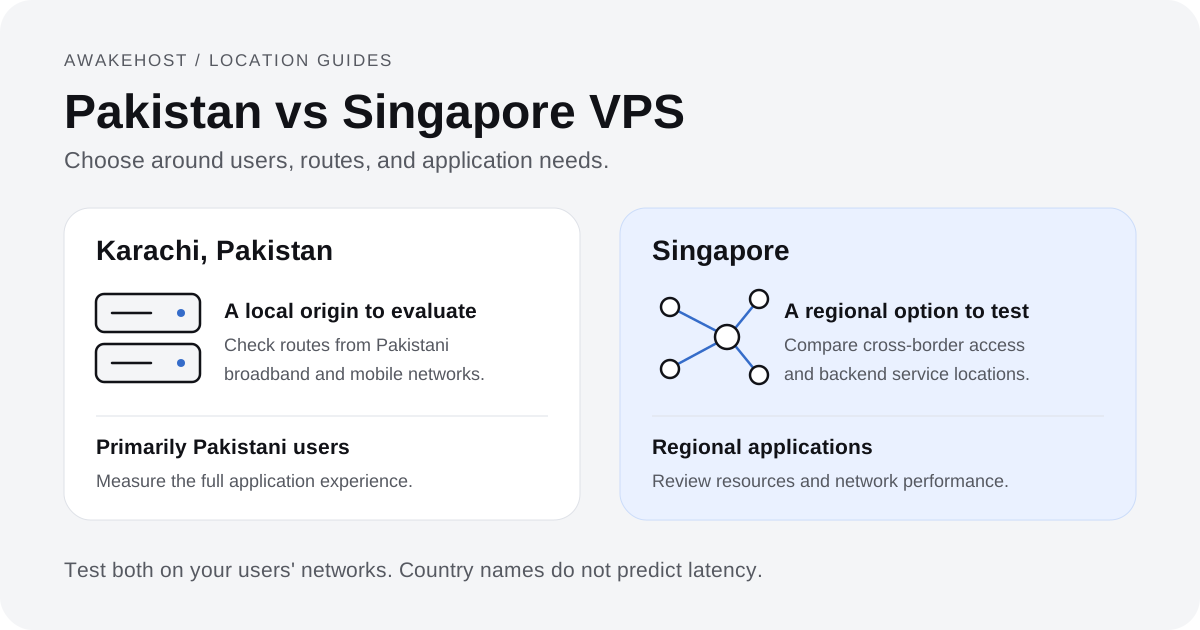
For example, a user in Pakistan might reach a Karachi server through an efficient domestic route.
Another Pakistani user, connecting through a different provider, could experience a less direct path.
The same applies to international destinations.
A Singapore server could perform better than expected for one South Asian ISP while showing higher latency on another.
That doesn't make Singapore universally faster or slower for South Asia.
It means that routing matters.
This is why Looking Glass testing is particularly useful when comparing regional VPS locations.
It gives you a way to check connectivity rather than relying only on a map. See our Pakistan vs Singapore VPS comparison for a practical regional example.
How to Test Real Website Performance After Choosing a VPS
A Looking Glass helps you compare candidate locations before deployment.
Once your VPS is running, you should also measure your actual website or application.
This is especially important when the server runs WordPress, WooCommerce, a database-driven dashboard, or a custom API.
Measure Time to First Byte
Time to first byte (TTFB) measures the time from the start of an HTTP request until the first response byte arrives.
It can reflect network delay, connection establishment, and server-side processing.
On Linux or macOS, or in a Bash shell on Windows such as WSL with curl installed, you can run:
curl -s -o /dev/null \
-w 'Connect: %{time_connect}s\nTTFB: %{time_starttransfer}s\nTotal: %{time_total}s\n' \
https://your-website.com/
Replace the example domain with your actual website.
The output reports:
- Connection time.
- Time to first byte.
- Total request time.
These values are useful for examining real application behavior. The curl timing documentation explains the reported fields.
However, if your website uses a CDN, this command may measure a connection to the CDN rather than directly to the origin VPS.
To compare origin servers, use a testing method that actually reaches the intended origin without disabling important security controls.
Test Dynamic Application Requests
A static homepage isn't representative of every workload.
For an online store, test product filtering, cart updates, and checkout.
For a SaaS dashboard, test authentication, database queries, and API requests.
For a remote desktop environment, test interactive responsiveness rather than relying on a website request.
For a game server, prioritize the game's actual transport protocol and client-to-server latency.
The fastest server for delivering a small HTTP response might not be the best option for a workload using a different protocol.
Common Mistakes When Testing VPS Network Latency
A few testing mistakes can lead to the wrong server choice.
Testing Through a VPN Without Realizing It
A VPN changes where your traffic enters the internet and may alter the entire route to the VPS.
If your customers don't normally use that VPN, the result may not represent their experience.
Test both with and without a VPN only when that distinction is relevant to your actual workload.
Testing Only Once
One short test might happen during an unusually quiet or congested period.
Repeat measurements at different times, using the same endpoints and comparable conditions.
If the ranking between two locations changes repeatedly, investigate before choosing.
Ignoring Packet Loss and Latency Variation
A location with a low average ping but frequent interruptions may be unsuitable for a real-time application.
Review consistency as well as average latency.
Assuming Every Test Location Offers VPS Deployment
Some network tests use infrastructure that isn't available as a VPS product in the same city.
Check the deployment listing before ordering.
On AwakeHost, the Looking Glass identifies test-only locations separately.
Comparing Different Types of Measurements
Ping, HTTPS request time, and complete page loading time aren't interchangeable.
Always compare results collected using the same method.
Selecting the Lowest Ping Without Checking Resources
A VPS can have excellent latency and still perform poorly if the CPU is overloaded, available RAM is insufficient, or the application is inefficient.
Network measurements should support your server decision, not replace ordinary capacity planning.
A Simple Checklist for Choosing Your VPS Location
Before ordering, record the following information for your shortlisted regions.
| Question | What to check |
|---|---|
| Where are most users located? | Analytics and customer distribution |
| Is the location deployable? | Current VPS location listing |
| What is the typical latency? | Repeated ping and HTTP measurements |
| Are response times consistent? | Median, range, and slower responses |
| Is packet loss present? | Destination-level testing |
| Does routing appear unusual? | Traceroute or MTR |
| Does the application use other servers? | Database and API locations |
| Are resources sufficient? | CPU, RAM, storage, and transfer allowances |
| Can the service grow? | Plan upgrades and available capacity |
Don't expect one location to be perfect for every user.
If most of your audience is in one country, begin by testing a nearby deployment.
If your audience is distributed across several countries, compare multiple regions and consider whether a CDN or additional application infrastructure would improve delivery.
For many projects, one well-chosen VPS location is sufficient.
More complicated architectures only make sense when the workload justifies them.
Compare VPS Locations With AwakeHost
AwakeHost provides a Network Looking Glass to help you examine connectivity before selecting your VPS location.
The tool lets you choose from listed regional test targets and use the testing methods available for that location.
Where published, you can copy an IPv4 or IPv6 address and run network tests from your computer. Browser latency measurements are also available for supported regional endpoints.
You don't need an AwakeHost account to use the Looking Glass.
After comparing connectivity, visit the AwakeHost VPS location directory to review deployable destinations.
You can then compare VPS hosting plans for the regions you're considering.
Check the location-specific CPU, RAM, storage, bandwidth, and price before ordering. Specifications and availability can differ between locations.
If two regions perform similarly, these resource differences may help you make the final decision.
Final Thoughts
Choosing a VPS location without testing the network is an avoidable gamble.
The nearest server might be the right choice, but geography alone doesn't tell you which route your customers will use or how consistently the server will respond.
Start with the people who use your application.
Find out where they connect from, select a few realistic server locations, and compare them using ping and available HTTP latency tests.
Use traceroute when you need to understand an unexpected route. Review packet loss and response-time variation instead of concentrating on the single fastest result.
Then compare server resources and application requirements.
A good VPS location isn't simply the nearest data center. It's the location that delivers suitable performance over the networks your users actually rely on.
Before purchasing your next server, open the AwakeHost Network Looking Glass and test the locations on your shortlist.
Frequently Asked Questions
How can I test VPS latency before buying a server?
Use the hosting provider's published test IPs or network Looking Glass. Run ping from your computer, compare round-trip times, and inspect network routing with traceroute when needed. Repeat tests from networks representative of your users.
What is a good ping for a VPS server?
There is no universal target. Lower latency is generally preferable, but acceptable performance depends on the application. A normal business website may tolerate more network delay than a competitive multiplayer game or interactive remote desktop application.
What does a VPS Looking Glass do?
A VPS Looking Glass helps users inspect network connectivity to selected locations. Depending on the provider, it may offer test IP addresses, ping or traceroute capabilities, routing information, or browser-based latency measurements.
Can I test AwakeHost VPS latency without an account?
Yes. AwakeHost's Looking Glass is publicly accessible and doesn't require an account or location permission. Available manual tests can be performed using the published IP addresses.
Is HTTP latency the same as ping?
No. Ping measures ICMP round-trip time, while HTTP latency measures the time involved in completing an HTTP request. HTTP timing can include connection establishment, TLS processing, and server response time.
Does a lower ping always mean faster website loading?
No. Lower network delay can help, but website speed also depends on caching, server processing, database queries, page size, and browser behavior. Measure actual page and application performance as well.
What does packet loss mean in a VPS latency test?
Packet loss indicates that some packets didn't receive the expected response under the test conditions. Repeated destination-level loss can suggest a network issue, but ICMP filtering can also affect ping results. Failed browser HTTP requests are not the same measurement as packet loss.
Why is a nearby VPS sometimes slower than a distant server?
Internet traffic follows network routes rather than the shortest geographic line. Transit arrangements, peering relationships, congestion, and ISP routing can make a nearby destination slower for a particular connection.
Should I test IPv4 and IPv6 separately?
Yes, if your audience and the selected server support both. IPv4 and IPv6 may follow different routes and produce different results. AwakeHost publishes IPv6 test addresses only for locations where they are available.
How many times should I test a VPS location?
Run several tests, preferably at different times of day. Start with multiple ping samples, then repeat from representative networks. For important production workloads, longer measurements and actual application testing provide more reliable evidence than one short ping test.