How to Automate Off-Server Backups for a Linux VPS
Your VPS is running a website, your database contains customer records, and everything seems to be working normally. Then a failed update, accidental deletion, or security incident leaves the server unusable.
You check your backup folder and discover that the only copies are stored on the same VPS.
If the server's storage is lost, those copies may disappear with it.
That's why keeping backups outside your production server matters.
An automatic VPS backup system can copy your website files, application configurations, and databases to separate storage without requiring you to remember to run a command every day.
You can also encrypt the backups, retain older versions, and restore files when something goes wrong.
In this tutorial, we'll build an automated off-server backup system for a Linux VPS using Restic, SSH/SFTP, and systemd timers.
By the end, you'll have an encrypted backup repository on a separate server, a scheduled daily backup job, a retention policy, and a method for testing recovery.
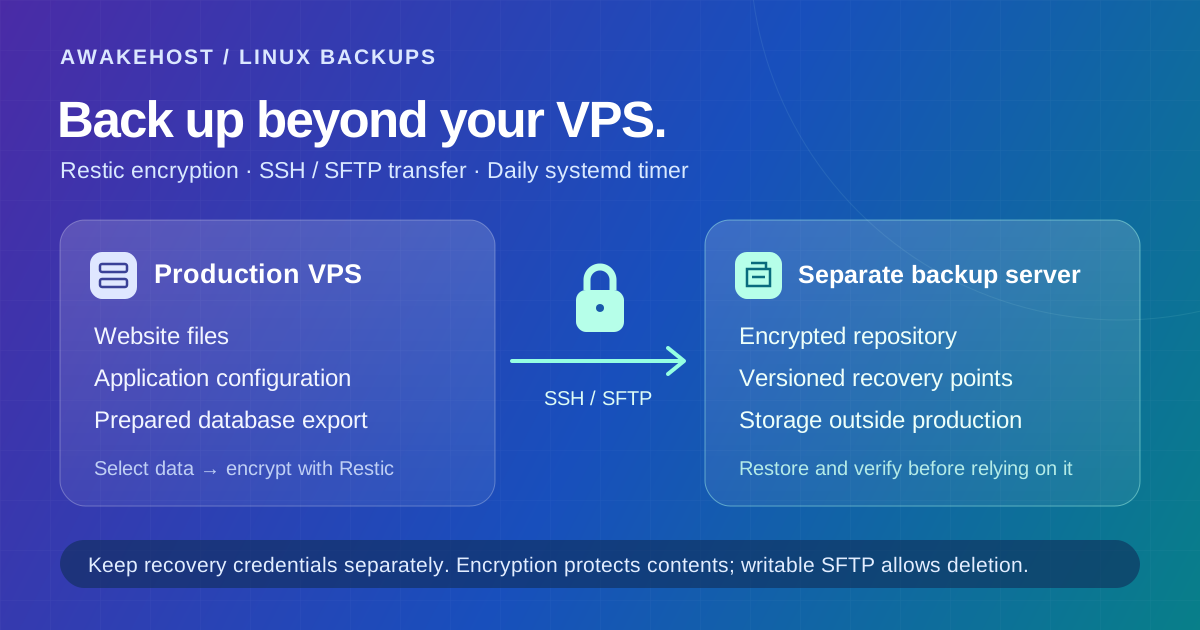
View the backup architecture diagram at full size.
Quick summary
- Use Restic to encrypt selected VPS data before sending it over SSH/SFTP to storage separate from the production server.
- Include website files, configuration, and consistent database exports. Copying files from an active database is not a substitute for a database-aware backup.
- Schedule the backup with a systemd timer, prevent overlapping jobs, and monitor failures and the newest successful recovery point.
- Preview retention before applying it. The example keeps seven daily, four weekly, and three monthly recovery points; rules can overlap, and encryption does not prevent deletion.
- Keep recovery credentials outside the production VPS and test restores in an isolated environment, including file verification and database recovery.
What Is an Off-Server VPS Backup?
An off-server backup is a recoverable copy of your data stored somewhere other than the VPS running your applications.
For example, suppose your production VPS hosts a WordPress website.
Your website files might be stored in:
/var/www/example.com/
Your database runs through MySQL or MariaDB, and your Nginx configuration is stored inside /etc/nginx/.
An off-server backup process collects the information needed for recovery and transfers it to another storage system.
That destination might be a separate Linux server, a dedicated backup storage service, or cloud object storage.
The important distinction is that losing the production VPS shouldn't automatically destroy its backup copies.
Local Backup vs Off-Server Backup
| Feature | Local backup | Off-server backup |
|---|---|---|
| Storage location | Production VPS | Separate storage system |
| Protection from accidental file deletion | Possible | Yes, if suitable recovery points exist |
| Protection from VPS disk loss | Limited | Better, if storage failures are independent |
| Additional storage cost | Uses existing disk space | Usually requires separate storage |
| Network transfer | Usually unnecessary | Required |
| Account compromise protection | Limited | Depends on independent access controls |
| Disaster recovery | May be unavailable after server loss | Possible if backups remain accessible |
An off-server backup isn't automatically protected against every incident.
For example, if an attacker controls the credentials that can delete your remote backups, those copies may also be at risk.
We'll address that limitation later.
Which Linux VPS Backup Tool Should You Use?
Linux offers several methods for copying data to remote storage.
You could create archives with tar, synchronize directories using rsync, or use a dedicated backup application.
For this tutorial, we'll use Restic.
Restic is an open-source backup tool designed to store encrypted, versioned backups on local and remote storage.
It supports SFTP servers, S3-compatible object storage, and other supported backends.
Restic also performs deduplication, which means unchanged data doesn't need to be stored repeatedly in full.
Here's how it compares with other common approaches.
| Tool | Main use | Consideration |
|---|---|---|
| rsync | Synchronizing files between locations | Doesn't automatically provide versioned recovery points |
| tar | Creating archives | Scheduling, encryption, and retention need additional planning |
| BorgBackup | Deduplicated, encrypted backups | Requires a compatible repository and backend arrangement |
| Restic | Encrypted, versioned backups to several storage backends | Scheduling must be configured separately |
| Provider snapshots | Capturing supported disk or server states | Recovery scope and storage independence vary |
Restic offers a good balance between control and manageable configuration.
You won't need a hosting control panel to use it.
What You'll Need Before Starting
We'll use two separate Linux machines.
The first is your production VPS, containing the files you want to protect.
The second is a backup server, which will receive encrypted backup data through SFTP.
| Requirement | Example |
|---|---|
| Production VPS | Ubuntu 24.04 or 26.04 LTS |
| Backup destination | Separate Linux server with SSH/SFTP |
| Production access | Root or sudo privileges |
| Backup server account | backupuser |
| Backup server address | backup.example.net |
| Backup software | Restic |
| Automation | systemd timer |
| Backup frequency | Once per day |
Replace the example domain and account details with your actual infrastructure.
The backup destination should have enough available storage for your current data, anticipated changes, and retained recovery points.
A separate server is used here because the setup is easy to understand. The same principles can be applied to compatible object storage.
Important: The backup server must be separate from the VPS you're protecting. Creating a different folder on the same disk is not an off-server backup.
Step 1: Prepare the Remote Backup Server
Start with the server that will store your backups.
Connect to it through SSH or your hosting provider's console.
Create a dedicated Linux account:
sudo adduser backupuserNext, create a directory for the backups:
sudo -u backupuser mkdir -p /home/backupuser/restic/vps01This directory will hold the Restic repository. Restrict its permissions on the backup server:
sudo chmod 700 /home/backupuser/restic /home/backupuser/restic/vps01You can use a different directory, but keep the path consistent throughout the tutorial.
The intended structure is:
/home/backupuser/
└── restic/
    └── vps01/
If you plan to back up several VPS instances, consider using a separate repository or appropriately isolated storage area for each server.
Avoid giving your production VPS unrestricted access to backups belonging to unrelated machines. A dedicated account does not by itself confine access to one directory. For stricter isolation, use a tested SFTP-only account or repository-scoped storage arrangement; verify that Restic can still use the selected path.
Secure the Backup Server
Before continuing, confirm that the backup server is itself maintained.
Use a supported operating system, install security updates, restrict administrative access, and enable appropriate firewall rules.
Its SSH service must be reachable from the production VPS.
You should also consider storage monitoring and independent recovery arrangements.
A backup server can fail just like a production server.
Step 2: Install Restic on the Production VPS
Now connect to the VPS whose data you want to protect.
Update the package information:
sudo apt updateInstall Restic and the supporting utilities:
sudo apt install restic openssh-client openssl util-linuxCheck the installed version:
restic versionRestic is available through Ubuntu's package repositories.
The version supplied by your Ubuntu release may be older than the latest upstream release. That's normal for distribution-maintained software.
The commands used in this tutorial are compatible with the Restic version distributed for Ubuntu 24.04.
For the remaining setup, switch to a root shell:
sudo -iWe'll use root because the backup process may need to read protected application configuration files and other system data.
This doesn't mean you should permit remote root SSH login. Running an authorized local administrative shell and allowing direct root SSH authentication are different things.
Step 3: Configure Secure SSH Access to the Backup Server
Restic can transfer encrypted backups through SFTP.
For automated backups, the connection must work without someone typing an SSH password every time.
We'll create a dedicated SSH key for this purpose.
Generate a Dedicated Backup Key
On the production VPS, while using the root shell, run:
install -d -m 700 /root/.sshThen generate a key:
ssh-keygen -t ed25519 \
-f /root/.ssh/id_ed25519_vpsbackup \
-C "vps-backup" \
-N ""
The -N "" option creates a private key without an interactive passphrase.
This allows unattended backup jobs, but makes protecting the private key particularly important.
Only root should be able to read it.
The key should be dedicated to the backup destination rather than reused for everyday administration. Do not overwrite an existing key at this path. If it already exists, verify its purpose or choose a new filename and update the commands and SSH profile accordingly.
Install the Public Key on the Backup Server
If the backup server permits your initial authenticated setup, run:
ssh-copy-id \
-i /root/.ssh/id_ed25519_vpsbackup.pub \
backupuser@backup.example.net
If password login is disabled on the backup server, you can add the public key to the backup account's authorized_keys file using its existing administrator console.
Before accepting a new SSH host key, verify its fingerprint through a trusted channel.
On the backup server, you can inspect the Ed25519 host key fingerprint using:
sudo ssh-keygen -lf /etc/ssh/ssh_host_ed25519_key.pubCompare the verified fingerprint with the one presented during the SSH connection.
Don't automatically accept an unexpected or changed host key. If you installed the public key manually, make one verified interactive connection before enabling strict, noninteractive operation:
ssh -i /root/.ssh/id_ed25519_vpsbackup backupuser@backup.example.netVerify the displayed fingerprint against the trusted server-console value, then exit to the production VPS. This records the trusted host key in root's known_hosts file. Never substitute an unverified ssh-keyscan result for identity verification.
Create an SSH Connection Profile
On the production VPS, open:
nano /root/.ssh/configAdd:
Host vps-backup
    HostName backup.example.net
    User backupuser
    IdentityFile /root/.ssh/id_ed25519_vpsbackup
    IdentitiesOnly yes
    BatchMode yes
    StrictHostKeyChecking yes
Save the file.
Set restrictive permissions:
chmod 600 /root/.ssh/config
chmod 600 /root/.ssh/id_ed25519_vpsbackup
Test the connection:
ssh vps-backupYou should be able to connect without entering the backup account's login password.
The SSH host key must already have been verified and trusted.
Exit the remote session to return to your production VPS.
What you've accomplished: Your VPS can authenticate to its separate backup server using a dedicated SSH key.
Step 4: Create an Encrypted Restic Repository
Restic stores backups inside a repository.
The repository contains encrypted data, metadata, and the information needed to reconstruct retained backup snapshots.
Even though the repository will be stored on another server, encryption happens before data is transferred.
Create a Secure Configuration Directory
On the production VPS, run:
install -d -m 700 /etc/resticGenerate a strong repository password:
umask 077
( set -o noclobber; openssl rand -base64 48 > /etc/restic/password )
Set the password file permissions:
chmod 600 /etc/restic/passwordThis file contains the password Restic will use to unlock repository encryption keys. The subshell uses Bash noclobber to refuse overwriting an existing password file. If the file already exists, stop and identify the repository it belongs to instead of replacing it.
Store a separate secure copy of this password in your password manager or another protected recovery system.
If you lose the password and have no other repository key, you cannot recover the encrypted backups.
Do not rely on the production VPS as the only place where the password exists.
Define the Remote Repository
Create a configuration file:
nano /etc/restic/configAdd:
RESTIC_REPOSITORY=sftp:vps-backup:/home/backupuser/restic/vps01
RESTIC_PASSWORD_FILE=/etc/restic/password
Save the file and restrict access:
chmod 600 /etc/restic/configThese settings identify the remote storage location and the local repository password file.
Load them into your current shell:
set -a
source /etc/restic/config
set +a
Now initialize the remote repository:
restic initIf the connection and credentials are correct, Restic will create the repository on the backup server.
You should see a confirmation indicating that the repository has been initialized.
Don't run restic init again against an existing repository. Initialization is a one-time setup operation.
Verify the Repository
Run:
restic snapshotsA newly initialized repository won't contain any snapshots yet.
That's expected.
The important result is that Restic can access the repository using the stored configuration and encryption password.
Step 5: Choose Which VPS Files to Back Up
Before automating the process, decide what data needs protection.
You don't need to copy every temporary file or running process from the Linux filesystem.
For a typical web hosting VPS, important directories may include:
| Directory | Typical contents |
|---|---|
/etc |
Operating system and application configuration |
/home |
User files and application data |
/var/www |
Website files |
/srv |
Application and service data |
/var/backups |
Prepared database dumps, if configured |
Your application may store important information elsewhere.
For example, Docker applications often use named volumes, while databases commonly store their live files under /var/lib.
Those resources need special consideration. The selected-directory backup below is not a complete disk image or bare-metal rebuild. Keep a separate inventory of packages, mounts, application versions, and recovery credentials needed to rebuild the server.
Why You Shouldn't Simply Back Up the Entire Root Filesystem
Copying / without planning may include temporary files, mounted filesystems, caches, and data that doesn't belong in an ordinary file backup.
It can also capture files while applications are actively modifying them.
For example, copying live database files doesn't necessarily produce a consistent database backup.
For this tutorial, we'll back up selected directories and handle database exports separately.
Review the actual storage paths used by your applications before enabling automation.
Step 6: Create an Automatic VPS Backup Script
We'll create a Bash script that loads the Restic configuration, selects directories, and sends an encrypted backup to the remote repository.
The script will also prevent overlapping runs.
On your production VPS, open:
nano /usr/local/sbin/vps-restic-backupPaste:
#!/usr/bin/env bash

set -Eeuo pipefail
umask 077

# Load the repository settings.
set -a
source /etc/restic/config
set +a

# Prevent overlapping backup jobs.
exec 9>/run/lock/vps-restic.lock
flock -n 9 || {
    echo "Another VPS backup is running." >&2
    exit 1
}

# Directories present on standard Linux servers.
paths=(/etc /home)

# Add application directories if they exist.
for path in /var/www /srv; do
    if [[ -d "$path" ]]; then
        paths+=("$path")
    fi
done

# Create an encrypted remote backup.
# Exclude local Restic credentials.
restic backup \
    --tag automatic \
    --exclude /etc/restic \
    "${paths[@]}"

echo "VPS file backup completed successfully."
Save the file.
Make it executable:
chmod 700 /usr/local/sbin/vps-restic-backupWhat Does This Script Do?
First, it loads the repository address and password-file location.
Then it obtains a local lock using flock.
That prevents two instances of this script from running at the same time, which is important when a backup takes longer than expected.
Next, it selects /etc and /home, followed by /var/www and /srv if those directories exist.
Finally, it runs Restic.
The --exclude /etc/restic option prevents the script from backing up its own repository credentials as ordinary system files.
Restic encrypts the selected data before sending it to the remote repository.
Important: This is a file-backup script. It does not yet create a consistent backup of an active MySQL, MariaDB, or PostgreSQL database. If your application uses a database, complete the next section before relying on automation.
Step 7: Include Your Website Database in the Backup
Many Linux VPS servers host database-driven applications.
For example, a WordPress website needs both its files and its MySQL or MariaDB database.
Backing up /var/www alone may preserve the theme, plugins, and uploaded files while missing posts, user records, orders, and application settings.
You need a database-aware export.
Create a MariaDB Backup Directory
If your server uses MariaDB, create a temporary staging directory:
install -d -m 700 /var/backups/vps-dbWe'll use this directory to hold a database dump only while the backup runs.
A MariaDB export command is:
mariadb-dump \
    --all-databases \
    --single-transaction \
    --quick \
    --routines \
    --events \
    --triggers \
    > /var/backups/vps-db/all-databases.sql
Run this only after confirming that your database administrator account has the necessary permissions and that authentication works non-interactively.
On some Ubuntu MariaDB installations, the local root account can authenticate through a Unix socket. Other installations require an appropriate database account or a protected credentials file.
Don't put a database password directly into the command line.
Add the Database Export to Your Backup Script
If the MariaDB export works, add the following block to /usr/local/sbin/vps-restic-backup immediately before the restic backup command:
# Optional MariaDB backup.
# Enable only after testing database authentication.

if [[ -f /etc/restic/enable-mariadb ]]; then

    install -d -m 700 /var/backups/vps-db

    trap 'rm -f -- /var/backups/vps-db/all-databases.sql' EXIT

    mariadb-dump \
        --all-databases \
        --single-transaction \
        --quick \
        --routines \
        --events \
        --triggers \
        > /var/backups/vps-db/all-databases.sql

    test -s /var/backups/vps-db/all-databases.sql

    paths+=(/var/backups/vps-db)
fi
After verifying that the dump works, create the enable file:
touch /etc/restic/enable-mariadbThe script will then generate a database dump, include it in the encrypted backup, and remove the temporary SQL file when the script exits.
Because the script uses set -e, a failed database export stops the backup process rather than silently treating an incomplete dump as successful.
What About MySQL and PostgreSQL?
For MySQL, use the compatible mysqldump utility and verify its authentication and export options.
For PostgreSQL, use the appropriate PostgreSQL tools, such as pg_dump for an individual database or pg_dumpall where suitable.
Don't assume that copying active database storage directories provides an application-consistent recovery point.
The --single-transaction approach is suitable for consistent exports of transactional tables under supported conditions, but it does not guarantee consistency for nontransactional tables or every multi-database workload.
During a --single-transaction export, avoid schema-changing operations such as ALTER TABLE, DROP TABLE, or TRUNCATE TABLE; see the MariaDB dump documentation. For busy production databases requiring precise recovery points, consider database-specific backup and transaction-log strategies.
Also remember that a database dump may capture transactions at a slightly different point in time from your website files. Applications requiring coordinated file-and-database recovery need a suitable application-consistent procedure.
Step 8: Test Your First Off-Server Backup
Before scheduling anything, run the script manually.
On the production VPS:
/usr/local/sbin/vps-restic-backupRestic will scan the selected files, identify data to transfer, and create an encrypted snapshot in the remote repository.
The first backup may take longer because the repository doesn't already contain the files.
Later backups can benefit from deduplication when much of the data remains unchanged.
Once the command completes, check the stored snapshots:
restic snapshotsYou should see a snapshot with its creation time, hostname, and backed-up paths.
The snapshot ID identifies the recovery point.
If the command fails, check the error before moving on.
Common causes include incorrect SSH credentials, an unavailable backup server, insufficient remote storage, or an incorrect repository password.
Verify Repository Integrity
Run:
restic checkThis checks the repository's structural integrity.
For a more comprehensive verification that reads backed-up data, Restic also supports:
restic check --read-dataAs the Restic repository-check documentation explains, reading all stored data can consume considerable time and bandwidth on a large remote repository.
Schedule such checks appropriately.
Neither command replaces a real restore test, which we'll perform later.
Step 9: Schedule Daily VPS Backups With systemd
Restic doesn't schedule backups on its own.
On modern Ubuntu servers, systemd timers provide a convenient way to automate recurring jobs and inspect their execution history.
We'll schedule the backup for approximately 3:00 AM each day.
This time refers to the server's configured timezone, not necessarily your own local time.
Create the systemd Service
Open:
nano /etc/systemd/system/vps-restic-backup.serviceAdd:
[Unit]
Description=Encrypted off-server VPS backup
Wants=network-online.target
After=network-online.target

[Service]
Type=oneshot
ExecStart=/usr/local/sbin/vps-restic-backup
Save the file.
This service tells systemd which script to run.
Create the Backup Timer
Now open:
nano /etc/systemd/system/vps-restic-backup.timerAdd:
[Unit]
Description=Daily off-server VPS backup schedule

[Timer]
OnCalendar=*-*-* 03:00:00
Persistent=true
RandomizedDelaySec=10m
Unit=vps-restic-backup.service

[Install]
WantedBy=timers.target
Save the file.
Here's what the timer does:
| Setting | Purpose |
|---|---|
OnCalendar |
Schedules the daily run |
Persistent=true |
Runs a missed scheduled job after the timer becomes active again |
RandomizedDelaySec=10m |
Adds up to ten minutes of scheduling variation |
Unit |
Identifies the backup service to execute |
Persistent=true is useful after a restart or temporary outage, although it doesn't replace monitoring or guarantee that every missed individual backup is recreated. A completed Type=oneshot service may show inactive (dead) after success; inspect its exit result, journal, and newest snapshot rather than expecting it to remain continuously active.
Enable the Timer
Before reloading, validate both unit files:
systemd-analyze verify /etc/systemd/system/vps-restic-backup.service /etc/systemd/system/vps-restic-backup.timerResolve reported errors first. The systemd timer manual describes calendar schedules and persistent timers. Reload systemd:
systemctl daemon-reloadEnable and start the timer:
systemctl enable --now vps-restic-backup.timerVerify its status:
systemctl status vps-restic-backup.timerYou can also see the next scheduled run:
systemctl list-timers --all vps-restic-backup.timerIf you want to check the server's timezone:
timedatectlTest the systemd Service
Trigger the service manually:
systemctl start vps-restic-backup.serviceAfter the run, inspect its status:
systemctl status vps-restic-backup.serviceThen review the logs:
journalctl -u vps-restic-backup.service -n 50 --no-pagerCheck that Restic reports a completed backup and that a new snapshot appears in the remote repository.
Your VPS now has a scheduled daily off-server file backup. If you enabled the database export, the script also includes that database dump.
Step 10: Configure Backup Retention
Automatic backups can accumulate over time.
Without a retention policy, storage usage may continue growing as new recovery points are created.
Restic can retain selected daily, weekly, and monthly snapshots while removing older ones.
For a small production website, consider this illustrative policy:
| Recovery points | Retention |
|---|---|
| Daily | 7 |
| Weekly | 4 |
| Monthly | 3 |
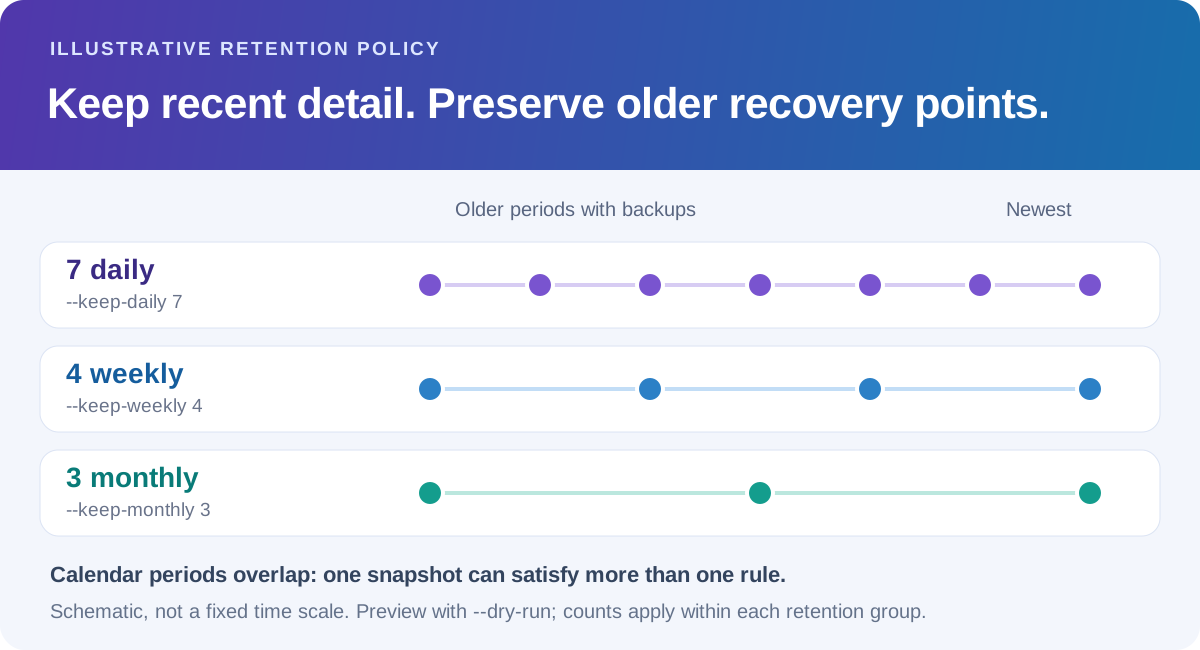
These aren't universal requirements. An active online store may need more frequent recovery points, while a development server may need fewer.
Preview the Retention Policy
Before deleting anything, run:
restic forget \
    --tag automatic \
    --keep-daily 7 \
    --keep-weekly 4 \
    --keep-monthly 3 \
    --dry-run
This shows which snapshots Restic would keep or forget without deleting them.
The Restic retention documentation describes selection by calendar periods containing snapshots. These options do not necessarily keep exactly fourteen separate snapshots, because one snapshot may satisfy multiple rules. --tag automatic limits this example to the automated backups. Restic normally groups snapshots by host and paths; changing the selected paths can create additional retention groups, so inspect the dry-run output and storage use.
Apply the Retention Policy
Once you've reviewed the result:
restic forget \
    --tag automatic \
    --keep-daily 7 \
    --keep-weekly 4 \
    --keep-monthly 3 \
    --prune
The forget operation removes unneeded snapshot references.
The --prune option also allows Restic to reclaim repository data no longer referenced by retained snapshots.
Pruning can take time and may temporarily lock the repository.
Automate Retention
For small repositories, you can add the retention command after the successful restic backup command inside your script.
This applies the policy after each backup.
For larger repositories, consider running pruning through a separate weekly systemd timer to avoid lengthy maintenance during every daily backup.
Schedule retention jobs so they don't interfere with normal backups, and monitor their results.
Keep in mind that a normal writable SFTP repository allows the connected backup account to modify or delete repository files. It is not immutable storage.
For stronger protection against ransomware or compromised production credentials, maintain another independently protected recovery copy.
Step 11: Test Restoring Your VPS Backup
A completed backup job doesn't guarantee that your application can be recovered.
You should test restoration before relying on the system.
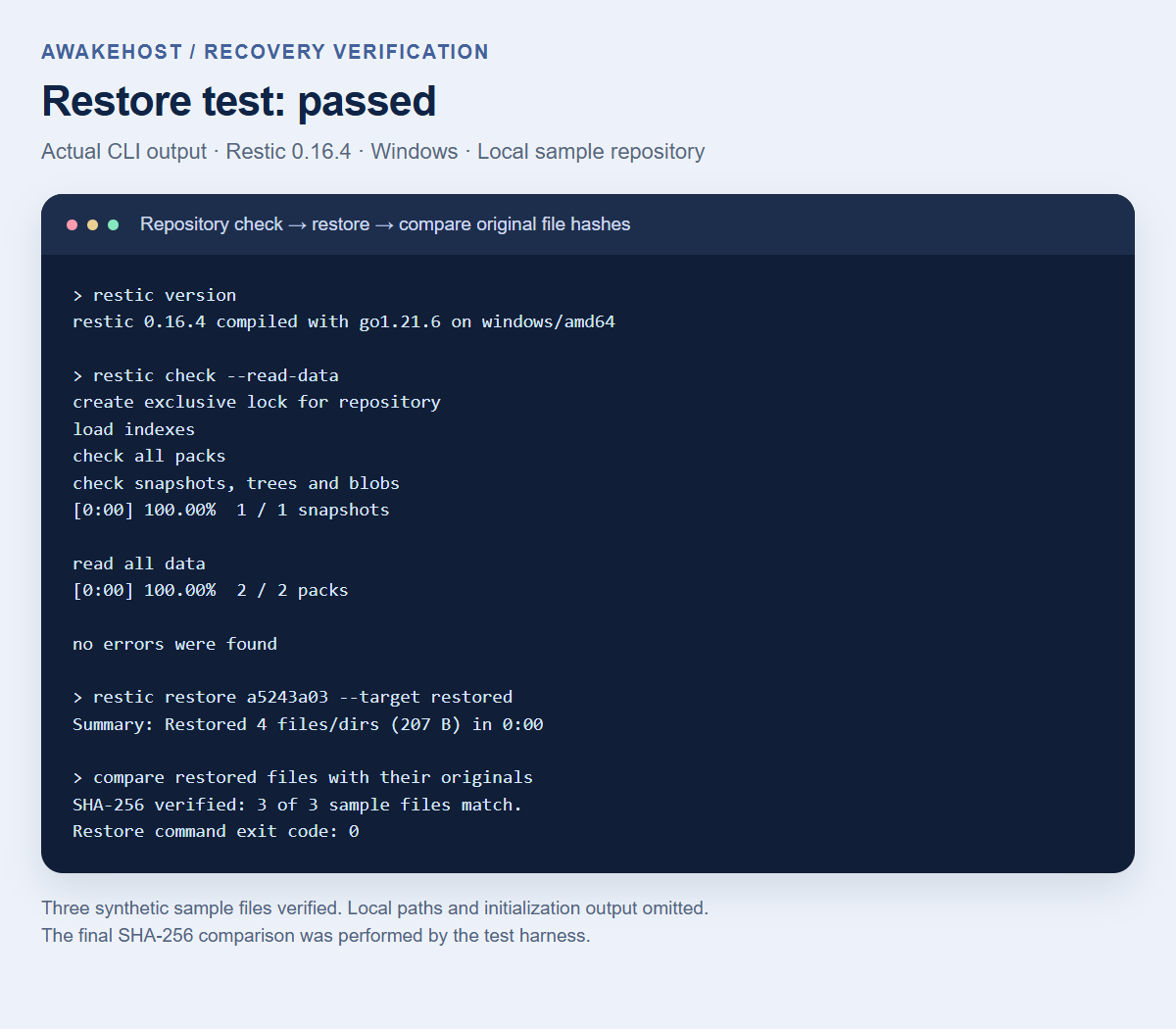
Restic supports restoring an entire selected snapshot or specific files and directories. The examples assume the dedicated repository contains backups of this VPS. When several hosts or backup jobs share a repository, select an explicit snapshot ID or apply the appropriate host and tag filters instead of relying on an unqualified latest.
List Available Snapshots
Run:
restic snapshotsYou'll see the available recovery points.
To restore the latest snapshot into a separate directory:
install -d -m 700 /mnt/restore-test
restic restore latest --target /mnt/restore-test
This extracts the backed-up files into a private /mnt/restore-test directory. Restored configuration and SQL files can contain secrets. Use an empty, access-restricted test directory and verify available disk space first. For recovery that must survive loss of the source VPS, perform the test on a separate compatible machine using independently retained credentials.
For example, a backed-up website directory may appear as:
/mnt/restore-test/var/www/And the recovered configuration may appear under:
/mnt/restore-test/etc/If you enabled the MariaDB export, its SQL file should also appear under the corresponding /var/backups/vps-db/ path inside the restoration directory.
Restore Only Website Files
If you want to recover /var/www without restoring every directory, you can use:
restic restore latest \
    --target /mnt/restore-test \
    --include /var/www
Check the restored files before copying them into the production application.
Avoid restoring directly over a running website during a basic recovery test.
You could overwrite newer content or create inconsistencies with the active database.
Test Database Recovery Separately
If you backed up a database dump, restore it into an isolated test database environment.
Confirm that the expected tables, records, and application functions are present. Disable outbound email, payment actions, webhooks, and scheduled jobs in the restored application until the recovery test is isolated from production integrations.
Don't import an unverified SQL dump into a live production database.
A useful restoration test should confirm more than file existence.
For a WordPress site, verify that pages load, media files exist, users can authenticate, and the database contains the expected content.
For an online store, check relevant orders and application functionality in a safe test environment.
A backup should be considered verified only after you've demonstrated that the required data can be restored.
Step 12: Monitor Automatic Backup Failures
A systemd timer can execute your backup script every day, but scheduling alone isn't sufficient.
A backup may fail because the destination is unavailable, authentication credentials have changed, storage is full, or a database export encountered an error.
You need a way to detect failures.
Check the Latest Backup Logs
Run:
journalctl -u vps-restic-backup.service \
--since "24 hours ago"
This shows the service's recorded activity during the selected period.
Check whether the job started, completed, or returned an error.
Confirm the Latest Recovery Point
Load the Restic configuration if necessary, then run:
restic snapshotsCheck the timestamp of the newest successful snapshot.
Don't assume a backup succeeded just because the timer was triggered.
For example, a daily backup that hasn't produced a new recovery point in several days needs investigation.
Configure Alerts
For production systems, connect the systemd service or your monitoring platform to an alerting mechanism.
Useful alerts include:
- A backup job exiting unsuccessfully.
- No successful backup within the expected interval.
- Remote repository storage approaching capacity.
- Failed repository integrity checks.
- Backup credentials expiring or becoming unavailable.
The systemd configuration shown earlier records job results, but it does not automatically send email or other external notifications.
Configure those separately using a monitoring service or an appropriate systemd failure handler.
Also test your alerts. A monitoring system that never sends a notification isn't useful during an outage.
How Much Storage Do Automatic VPS Backups Need?
The amount of backup storage you need depends on the data you're protecting and how much it changes.
A VPS with 100 GB of allocated disk space doesn't necessarily need 100 GB of new backup storage every day.
For example, suppose your website uses 30 GB of actual storage.
You create an initial backup and then modify about 1 GB of data per day.
Because Restic performs deduplication, later backups may store far less new data than the first one.
However, the amount of data added depends on file changes, compression, encryption, and the structure of the workload.
Large database dumps can be particularly demanding.
A database export may produce substantial changes between runs, even if the underlying database grew only slightly.
Your actual repository growth should be measured rather than assumed.
Example Backup Storage Budget
Consider this hypothetical calculation:
| Component | Estimated storage |
|---|---|
| Initial retained data | 30 GB |
| Additional retained data from changes | 25 GB |
| Repository overhead and working allowance | 5 GB |
| Illustrative total | 60 GB |
This is a planning example, not a predicted Restic storage requirement.
Monitor real repository usage, keep capacity available for pruning operations, and account for backup growth.
You'll also need enough network transfer capacity to upload data from the production VPS to the backup destination.
For limited-bandwidth VPS plans, include backup egress in your monthly transfer estimates where the provider counts it.
How to Make Off-Server Backups More Secure
Encryption protects backup contents from someone who obtains repository files but lacks the required decryption key.
It doesn't automatically protect backups against deletion.
This distinction is particularly important when your production VPS has credentials that allow it to modify the remote repository.
If an attacker gains control of the production VPS, they may be able to use those credentials to delete the backup repository.
To reduce that risk, consider the following safeguards.
Use Separate Backup Credentials
Don't use your everyday root or administrator credentials for off-server backup storage.
Create a dedicated destination account with access limited to the required repository location.
Protect Your Encryption Password
Keep a secure copy of the Restic repository password outside the production VPS.
Your recovery plan should also preserve whatever SSH credentials or administrative access are needed to reach the backup destination.
Consider Immutable Backup Storage
Object storage services may offer versioning, retention locks, or immutability controls.
An append-only backup server can also reduce certain deletion risks when implemented correctly.
These capabilities require additional configuration and should be verified before relying on them.
Do not assume that ordinary SFTP storage is immutable.
Maintain a Second Independent Copy
For important business data, consider a separate backup location or account with independent administrative controls.
A common approach is to maintain multiple copies across more than one failure domain.
This reduces dependence on a single VPS, storage system, or hosting account.
Test Recovery Periodically
Backup security also means being able to recover the data you protected.
Regularly test that your stored backups can be decrypted and restored.
Include your repository password, backup destination details, and application restoration procedure in a secure recovery plan.
Common Problems With Automatic Linux VPS Backups
Restic: Wrong Password or No Key Found
This usually indicates that the repository password is incorrect or the referenced password file doesn't contain the expected value.
Check:
cat /etc/restic/configConfirm that RESTIC_PASSWORD_FILE points to the correct file.
Avoid displaying the password itself in shared logs or support screenshots.
If the correct repository password has been lost, encrypted backup data may be unrecoverable.
SFTP: Permission Denied (publickey)
This indicates that SSH key authentication to the backup server failed.
Check the configured username, private key path, SSH host configuration, and remote authorized_keys file.
You can test the SSH connection independently:
ssh -v vps-backupReview the verbose output to identify which key the SSH client attempts to use.
Repository Is Already Locked
Restic uses repository locks to prevent incompatible operations from modifying the repository simultaneously.
A running backup or maintenance command may hold a legitimate lock.
Wait for that operation to finish.
If the process has terminated unexpectedly and you've verified that no other Restic operation is running, investigate whether a stale lock remains.
Do not automatically run unlock commands while an active backup or prune operation is still using the repository.
Backup Server Is Out of Space
Check the destination's available storage:
df -hRun this on the backup server.
If the repository is full, review its retention policy and available capacity.
Avoid manually deleting random files inside a Restic repository, because doing so may damage stored recovery points.
Use supported Restic maintenance operations.
systemd Timer Isn't Running
Check:
systemctl status vps-restic-backup.timerThen inspect:
systemctl list-timers --allConfirm that the timer is enabled and has a next scheduled execution time.
If the service fails, review:
journalctl -u vps-restic-backup.service -n 50Check the service's script path, execution permissions, and backup credentials.
Website Files Restore, but the Database Is Missing
A file backup doesn't automatically include an application-consistent database export.
Check whether the database backup step was enabled and completed successfully.
For WordPress, WHMCS, or another database-backed application, you'll need the correct database recovery point as well as the website files.
If databases are essential to your application, treat database backup validation as a required part of your disaster recovery tests.
Automatic VPS Backups With AwakeHost
AwakeHost provides KVM VPS hosting with Linux deployment options suitable for websites, databases, applications, and development environments.
If you manage your own Linux VPS, you can configure Restic and external backup storage using the steps in this guide, provided your selected server permits the required access and outbound connectivity.
You can use a separate backup server or another compatible remote storage service.
The backup destination doesn't have to be hosted on the same platform as your production VPS.
In fact, independent storage and administrative access may provide useful protection against certain infrastructure or account failures.
AwakeHost's backup responsibility terms advise customers to maintain separate copies of important files, databases, emails, and configuration data rather than relying exclusively on a provider backup feature.
If you're comparing hosting resources, explore AwakeHost VPS hosting to review server configurations and available locations.
For a closer comparison of recovery methods, read VPS Snapshots vs Backups: What's the Difference?.
Final Thoughts
Automating off-server backups is one of the most useful maintenance tasks you can complete after deploying a Linux VPS.
You don't need an expensive enterprise backup platform to begin.
Restic can encrypt and store versioned backups on remote storage. SSH keys allow unattended transfer, and systemd timers can run the process on a daily schedule.
But the setup is only reliable when it covers the data your application actually needs.
For a static website, that might mean files and server configuration.
For WordPress, WooCommerce, WHMCS, or another database-driven system, you'll also need consistent database exports and a tested restoration procedure.
Set a sensible retention policy, protect the backup destination independently, and monitor failed jobs.
Most importantly, restore a backup before you're forced to depend on one.
A successful backup isn't simply a scheduled job that finishes without errors. It's a recoverable copy of your data that remains available when the production server doesn't.
Frequently Asked Questions
How do I automate backups on a Linux VPS?
Install a backup tool such as Restic, configure a remote repository, and create a script that backs up the required files and databases. Schedule the script with a systemd timer or cron, then verify that new recovery points are created successfully.
Can I automate VPS backups without cPanel?
Yes. Restic, BorgBackup, and other Linux backup tools can operate directly from the command line. A hosting control panel is not required.
Is Restic free to use?
Restic is open-source software. You can use it without purchasing a software license, although remote storage, network transfer, and administration may have costs.
Does Restic encrypt VPS backups?
Yes. Restic encrypts repository content before storing it. You must preserve the repository's decryption credentials to recover the data.
Does Restic automatically back up MySQL databases?
Not by default. Restic backs up the data you select. For reliable database recovery, use an appropriate database-aware export or backup procedure and include its output in the protected backup workflow.
Can I use Backblaze B2 or S3-compatible storage instead of another VPS?
Yes. Restic supports S3-compatible storage services, including appropriate Backblaze B2 configurations. The repository address, authentication method, and storage-specific controls differ from the SFTP setup demonstrated here.
How often should I back up my VPS?
It depends on how much data loss your application can tolerate. Daily backups may suit relatively static websites, while frequently updated databases or transaction-heavy applications may require more frequent recovery points.
Are off-server backups better than VPS snapshots?
They address different recovery needs. Provider snapshots can be useful for rollback or full-disk recovery, while independently protected off-server backups can help when the original VPS or its hosting environment is unavailable. Many production systems benefit from both.
Can I restore a single file from a Restic backup?
Yes. Restic supports restoring selected files and directories from stored snapshots. You don't have to restore the entire backup when you only need a particular file.
What happens if my VPS is deleted?
If your backups and the required credentials remain accessible independently, you can provision another compatible server and restore your files and application data. You may still need to reinstall software, update networking settings, and complete application-specific recovery steps.
Can a hacker delete my off-server backups?
Potentially, if they obtain credentials that allow modification or deletion of the remote repository. Encryption protects confidentiality, not necessarily availability. Use independent access controls, separate recovery copies, and immutable storage where appropriate.
Does systemd automatically notify me when a backup fails?
No. systemd records service results and logs, but external notifications require additional monitoring or notification configuration. Set up failure alerts if the backups protect an important production service.