How to Configure Fail2Ban on Ubuntu 24.04 and 26.04
Last technical review: October 25, 2026. This tutorial is for VPS owners, Linux administrators, and developers, from beginner to intermediate level.
A new Ubuntu VPS can start receiving automated SSH login attempts shortly after it becomes reachable on the internet. Most attempts never get past authentication, but leaving them unrestricted isn't ideal.
You might notice messages like this while checking your server logs:
Failed password for invalid user admin from 203.0.113.45
Failed password for root from 203.0.113.45
The same address may attempt several usernames, repeat failed logins, or return later with another set of credentials.
Fail2Ban helps deal with this activity automatically.
It monitors authentication logs and temporarily blocks IP addresses that meet your configured failure limits. Instead of manually investigating and blocking every repeated login attempt, you can let Fail2Ban enforce rules through your server's firewall.
To install Fail2Ban on Ubuntu, install the package, configure an SSH jail, verify that it reads authentication events from the systemd journal, and confirm that firewall bans work.
This tutorial walks through the complete process on Ubuntu 24.04 LTS and Ubuntu 26.04 LTS.
You'll also learn how to check banned IP addresses, remove an accidental ban, adjust blocking rules, and fix common Fail2Ban errors.
Quick summary
- Install maintained Fail2Ban and python3-systemd packages on Ubuntu 24.04 or 26.04, and review applicable security advisories.
- Enable the sshd jail with the systemd backend and verify that its journal match includes your server’s actual SSH authentication events.
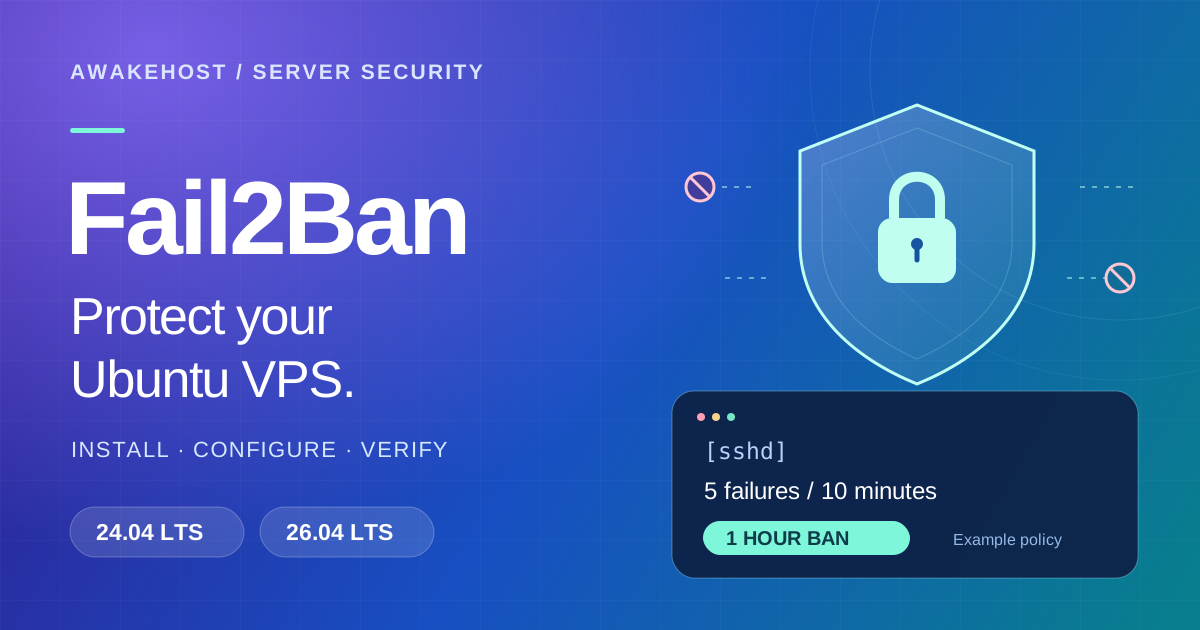
- An illustrative starting policy bans an IP at five matching failures within ten minutes, for one hour.
- Validate the configuration and active firewall action, then test a ban from a separate IP you control. A listed ban alone does not prove traffic is blocked.
- Keep recovery access and the unban procedure available. Use Fail2Ban alongside SSH keys, firewall restrictions, and security updates.
What Is Fail2Ban and How Does It Work?
Fail2Ban is an open-source intrusion prevention tool that monitors authentication failures and other log events.
When repeated failures match a configured rule, Fail2Ban instructs a firewall to block the source IP address for a specified period.
For example, you can configure the SSH service to block an IP after five failed authentication attempts within ten minutes.
The process works like this:
- Someone attempts to authenticate to your VPS through SSH.
- OpenSSH records the relevant authentication event.
- Fail2Ban reads the event through its configured log backend.
- A matching failure increases the count associated with that IP.
- Once the configured threshold is reached, Fail2Ban triggers a firewall ban.
- The ban is removed after its configured duration, unless another rule or action keeps it blocked.
Fail2Ban uses several configuration concepts, but three settings are particularly important.
| Setting | Purpose | Example |
|---|---|---|
maxretry |
Number of matching failures before a ban | 5 |
findtime |
Time window in which failures are counted | 10 minutes |
bantime |
How long the IP remains banned | 1 hour |
With these values, an IP that reaches five matching failures within ten minutes will normally be banned for one hour.
This doesn't mean Fail2Ban prevents every attack.
An attacker using many different IP addresses may remain below the threshold on each address. Someone with valid stolen credentials could also authenticate without generating repeated failures.
Fail2Ban is most useful as an additional protection alongside SSH keys, secure account permissions, and firewall restrictions.
Before Installing Fail2Ban
You need an Ubuntu server that you can already administer.
For this tutorial, we're using:
| Requirement | Details |
|---|---|
| Operating system | Ubuntu 24.04 or 26.04 LTS |
| Access | SSH account with sudo privileges |
| SSH service | OpenSSH Server |
| Log source | systemd journal |
| Firewall | Ubuntu-compatible firewall rules |
| Test server IP | 203.0.113.10 |
The example IP is reserved for documentation. Replace it with your actual VPS address where appropriate.
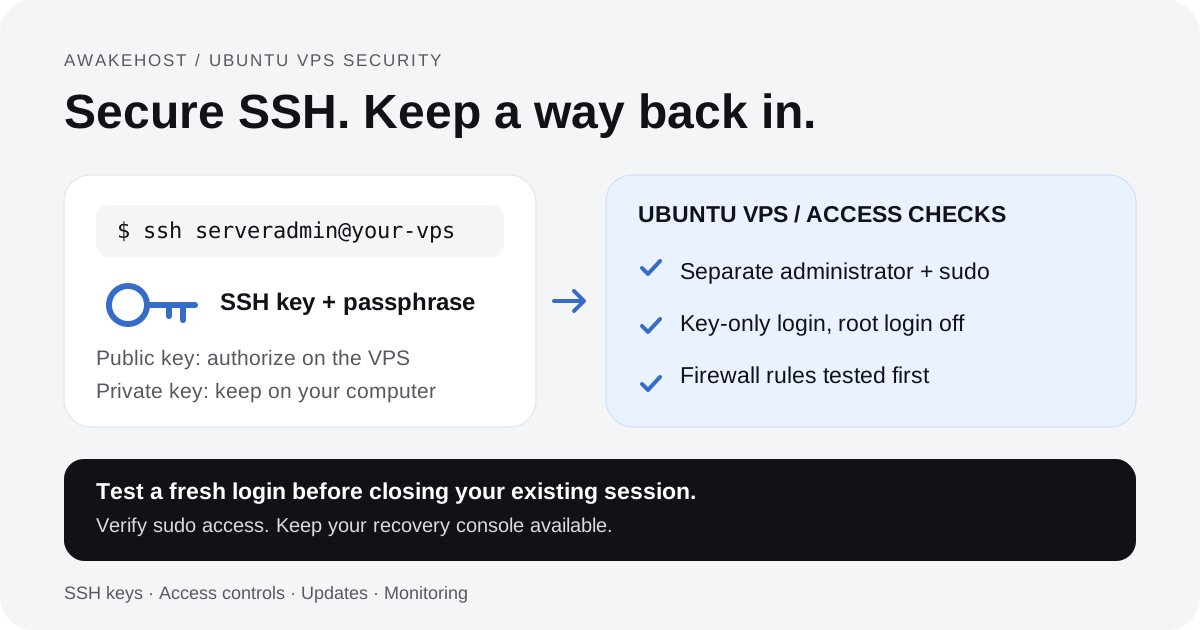
If you haven't configured SSH key authentication yet, read our guide to securing SSH on an Ubuntu VPS first.
Fail2Ban doesn't replace that configuration.
Keep Your SSH Session Open
Before modifying firewall rules or testing IP bans, keep your existing SSH connection open.
Ideally, also verify that you can access your VPS through a provider console or recovery environment.
Fail2Ban can accidentally block legitimate administrators if their connection generates enough matching authentication failures.
If you're working from a dynamic residential IP address, be particularly careful with manual ban tests.
Step 1: Update Ubuntu Packages
Connect to your VPS.
For example:
ssh vpsadmin@203.0.113.10Use your actual administrator username and server IP address.
Once connected, check the Ubuntu version:
cat /etc/os-releaseThe output identifies your installed operating system.
Next, refresh the package information:
sudo apt updateInstall available security and package updates:
sudo apt upgradeReview the proposed updates before confirming them, particularly if you're working on a production server.
This reduces the chance of building your security configuration around outdated software.
You don't need to upgrade Ubuntu 24.04 to 26.04 merely to install Fail2Ban. Both releases support it.
Step 2: Install Fail2Ban on Ubuntu
Fail2Ban is available through Ubuntu's package repositories.
Install it using:
sudo apt install fail2ban python3-systemdThe python3-systemd package provides Python integration with the systemd journal. It may already be installed as a dependency, but including it explicitly ensures the journal backend is available.
Wait for installation to finish.
Now check the installed Fail2Ban version:
fail2ban-client --versionUbuntu 24.04 packages Fail2Ban 1.0.x, while Ubuntu 26.04 packages the 1.1.x family.
The exact package revision depends on the repository and security updates installed on your VPS.
You can inspect it with:
apt policy fail2banIf Ubuntu reports that the package cannot be found, check whether the appropriate repository components are enabled. Fail2Ban is provided through Ubuntu's Universe repository.
Avoid downloading random installation scripts just to bypass a missing package error.
Review the Ubuntu advisory for CVE-2026-109786, which concerns incorrect bans caused by SSH-filter log parsing. Check the fix status for your Ubuntu release before deployment; a package version family alone does not establish that a security fix is installed.
Check the Fail2Ban Service
Run:
sudo systemctl status fail2banA working service should display:
Active: active (running)If it isn't running, we'll enable it after creating the configuration.
Don't assume that a successful package installation means the correct SSH protection is active.
First, configure and verify the SSH jail.
Step 3: Understand Fail2Ban Configuration Files
Fail2Ban uses configuration files to define which services it monitors and what actions it takes when matching events occur.
The main files are usually located in:
/etc/fail2ban/You'll commonly find:
| File or directory | Purpose |
|---|---|
jail.conf |
Main packaged jail defaults |
jail.local |
Optional local overrides |
jail.d/ |
Separate jail configuration snippets |
filter.d/ |
Rules for identifying relevant log messages |
action.d/ |
Actions such as firewall bans |
One of the most common configuration mistakes is editing jail.conf directly.
That file belongs to the packaged defaults and can change during software updates.
Instead, keep your custom settings in a .local file, as described in the Fail2Ban configuration reference. Later files override earlier values; review other jail.local and jail.d/*.local settings before assuming this snippet wins. Preserve any existing SSH jail settings before editing.
For this tutorial, we'll create:
/etc/fail2ban/jail.d/sshd.localThis keeps the SSH configuration separate and avoids copying hundreds of default settings into a new file.
What Is a Fail2Ban Jail?
A jail combines three things: the log events to monitor, the rules that determine when to ban an address, and the action used to enforce the ban.
For SSH, the jail is normally called:
sshdOther jails can protect supported services such as Nginx, Apache, and mail servers when suitable logs and filters are available.
We'll start with SSH because it's the primary remote administration service on many Ubuntu VPS installations.
Step 4: Configure the Fail2Ban SSH Jail
Open a new SSH jail configuration file:
sudo nano /etc/fail2ban/jail.d/sshd.localAdd:
[sshd]
enabled = true
backend = systemd
port = 22
maxretry = 5
findtime = 10m
bantime = 1h
Save the file using Ctrl + O, press Enter, and exit with Ctrl + X.
This is a straightforward SSH protection configuration suitable as a starting point for many small VPS environments.
Let's examine the settings.
enabled = true
This activates the SSH jail.
If the jail is disabled, Fail2Ban won't enforce its rules even if the configuration contains valid thresholds.
backend = systemd
This tells Fail2Ban to read authentication events from the systemd journal.
This setting is especially important on modern Ubuntu installations.
Older tutorials frequently recommend:
logpath = /var/log/auth.logHowever, some Ubuntu installations, particularly minimal server images, don't create that file.
On Ubuntu 24.04 and 26.04, the systemd journal is a suitable source for SSH authentication events.
Don't add a logpath directive to this SSH jail when using backend = systemd.
The journal backend uses journal matching rules rather than a traditional log-file path.
port = 22
This identifies the SSH service port for firewall actions that use the jail's port parameter. The plain UFW action described later has a broader default scope.
If your SSH service runs on port 2222, change the setting to:
port = 2222Use your actual SSH port.
This setting does not change which port OpenSSH listens on.
maxretry = 5
The fifth matching failure within the configured window reaches the ban threshold. This counts matching log events, which are not necessarily the same as five SSH connections.
Five is a reasonable starting point for a server with legitimate administrators who may occasionally make authentication mistakes.
A lower value can block repeated attempts sooner but may increase the risk of banning legitimate users.
findtime = 10m
Fail2Ban counts matching failures within a ten-minute window.
A source that reaches the configured threshold during that window becomes eligible for a ban.
bantime = 1h
This tells Fail2Ban to ban a matching IP for one hour.
The address can normally connect again after the ban expires, provided no other firewall policy blocks it.
For most new VPS owners, these settings are easier to manage than beginning with permanent bans.
Step 5: Verify SSH Logging on Ubuntu 24.04 and 26.04
Before activating the configuration, confirm that your server records SSH events in the systemd journal.
Run:
sudo journalctl -u ssh.service -n 30 --no-pagerThis displays recent messages associated with Ubuntu's SSH service.
You can also examine SSH-related journal entries using:
sudo journalctl -t sshd -n 30 --no-pagerThe exact program identifiers and journal metadata may differ between OpenSSH and Ubuntu package versions.
You should see recent service activity where matching events have been recorded.
You won't necessarily see failed login attempts on a new server that hasn't experienced any.
Why Ubuntu 24.04 and 26.04 May Behave Differently
The two Ubuntu releases use different Fail2Ban package versions and may have differences in their distribution-provided journal matching rules.
For example, SSH authentication events can be associated with the ssh.service systemd unit or particular OpenSSH process identifiers.
Packaged Fail2Ban filters and distribution configuration can account for these differences, but verify that the installed journal match actually includes your SSH events. A running service and valid configuration do not prove the filter is seeing failures.
For that reason, this tutorial doesn't replace the packaged SSH filter with a manually written regular expression.
It uses the existing sshd filter and explicitly selects the systemd journal backend.
That reduces unnecessary configuration and helps preserve improvements delivered through package updates. If the service is already running, inspect its active journal match:
sudo fail2ban-client get sshd journalmatchCompare it with the metadata on actual SSH journal entries. Newer OpenSSH builds may also use the sshd-session identifier; use the SSH service journal when a search for sshd alone is incomplete. After startup, use the filter diagnostics in Step 8 before relying on protection.
Step 6: Validate and Start Fail2Ban
Before starting the jail, inspect its configured firewall action and confirm the required command is available. Review the packaged defaults and any local overrides:
sudo fail2ban-client -dThis dumps the configuration without starting the service. If the selected action needs nft and it is missing, install nftables as described in Step 7 before proceeding. If you choose the UFW action, configure and activate UFW safely before applying that choice. Do not enable or restart a separate nftables service just to let Fail2Ban manage its own rules.
Now check your configuration before applying it.
Run:
sudo fail2ban-client -tThis tests the Fail2Ban configuration.
A successful result indicates that Fail2Ban can parse and process the configuration without the detected errors.
It doesn't guarantee that every possible attack will be identified or blocked, so we'll test the actual jail afterward.
If validation succeeds, enable and start Fail2Ban:
sudo systemctl enable --now fail2banIf the service was already running before you created the new jail, restart it to apply the configuration:
sudo systemctl restart fail2banCheck its status:
sudo systemctl status fail2banThen list the active jails:
sudo fail2ban-client statusYou should see an entry similar to:
Status
|- Number of jail: 1
`- Jail list: sshd
The total number of active jails may differ if other services are configured.
The important part is that sshd appears in the jail list.
Check the SSH Jail
Run:
sudo fail2ban-client status sshdYou should see information similar to:
Status for the jail: sshd
|- Filter
|  |- Currently failed: 0
|  |- Total failed: 0
|  `- Journal matches: ...
`- Actions
   |- Currently banned: 0
   |- Total banned: 0
   `- Banned IP list:
The actual journal-match expression depends on the installed package.
An empty banned-IP list is normal when the jail hasn't blocked anyone.
At this point, Fail2Ban should be monitoring SSH authentication events using your configured thresholds.
The next step is confirming how firewall bans are enforced. List the active SSH jail actions:
sudo fail2ban-client get sshd actionsReview the corresponding configuration in /etc/fail2ban/action.d/; do not assume the active action from the operating system name alone.
Step 7: Configure Fail2Ban Firewall Integration
Fail2Ban detects authentication failures, but the firewall actually blocks the matching IP addresses.
Ubuntu package defaults may select nftables as the ban action. Confirm the actual action on your server using the configuration dump and active action list above.
Fail2Ban also supports UFW.
You don't need to switch firewall systems just because a tutorial uses a different one.
Option A: Use the Default nftables Action
For a standard Ubuntu installation, keeping the distribution's nftables action is often the simplest approach.
Check whether the nftables command is installed:
command -v nftIf the command is unavailable and your configured action requires it, install the package:
sudo apt install nftablesReview the active firewall and Fail2Ban configuration before changing firewall services or policies.
Fail2Ban can create and manage its own nftables rules as needed.
To inspect the active ruleset:
sudo nft list rulesetDepending on the configured action, Fail2Ban-managed tables or chains may appear after an action has been initialized.
If you're also using UFW, remember that nftables rules created directly by Fail2Ban aren't necessarily displayed by ufw status.
That doesn't mean the ban isn't active.
Option B: Use Fail2Ban With UFW
If you've already configured UFW as your primary host firewall, you may prefer Fail2Ban to create UFW ban rules.
First, check UFW:
sudo ufw status verboseIf UFW is inactive, don't enable it until you've confirmed the rules needed for SSH and your applications.
For standard SSH on port 22, you would normally need an appropriate rule such as:
sudo ufw allow 22/tcpIf your SSH port is different, use that port instead.
Once UFW is properly configured and active, edit your existing Fail2Ban SSH jail:
sudo nano /etc/fail2ban/jail.d/sshd.localAdd:
banaction = ufwYour resulting SSH jail will look like this:
[sshd]
enabled = true
backend = systemd
port = 22
maxretry = 5
findtime = 10m
bantime = 1h
banaction = ufw
Save the file.
Check the configuration:
sudo fail2ban-client -tThen apply it:
sudo systemctl restart fail2banFail2Ban can now use its UFW action when the SSH jail triggers a ban.
The packaged UFW action requires an active, correctly configured UFW firewall. Existing rule ordering can also affect how bans are enforced. With plain banaction = ufw, its default rule blocks the source across host ports rather than restricting the ban to port = 22. Review the installed action before using it on a host that also serves websites or other applications.
Test a new connection after a ban. An established connection may remain usable because connection tracking can allow existing traffic. Keeping a session open is useful, but it does not replace verified console recovery.
Which Firewall Action Should You Choose?
| Firewall action | Suitable situation |
|---|---|
| nftables | You want to use the distribution's normal Fail2Ban firewall integration |
| UFW | You already manage the VPS firewall using UFW |
| Custom firewall action | You have specific network or security requirements |
For an ordinary VPS, there's usually no reason to create custom firewall actions.
Use the existing configuration, verify that it works, and avoid mixing several independently managed firewall systems without understanding how their rules interact.
Step 8: Check Banned IP Addresses
Once Fail2Ban is running, you can see which IP addresses have been blocked.
Run:
sudo fail2ban-client status sshdThe output includes:
Currently banned:
Total banned:
Banned IP list:
The Currently banned counter shows how many addresses are banned at that moment.
The Total banned counter records bans handled by the jail during its current reporting period.
The banned-IP list displays the addresses currently blocked by that jail.
You can also review Fail2Ban's own log:
sudo tail -n 50 /var/log/fail2ban.logOn installations using the standard log-file configuration, this shows recent Fail2Ban activity.
For systems where the service logs are more useful, run:
sudo journalctl -u fail2ban -n 50 --no-pagerTo watch new Fail2Ban events as they occur:
sudo journalctl -u fail2ban -fThese commands are useful when investigating unexpected bans or configuration failures.
Why Does Fail2Ban Show Zero Banned IPs?
An empty ban list doesn't automatically indicate a problem.
There may simply be no IP addresses that have reached the failure threshold.
It's also possible for the SSH service to receive connection attempts that don't match Fail2Ban's selected authentication-failure filter.
If you're concerned that Fail2Ban isn't detecting events, inspect the journal backend and test the filter rather than deliberately generating large numbers of failed logins.
For additional diagnostics, the Ubuntu Fail2Ban filter-testing manual describes:
sudo fail2ban-regex systemd-journal sshdThis can test the packaged SSH filter against available journal records.
On a busy server, the output may be extensive.
Review the matched and missed lines to determine whether the expected authentication failures are being recognized. This command uses the packaged filter defaults; if your jail overrides filter parameters or journalmatch, repeat diagnostics with the equivalent options. Check fail2ban-regex --help for your installed version rather than treating the default test as proof of the active jail policy.
Step 9: Test a Ban Without Blocking Yourself
Configuration validation is useful, but it's also worth checking whether your chosen firewall action can actually apply a ban.
The safest way is to use a separate test IP address that you control.
Never use your current SSH client IP for a manual ban test unless you have already verified another recovery route.
Suppose you have a separate test connection originating from:
198.51.100.25This is a documentation address. In an actual test, substitute a real, authorized IP that you control and that is different from your administrator connection.
To request a manual ban:
sudo fail2ban-client set sshd banip 198.51.100.25Now check:
sudo fail2ban-client status sshdThe address should appear in the banned-IP list if the ban was applied.
From the separate test network, verify whether a new connection to the SSH service is blocked.
This is important because a successful Fail2Ban command doesn't necessarily prove that every firewall path is enforcing the rule as intended.
What Does This Test Confirm?
A manual ban checks that Fail2Ban can trigger its configured ban action.
It doesn't independently verify that the SSH authentication filter will detect every relevant failure.
For a complete check, inspect the jail's log source and matched events as well.
Avoid repeatedly attempting invalid SSH logins from your normal administrator connection simply to prove that Fail2Ban works.
Remove the Test Ban
After testing, unban the address:
sudo fail2ban-client set sshd unbanip 198.51.100.25Use the same real test IP that you banned.
Confirm the result:
sudo fail2ban-client status sshdThe address should no longer appear in the jail's banned-IP list.
This command removes the Fail2Ban ban for that jail. It doesn't remove unrelated blocks created by other firewall rules.
Step 10: Allowlist Trusted Administrator IPs
Fail2Ban can block legitimate users when their activity matches a configured failure rule.
For example, an administrator may repeatedly select the wrong SSH key or use outdated credentials.
If you connect from a stable office IP, you can add that address to Fail2Ban's ignore list.
Edit:
sudo nano /etc/fail2ban/jail.d/sshd.localFor example, add:
ignoreip = 127.0.0.1/8 ::1 198.51.100.25Replace the documentation IP with your actual trusted static public address before applying it.
The loopback addresses are included so local connections can be excluded from bans.
An address in ignoreip is ignored by that Fail2Ban jail when evaluating automatic bans. Preserve any previously required trusted entries when setting this value, and review stable IPv4 and IPv6 administrator addresses separately.
This does not automatically create a firewall allow rule. It simply tells Fail2Ban not to ban the listed source.
Should You Allowlist a Dynamic IP?
Usually not without a specific reason.
If your internet provider changes your public IP frequently, maintaining an allowlist can become inconvenient.
An old address may eventually be assigned to someone else.
For administrators using mobile networks or frequently changing connections, properly protected SSH keys and a suitable recovery method may be preferable.
Also avoid allowlisting broad internet address ranges unnecessarily. That weakens the protection Fail2Ban is supposed to provide.
After changing the configuration, test it and restart Fail2Ban:
sudo fail2ban-client -t
sudo systemctl restart fail2ban
Confirm the active ignore list with:
sudo fail2ban-client get sshd ignoreipReview the output to make sure it contains only the intended trusted addresses.
Optional: Increase Ban Times for Repeat Offenders
A one-hour ban may be sufficient for ordinary automated login attempts.
However, some sources may return repeatedly after their bans expire.
Fail2Ban supports incremental ban durations.
Instead of applying the same one-hour ban each time, the service can increase the ban duration for IP addresses with a recorded history of repeated bans.
For example, you can add these settings to your SSH jail:
bantime.increment = true
bantime.factor = 2
bantime.maxtime = 1w
With incremental banning enabled, the next ban duration depends on the configured formula and the recorded ban history.
The settings above permit longer repeat bans, capped at one week.
They do not guarantee that every repeat offense will receive a particular duration without considering the actual formula and history.
For a small VPS, begin with a simple fixed ban period.
Only introduce progressive bans when you've reviewed the activity and are comfortable with the risk of blocking legitimate users for longer periods.
Can Fail2Ban Protect Nginx and Other Services?
Yes.
Fail2Ban isn't limited to SSH.
It can use filters for applications and services that record relevant security events.
Examples include Nginx, Apache, Postfix, Dovecot, and certain authentication systems.
However, each additional jail needs a suitable log source, filter, and firewall action.
Don't enable every available jail automatically.
Example: Nginx HTTP Authentication
Fail2Ban includes an nginx-http-auth filter intended for failed HTTP Basic Authentication events.
This can be useful if your Nginx server protects a private area using HTTP Basic Authentication and records failed attempts in compatible logs.
A separate jail may use:
[nginx-http-auth]
enabled = true
port = http,https
backend = auto
logpath = /var/log/nginx/error.log
maxretry = 5
findtime = 10m
bantime = 1h
This is an optional example, not part of the required SSH setup.
Before enabling it, confirm that Nginx is installed, the specified error log exists, and the filter recognizes the authentication failures your configuration produces.
The backend = auto setting is intentional here because this example reads an ordinary log file rather than the systemd journal.
If your web server uses a custom log location, you'll need to adjust the path.
Be Careful When Using a CDN or Reverse Proxy
If a web application is behind Cloudflare or another reverse proxy, your server may see the proxy's IP address instead of the visitor's actual address.
A poorly configured Fail2Ban jail could block the proxy instead of the abusive client.
That might interrupt legitimate website traffic.
Configure trusted proxy handling correctly and verify what IP address appears in your web server logs before enabling web-facing bans. Restoring a visitor address in logs does not change the source address of packets arriving from the proxy; a host firewall ban against the logged visitor IP may not block proxied requests. Use an enforcement action appropriate to the proxy or application layer.
Similarly, Docker containers can publish ports through networking rules that don't behave as expected with ordinary UFW filtering.
A host-level Fail2Ban rule isn't guaranteed to protect every containerized application without additional configuration. Review Docker's firewall and UFW documentation for the container's actual traffic path.
For now, focus on the SSH jail unless you have a clear reason and a tested setup for additional services.
Common Fail2Ban Errors on Ubuntu 24.04 and 26.04
Most installation problems involve configuration syntax, incorrect log sources, firewall actions, or package dependencies.
Here are the issues worth checking first.
Error: Failed to Access Socket Path
You may see an error similar to:
Failed to access socket path:
/var/run/fail2ban/fail2ban.sock
This usually means the Fail2Ban server isn't running or its socket isn't available.
First, check:
sudo systemctl status fail2banThen review recent service errors:
sudo journalctl -u fail2ban -n 50 --no-pagerIf the service stopped because of a configuration error, correct that problem before restarting it.
The missing socket is often a symptom rather than the original cause.
Error: Have Not Found Any Log File for sshd Jail
This is a common issue when following older tutorials.
The configuration may point to:
/var/log/auth.logbut the file doesn't exist.
For the Ubuntu releases covered here, configure the SSH jail to use:
backend = systemdRemove any unnecessary logpath override from that jail.
Validate the configuration and restart Fail2Ban.
Error: Failed During Configuration
This can occur when a jail contains an invalid directive, incorrect file path, unsupported action, or other configuration problem.
Run:
sudo fail2ban-client -tRead the error and identify the affected file or jail.
Then inspect the service logs:
sudo journalctl -u fail2ban -n 50 --no-pagerDon't repeatedly restart the service without fixing the underlying issue.
Error: No Module Named asynchat
Some older Fail2Ban packages or manually installed versions can encounter Python compatibility issues involving the removed asynchat module.
Python 3.12 removed asynchat from the standard library.
On Ubuntu 24.04, ensure you're using the current distribution-maintained Fail2Ban package rather than an outdated manually installed copy.
Start with:
sudo apt update
sudo apt install --only-upgrade fail2ban
If the issue remains, inspect the package source and installed version before applying third-party patches.
Avoid downgrading your system Python installation to work around a single package problem.
Fail2Ban Is Running but Never Bans Any IPs
First, check the SSH jail:
sudo fail2ban-client status sshdConfirm that it's enabled and watching journal events.
Next, inspect recent SSH logs:
sudo journalctl -u ssh.service -n 50 --no-pagerIf authentication failures appear in the journal but Fail2Ban doesn't recognize them, check the active filter and journal matching configuration.
You can use:
sudo fail2ban-regex systemd-journal sshdRemember that an event must match the filter before it contributes toward a ban.
Not every network connection or failed SSH handshake qualifies as a matching authentication failure.
An IP Is Banned but Can Still Connect
This can happen when a firewall action isn't working or traffic takes a path not covered by the configured rule.
Check which action your jail uses.
If you're using UFW, confirm that UFW is active and that its ban rules are applied in an effective order.
If you're using nftables, inspect the active ruleset.
Also determine whether the connection comes through a container, proxy, or another network path.
Don't assume the ban is effective merely because the IP appears in Fail2Ban's status output.
Test from the affected source network where possible.
You Accidentally Banned Your Own IP
If your current SSH session is still open, use it to remove the ban:
sudo fail2ban-client set sshd unbanip YOUR_PUBLIC_IPReplace the placeholder with your actual public IP.
If you've lost SSH access, use the recovery method provided by your hosting platform, if available.
Once access is restored, inspect the failure count, ban thresholds, ignore list, and firewall rules before attempting another connection.
Does Fail2Ban Replace SSH Keys or a Firewall?
No.
Fail2Ban is a useful security tool, but it addresses a specific category of suspicious activity.
It doesn't automatically fix weak passwords, outdated software, vulnerable applications, or stolen credentials.
For a production VPS, combine Fail2Ban with several other controls.
| Security measure | What it protects against |
|---|---|
| SSH keys | Remote password-guessing attacks |
| Disabled direct root login | Unnecessary root-level SSH authentication |
| UFW or nftables | Unwanted network connections |
| Fail2Ban | Repeated log events matching attack filters |
| Security updates | Known vulnerabilities with available patches |
| Administrator access reviews | Unnecessary or outdated account privileges |
| Off-server backups | Data loss and recovery failures |
If your SSH server already allows only trusted IP addresses and uses public key authentication, Fail2Ban may provide less additional value than it would on a server accepting password logins from the public internet.
That's not a reason to ignore it entirely.
It means the security benefit should be evaluated in the context of the controls you already have.
Fail2Ban Security Checklist
Before considering your setup complete, verify the following.
| Configuration check | Expected result |
|---|---|
| Fail2Ban package | Installed from a maintained source |
| Fail2Ban service | Active and enabled at boot |
| SSH jail | Listed as sshd |
| Log backend | systemd |
| SSH port | Matches your real SSH listener |
| Failure threshold | Appropriate for your environment |
| Ban duration | Clearly defined |
| Firewall action | Tested and working |
| Trusted IPs | Reviewed and limited |
| Manual ban test | Verified from a separate test network |
| Unban procedure | Understood and tested |
| Server recovery method | Available and verified |
You don't need every optional jail enabled to achieve a useful security baseline.
A correctly configured SSH jail with a working firewall action is a good first deployment.
Install Fail2Ban on an AwakeHost Ubuntu VPS
If you've recently deployed an Ubuntu VPS through AwakeHost, you can use the instructions above to configure Fail2Ban on a supported Ubuntu installation.
You'll need administrative SSH access and permission to manage the server's firewall.
The same general process applies to other compatible Ubuntu VPS environments.
Before starting, check whether your selected hosting service or control panel already manages firewall rules.
Avoid creating conflicting configurations.
For a new server, begin with Ubuntu updates and SSH key authentication, then configure Fail2Ban to monitor authentication failures.
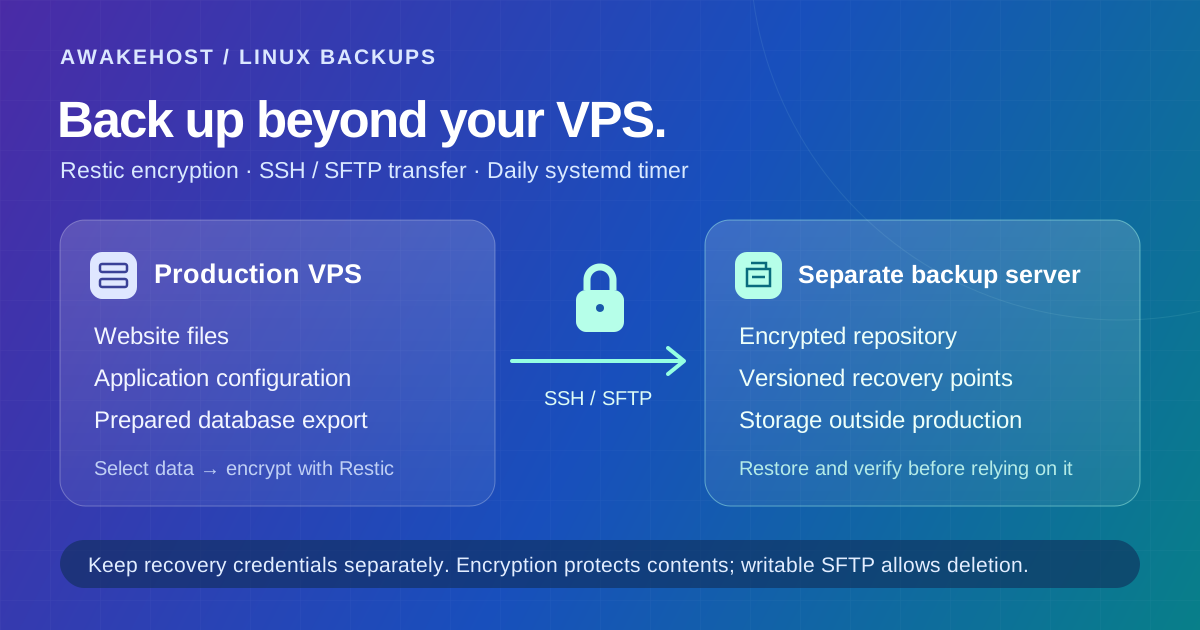
You can find the broader setup process in our Ubuntu SSH security guide and 10 Essential Security Steps After Buying a VPS.
If you're preparing a Linux server for a website, application, or development environment, explore AwakeHost VPS hosting to compare available server configurations and locations.
Final Thoughts
Installing Fail2Ban on Ubuntu is straightforward. Configuring it correctly requires a little more attention.
The most important decision is making sure the SSH jail reads the right authentication events.
On Ubuntu 24.04 and 26.04, using the systemd journal backend avoids relying on an authentication log file that may not exist on your server.
After that, set reasonable failure limits, choose a compatible firewall action, and verify that bans actually take effect.
Keep your administrator connection open while testing and use a separate IP address for manual ban checks.
Fail2Ban won't make an insecure server safe by itself. It does, however, reduce repeated authentication attempts that would otherwise continue without automatic blocking.
For most new Ubuntu VPS deployments, a working SSH jail with five failures in ten minutes and a one-hour ban is a reasonable starting configuration.
Once it's running, review your logs periodically and adjust the settings based on legitimate access patterns and the activity your server receives.
Frequently Asked Questions
How do I install Fail2Ban on Ubuntu 24.04?
Update your package list and install Fail2Ban using sudo apt install fail2ban python3-systemd. Configure the sshd jail with the systemd backend, validate the configuration, start the service, and confirm the jail is active using sudo fail2ban-client status sshd.
Does Fail2Ban work on Ubuntu 26.04?
Yes. Ubuntu 26.04 includes Fail2Ban packages in its repositories. The SSH jail can monitor authentication events through the systemd journal and apply compatible firewall ban actions.
Is Fail2Ban enabled automatically after installation?
That depends on the package and existing configuration. Some Ubuntu packages enable the SSH jail through distribution configuration. Always check sudo fail2ban-client status and verify that sshd is listed rather than assuming it is active.
Does Ubuntu 24.04 use auth.log for Fail2Ban?
Some installations have /var/log/auth.log, but others rely on systemd journal logging. Configuring the SSH jail with backend = systemd avoids depending on that file.
What does maxretry mean in Fail2Ban?
maxretry determines how many matching failures an IP can generate within the configured findtime before a ban is triggered. For example, a value of five with a ten-minute window triggers a ban when the fifth matching failure is counted.
How do I check banned IP addresses in Fail2Ban?
Run sudo fail2ban-client status sshd. The result lists the number of currently banned IPs and the addresses blocked by the SSH jail.
How do I unban an IP in Fail2Ban?
Use sudo fail2ban-client set sshd unbanip IP_ADDRESS, replacing the placeholder with the address you want to remove from the SSH jail's ban list.
Can Fail2Ban work with UFW?
Yes. Fail2Ban provides a UFW action that can add and remove firewall bans. Set banaction = ufw in the relevant jail, verify UFW is active and correctly configured, and test the resulting bans.
Is Fail2Ban necessary if SSH password login is disabled?
It isn't strictly necessary. SSH key authentication already eliminates ordinary remote password guessing as an authentication method. Fail2Ban can still respond to matching suspicious events, but its value depends on your overall security configuration.
Can Fail2Ban protect a WordPress website?
Fail2Ban can protect services that generate suitable authentication or security logs. WordPress protection requires an appropriate log source, filter, and firewall action. Installing an SSH jail alone doesn't provide WordPress application-level login protection.
Does Fail2Ban permanently block attackers?
Not unless you configure an indefinite or otherwise persistent ban policy. Standard configurations often use temporary bans. Attackers may also switch IP addresses, so Fail2Ban shouldn't be treated as a complete defense against automated attacks.
Why is Fail2Ban not detecting SSH login attempts?
Common causes include an incorrect log backend, a mismatched journal filter, no matching authentication failures, or an inactive jail. Check fail2ban-client status sshd, inspect the SSH journal, and use fail2ban-regex to troubleshoot filter matches.