10 Essential Security Steps After Buying a VPS
You've just purchased a VPS. The server is online, you've received its IP address, and you can connect using SSH.
What should you do next?
Before installing WordPress, deploying an application, or moving customer data onto the server, there are a few security settings worth checking.
A VPS gives you more administrative control than a typical shared hosting account. You can install software, configure network services, create users, and change operating system settings. That freedom also means you need to manage security decisions that a shared hosting provider might otherwise handle.
The good news is that securing a new VPS doesn't require buying a collection of security products.
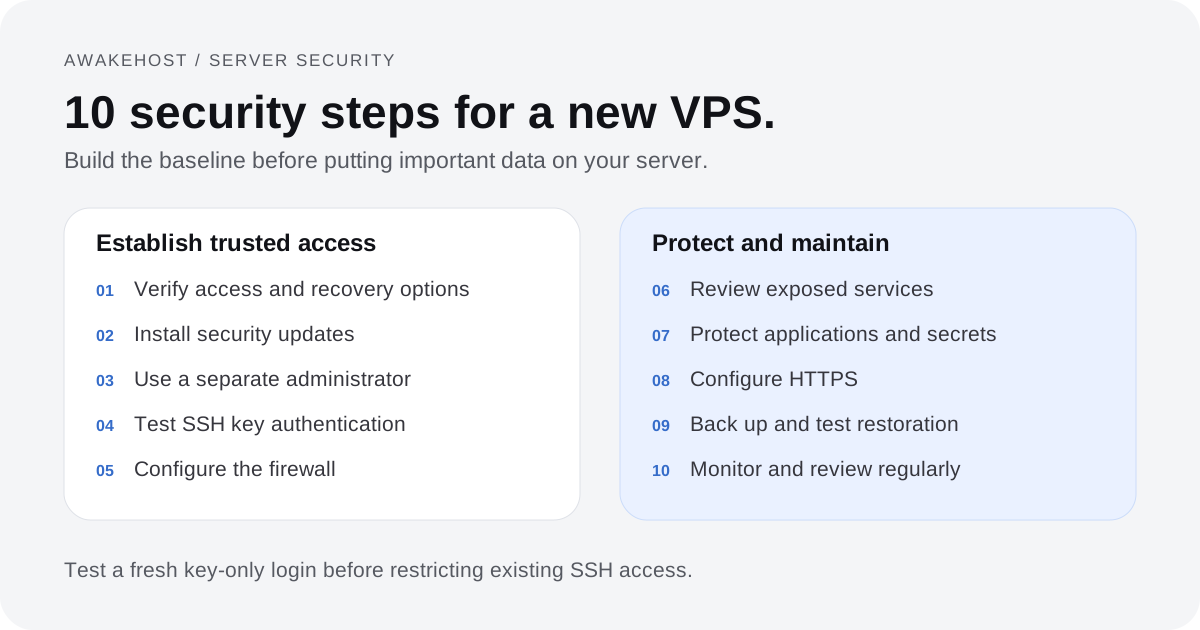
Start with ten essential steps: update the operating system, protect administrator access, configure a firewall, restrict exposed services, secure your applications, and establish reliable backups and monitoring.
This VPS security checklist uses Ubuntu 26.04 LTS and Ubuntu 24.04 LTS as its primary examples. Both are supported Ubuntu releases as of October 2026.
The principles also apply to other Linux distributions, although package names and configuration commands may differ. Windows VPS servers require a separate approach to RDP, Windows Firewall, and account administration.
Before You Begin: Your New VPS Security Checklist
Here's what we'll configure.
| Security step | Main objective |
|---|---|
| 1. Verify your server and hosting account | Establish trusted access and recovery options |
| 2. Install security updates | Fix known software vulnerabilities |
| 3. Create a dedicated administrator account | Reduce unnecessary root access |
| 4. Secure SSH authentication | Protect remote server logins |
| 5. Configure a firewall | Restrict unwanted network connections |
| 6. Close unnecessary services and ports | Reduce the attack surface |
| 7. Secure applications and sensitive files | Protect databases, credentials, and processes |
| 8. Configure HTTPS | Encrypt website and API traffic |
| 9. Set up reliable backups | Prepare for data loss and recovery |
| 10. Enable monitoring and regular reviews | Detect problems and maintain protection |
You should have administrator access to your server before starting.
Keep your existing SSH session open while changing authentication or firewall settings. Test each major change in a separate terminal before disconnecting.
If your VPS provider offers an emergency console, verify that you can access it before changing the server's login configuration.
1. Verify Your VPS and Secure Your Hosting Account
Before installing anything, confirm which operating system is running and how you can recover access if something goes wrong.
Start by connecting to your VPS.
For example:
ssh root@YOUR_SERVER_IPReplace YOUR_SERVER_IP with the public IP address provided by your hosting company. Before accepting the first SSH connection, verify the server host-key fingerprint through a trusted provider channel or console. An unverified key scan alone does not establish the server's identity.
Your default username might be root, ubuntu, or another account, depending on the selected image.
Once connected, check the operating system:
cat /etc/os-releaseThis displays information about the Linux distribution and version.
You can also check the running kernel:
uname -rDon't confuse these two values. The Ubuntu release identifies your operating system distribution, while the kernel version identifies the kernel currently running.
Why the Operating System Version Matters
Security updates are released for supported operating system versions.
As of October 2026, Ubuntu 26.04 LTS is the newest Ubuntu LTS release, with standard security maintenance scheduled through May 2031.
Ubuntu 24.04 LTS also remains supported, so there's no need to replace a functioning 24.04 server simply because a newer LTS version exists.
For new deployments, choose a supported release that is compatible with the software you plan to run.
Avoid starting production workloads on an operating system that has already reached the end of its applicable security-maintenance period.
Protect the Hosting Control Panel
Your VPS isn't controlled only through SSH.
Someone with access to your hosting account may be able to restart, reinstall, or delete the server, depending on the provider's available controls.
That makes account security just as important as server security.
Before continuing:
- Use a unique, strong password for your hosting account.
- Enable multi-factor authentication where supported.
- Protect the email account used for password resets.
- Review authorized users and active sessions if your provider exposes them.
- Confirm how to access the emergency console.
- Store important recovery information securely.
If you've received an initial administrator password, replace it or retire password-based SSH access once you've established a verified alternative.
What you've accomplished: You know which system you're securing and have identified the controls needed to recover administrative access.
2. Update Ubuntu and Enable Automatic Security Patches
A newly provisioned VPS may already contain outdated packages.
The operating system image might have been prepared before the latest security fixes became available.
Your first maintenance task should be updating the installed software.
On Ubuntu, run:
sudo apt updateThis refreshes the package information from your configured repositories.
Next:
sudo apt upgradeReview the proposed changes before confirming them.
These commands can update OpenSSH, system libraries, web server packages, and other software installed through Ubuntu's package-management system.
An update doesn't necessarily take effect immediately for every running component. Some services need restarting, and kernel updates may require a reboot.
On a new VPS without production applications, performing any required reboot is usually easier than postponing it until the server is already handling customer traffic.
Enable Automatic Security Updates
Ubuntu uses unattended-upgrades to automate eligible package updates.
It is commonly installed and enabled by default on Ubuntu Server, but verify the actual state of your VPS image.
If necessary, install it:
sudo apt install unattended-upgradesCheck the automatic update configuration:
cat /etc/apt/apt.conf.d/20auto-upgradesA common daily configuration is:
APT::Periodic::Update-Package-Lists "1";
APT::Periodic::Unattended-Upgrade "1";
These settings request daily package-list updates and unattended upgrades.
You can also inspect scheduled update tasks:
systemctl list-timers 'apt-daily*'Automatic updates don't necessarily cover software installed from third-party repositories, manually downloaded binaries, or applications deployed using custom installers.
For those components, you'll need an additional update process.
What you've accomplished: Your VPS has received available package updates, and you've reviewed how future security patches will be applied.
3. Create a Separate Administrator Account
The root account can modify almost everything on a Linux server.
That makes it useful for system administration, but inappropriate for ordinary day-to-day work when a less privileged account will do.
Instead of routinely connecting as root, use a separate account that can request administrative privileges through sudo.
Create an Administrator User
If your server already has a suitable sudo-enabled account, you can keep using it.
Otherwise, create one:
sudo adduser vpsadminUbuntu will ask you to set a password and may prompt for optional account details.
Next, add the account to the sudo group:
sudo usermod -aG sudo vpsadminCheck its group membership:
groups vpsadminThe output should include sudo.
You can now use this account for routine administration.
Why Separate Accounts Matter
Imagine a server hosting a website, database, and background workers.
The website process doesn't need unrestricted control over the operating system.
Neither does every developer or employee working on the server.
Providing unnecessary privileges increases the damage that a compromised account or application can cause.
Where practical, separate accounts should be used for administration, application execution, and automated deployment.
Avoid sharing one administrator account between several people. Individual accounts make it easier to revoke access and investigate activity.
Don't disable root SSH access yet. First, make sure your new administrator can sign in using SSH keys and successfully run sudo.
4. Secure SSH With Key Authentication
SSH is the primary remote administration method for many Linux VPS servers.
It encrypts communication between your computer and the server, but authentication still needs attention.
If SSH accepts passwords, automated systems may repeatedly attempt to guess or reuse credentials.
SSH key authentication is generally a stronger choice for administrative access.
Generate an Ed25519 SSH Key
Open a terminal on your own computer, not on the VPS.
Run:
ssh-keygen -t ed25519 -C "vps-admin"Follow the prompts to create the key pair. Do not overwrite an existing private key. Reuse a suitable existing key or select a new filename and adjust the commands below to match.
Use a strong passphrase to protect the private key.
You should receive two files, commonly named:
id_ed25519
id_ed25519.pub
The first is the private key. Keep it on your computer and protect it.
The .pub file is the public key that can be installed on your VPS.
Install the Public Key
On Linux or macOS, if password-based login is currently permitted, you can use:
ssh-copy-id -i ~/.ssh/id_ed25519.pub vpsadmin@YOUR_SERVER_IPWindows OpenSSH installations may not include ssh-copy-id. In that case, copy the public key using an existing secure administrator connection and add it to the new user's ~/.ssh/authorized_keys file with appropriate ownership and permissions.
Now try connecting:
ssh -S none -o ControlMaster=no -o ControlPath=none \
  -o PreferredAuthentications=publickey -o IdentitiesOnly=yes \
  -o PasswordAuthentication=no -o KbdInteractiveAuthentication=no \
  -i ~/.ssh/id_ed25519 vpsadmin@YOUR_SERVER_IP
Once connected, check your administrative privileges:
sudo whoamiThe output should be:
rootDisable Direct Root and Password-Based SSH Login
Only continue once you have confirmed that the new account works. The explicit key-only command above must succeed without falling back to a password or reusing an existing SSH connection. Back up your current SSH configuration into a protected administrator-only location before editing it.
Ubuntu supports additional SSH configuration files in:
/etc/ssh/sshd_config.d/Create an early-loading configuration file:
sudo nano /etc/ssh/sshd_config.d/00-vps-security.confAdd:
PubkeyAuthentication yes
PasswordAuthentication no
KbdInteractiveAuthentication no
PermitRootLogin no
These directives enable public key authentication, disable ordinary password and keyboard-interactive authentication, and prevent direct root SSH login.
Do not apply KbdInteractiveAuthentication no if you already use SSH multi-factor authentication that requires keyboard-interactive authentication. Adapt the configuration to your verified authentication policy.
Test the configuration:
sudo sshd -tThen inspect the effective values:
sudo sshd -T | grep -E '^(pubkeyauthentication|passwordauthentication|kbdinteractiveauthentication|permitrootlogin) 'Confirm they match your intended settings. Existing configuration files and conditional rules can affect which values apply. If you use Match rules, also inspect the effective configuration for the intended connection with sshd -T -C:
sudo sshd -T -C user=vpsadmin,addr=YOUR_CLIENT_PUBLIC_IP,host=YOUR_CLIENT_HOSTNAME,laddr=YOUR_SERVER_IP,lport=22 | grep -E '^(pubkeyauthentication|passwordauthentication|kbdinteractiveauthentication|permitrootlogin) 'Replace the connection placeholders with the real client address, resolved client hostname, server address, and SSH port. Verify each administrator connection and applicable Match rule before reloading.
After verification, reload SSH:
sudo systemctl reload sshOpen a new terminal and repeat the explicit key-only connection command above. Run sudo whoami again before closing the original session.
Keep the original session open until you've verified the new connection.
For a more detailed walkthrough, read our Ubuntu SSH security guide. You don't need to change port 22 just to secure SSH. Moving the service to another port can reduce basic scanning noise, but it doesn't replace strong authentication.
5. Configure a Firewall and Restrict Network Access
A firewall controls which network connections can reach your VPS.
Without appropriate restrictions, an installed service may become accessible from the internet even when you intended to use it privately.
Ubuntu includes UFW, a firewall management tool suitable for straightforward server configurations.
Check Your Current Firewall
Run:
sudo ufw status verboseIf UFW is inactive, configure the necessary access rules before enabling it.
For a standard SSH connection on port 22:
sudo ufw allow 22/tcpIf the server hosts a public website, allow HTTP and HTTPS:
sudo ufw allow 80/tcp
sudo ufw allow 443/tcp
Now establish a default policy for incoming connections:
sudo ufw default deny incomingReview your rules:
sudo ufw show added
sudo ufw status numbered
ufw show added displays saved rules even when UFW is inactive; ufw status numbered lists active rules once the firewall is enabled. Review both as applicable, including any existing broad allow rules. If SSH uses another port, allow that actual port before enabling the firewall. After confirming access is preserved, enable UFW:
sudo ufw enableTest a new SSH connection immediately.
If your VPS uses a nonstandard SSH port, allow that port instead of assuming port 22 is correct.
Don't Expose Every Service
Different applications require different ports.
| Service | Common port | Public access |
|---|---|---|
| SSH | 22/TCP | Restrict where practical |
| HTTP | 80/TCP | Usually public for websites |
| HTTPS | 443/TCP | Usually public for websites |
| MySQL | 3306/TCP | Usually private |
| PostgreSQL | 5432/TCP | Usually private |
| Redis | 6379/TCP | Usually private |
A website may need to accept HTTPS connections from the public internet.
Its database usually doesn't.
For example, if WordPress and MySQL run on the same VPS, WordPress can commonly connect to MySQL locally without exposing port 3306 to the public internet.
You should also check your provider's network firewall, if available. Review IPv4 and IPv6 access separately where both are enabled. See the Ubuntu firewall guide and UFW manual for rule behavior.
Important: If you're running Docker, published container ports can behave differently from ordinary UFW-managed ports. Docker's networking rules may bypass some expected UFW restrictions. Review container port publishing and the relevant Docker firewall documentation rather than assuming UFW protects every container.
6. Remove Unnecessary Services and Close Exposed Ports
Every publicly accessible service adds another component that needs to be maintained and protected.
You might install a database, testing dashboard, file-sharing tool, or development server and forget that it's still running weeks later.
If the software contains a vulnerability or has weak authentication, it can become an entry point into your VPS.
Start by checking which ports are listening.
sudo ss -tulnpThis displays listening TCP and UDP sockets together with process information where available.
Review the services you recognize.
For example, a web server listening on ports 80 and 443 may be expected.
A development database listening on every network interface might not be.
Check Running Services
You can inspect active services with:
systemctl --type=service --state=runningIf you find something unfamiliar, investigate before stopping it.
Some services support networking, monitoring, or other essential system functions even if their names aren't immediately recognizable.
Don't remove packages at random.
Check AppArmor
Ubuntu includes AppArmor, which can restrict what certain applications are permitted to access.
Check its status with:
sudo aa-statusAppArmor profiles can help confine applications, but not every process is necessarily covered by an enforcing profile.
Ubuntu's security documentation advises against disabling AppArmor simply to resolve application errors.
If an application fails because of a security policy, investigate the policy and create an appropriate adjustment where necessary.
What you've accomplished: You've identified the network-facing components of your VPS and reduced unnecessary exposure without disabling services blindly.
7. Protect Applications, Databases, and Credentials
Securing SSH and configuring a firewall won't protect a website that contains a vulnerable plugin or publicly accessible administrative interface.
Once you install applications, security responsibilities extend to the software running on the VPS.
Keep Application Software Updated
If you're hosting WordPress, maintain the WordPress core, plugins, and themes.
For a PHP application, maintain the supported PHP runtime and its dependencies.
For Node.js applications, use supported runtime versions and review vulnerable packages.
Containers also require attention. Updating the host operating system doesn't automatically update every container image.
Use trusted software sources and review packages before installing them.
Protect Database Access
A database should generally be reachable only by the application servers that need it.
If your database runs on the same VPS as your application, local access may be sufficient.
For a distributed deployment, restrict database connections to trusted private addresses or networks.
Use individual application credentials with only the permissions they need.
Avoid using the database's most privileged administrative account for ordinary application queries.
Store Secrets Carefully
Applications may need database passwords, API keys, payment credentials, or other secrets.
Never place these values inside files served publicly by your web server.
Don't commit production credentials to a public Git repository.
Environment files can be useful, but they must be stored outside publicly accessible directories or otherwise protected through appropriate server configuration and filesystem permissions.
Restrict access to configuration files containing secrets.
If you discover that a secret has been exposed, rotate the credential. Simply deleting it from a public webpage or repository doesn't guarantee it was never copied.
Review File Permissions
Linux uses ownership and permission settings to control file access.
For example:
ls -la /var/www/This helps inspect ownership and permissions within a typical web content directory.
Different applications require different permissions.
Don't apply chmod 777 to a website directory just to fix a permission error. That can make files writable by accounts that should not be able to change them.
Use the least privileges required for the application to work.
8. Enable HTTPS and Secure Web Connections
SSH protects remote administration connections.
It doesn't automatically encrypt traffic between your website and its visitors.
If you're hosting a website, web application, or public API, configure HTTPS using a valid TLS certificate.
HTTPS helps protect information transmitted between browsers and servers, including login credentials, form submissions, and application responses.
Install a TLS Certificate
Let's Encrypt offers publicly trusted TLS certificates that can be issued and renewed automatically.
For an Ubuntu server using Nginx, Certbot is a common certificate-management tool.
First, make sure your domain's DNS records point to the intended server and that Nginx is correctly configured.
Certbot can be installed using its supported Snap package. The commands below use the explicit Snap executable path.
If Snap is already available:
sudo snap install --classic certbotIf Certbot is already installed through another method, review that installation before adding a second copy.
For a configured Nginx website, request a certificate:
sudo /snap/bin/certbot --nginx -d example.com -d www.example.comReplace the example domains with your actual names.
Both hostnames must be configured correctly and reachable for the intended HTTP validation method. Keep TCP port 80 reachable for HTTP-01 validation, and check both A and AAAA records if published.
After installation, test certificate renewal:
sudo /snap/bin/certbot renew --dry-runThis simulates the renewal process so you can identify potential problems before a certificate expires.
HTTPS Isn't the Only Application Security Requirement
TLS protects data in transit, but it doesn't make application code secure.
You still need to configure:
- Strong application authentication.
- Appropriate session and cookie security.
- Access restrictions for private interfaces.
- Secure API authorization.
- Current application dependencies.
- Logging that avoids unnecessary disclosure of sensitive information.
Also avoid exposing administrative dashboards directly to the internet unless public access is required.
A reverse proxy, VPN, or suitable access-control service may be useful for private management interfaces.
9. Create Off-Server Backups and Test Recovery
A compromised VPS can be repaired or rebuilt. Lost customer data may be much harder to recover.
That's why backups should be configured before your server begins handling important information.
A snapshot can be useful before major software changes, but it doesn't automatically provide complete disaster recovery. Our snapshots vs backups guide explains recovery scope, retention, and storage isolation.
Your recovery strategy should account for the possibility that the original VPS, hosting account, or storage becomes unavailable.
What Should You Back Up?
For a typical web application, important data may include:
- Website and application files.
- Databases.
- Uploaded documents and images.
- Configuration files.
- Deployment instructions.
- Scheduled task definitions.
- Important application secrets, using appropriate encryption and access controls.
You may also need to preserve information stored outside the VPS, such as managed databases or external object storage.
Follow a Suitable Backup Strategy
The 3-2-1 backup approach is a useful starting point.
It recommends three copies of important data, two different types of storage media, and one copy kept offsite. For cloud backups, also assess independent failure boundaries and deletion controls; separate folders alone do not provide that independence.
For a small business website, this might mean the live server, an automated backup service, and a separately protected recovery copy.
Keep backups encrypted when they contain sensitive information.
Use different access credentials or deletion restrictions for independent backup storage where possible.
How Often Should You Back Up?
It depends on how frequently your data changes.
A small information website updated once per week may have very different recovery requirements from a WooCommerce store receiving orders throughout the day.
A daily backup can still allow almost a day's worth of data loss if something fails just before the next backup.
For transaction-heavy applications, consider database-aware backups and shorter recovery intervals.
Most importantly, test restoration.
A backup that has never been restored is not a proven recovery method.
Restore a copy into a separate, access-restricted environment and confirm that the application, database, and important records work as expected. Disable production email, payment actions, webhooks, and scheduled tasks in the restored copy before testing.
10. Monitor Your Server and Review Security Regularly
The first nine steps establish a baseline.
The tenth step is making sure those protections continue to work.
Server configuration changes over time. New applications are installed, employees receive access, and software updates introduce new requirements.
Monitoring helps you notice failures and suspicious activity before they become larger problems.
Review SSH Authentication Logs
Ubuntu records service activity through the systemd journal.
To review recent SSH events:
sudo journalctl -u ssh --since "24 hours ago"To follow events as they happen:
sudo journalctl -u ssh -fLook for unexpected successful logins, repeated authentication failures, and changes you can't explain.
Remember that failed SSH attempts are common on publicly accessible servers. A failed attempt doesn't mean someone successfully compromised your VPS.
Consider Fail2Ban for Repeated Authentication Attempts
Fail2Ban can monitor authentication events and temporarily block sources associated with repeated failures.
Install it, if appropriate for your setup, with:
sudo apt install fail2banThe SSH jail and ban action must be configured and verified for your logging and firewall environment.
Don't assume installing the package automatically enables effective protection.
If you're using SSH keys and strict source-IP restrictions, Fail2Ban may add less protection than it would on a server accepting public password logins.
Monitor Server Resources
Unusual resource usage can reveal a configuration issue, application fault, or potentially unauthorized activity.
Check memory usage:
free -hCheck storage:
df -hInspect running processes:
topThese commands won't independently detect every security problem, but they can help investigate unusual behavior.
For production services, configure alerts for website outages, high resource usage, failed backups, and unexpected changes where your monitoring tools support them.
Establish a Maintenance Schedule
Security checks shouldn't depend on remembering to run commands occasionally.
A practical schedule might include:
| Frequency | Recommended task |
|---|---|
| Daily | Review important alerts and backup failures |
| Weekly | Check outstanding security updates and application health |
| Monthly | Review user accounts, SSH keys, and firewall rules |
| Quarterly | Test recovery and inspect the overall server configuration |
| After staff changes | Remove access no longer required |
| Before major changes | Create a recovery point and plan a rollback |
This schedule is a starting point. High-risk or business-critical applications may need more frequent monitoring.
If you suspect a server has been compromised, preserve relevant evidence, restrict access appropriately, investigate affected credentials, and consider rebuilding from a known trustworthy image rather than assuming that deleting a suspicious file resolves the incident.
How Secure Is a VPS After These 10 Steps?
A VPS with current software, key-based administration, sensible firewall restrictions, protected applications, and tested backups has a much stronger security baseline than an unmanaged server configured without these precautions.
That doesn't make it impossible to compromise.
Security also depends on application vulnerabilities, third-party software, the devices administrators use, and the behavior of everyone with access.
The goal is to reduce common attack paths and make recovery possible when something fails.
Use this short checklist before moving production traffic onto a new server.
| Security check | Expected result |
|---|---|
| Supported operating system | Confirmed |
| System updates | Installed and scheduled |
| Hosting account security | Strong password and MFA where supported |
| Separate administrator | Created and tested |
| SSH authentication | Working with keys |
| Direct root SSH login | Disabled where appropriate |
| Firewall | Active with required rules |
| Public services | Reviewed and restricted |
| Application credentials | Protected |
| HTTPS | Configured for public websites |
| Backups | Scheduled and restoration tested |
| Monitoring | Enabled with a responsible administrator |
If any critical item is missing, address it before adding more applications or sensitive data.
Common VPS Security Mistakes to Avoid
Several mistakes repeatedly undermine otherwise reasonable server configurations.
Disabling password authentication too early. Always verify key-based SSH access before removing the previous login method.
Enabling UFW without allowing SSH. This can disconnect you from your remote server.
Exposing databases to the internet. A database normally should be reachable only from authorized applications and administrators.
Using one account for everything. Separate administrative access from application execution wherever possible.
Installing software from unknown sources. Untrusted scripts and packages may introduce malicious code or create unnecessary vulnerabilities.
Assuming Docker containers are automatically isolated from public network access. Review published ports and Docker's interaction with host firewall rules.
Ignoring automatic backup failures. A backup schedule isn't useful when jobs repeatedly fail without anyone noticing.
Relying on an unchanged snapshot as your only backup. Confirm retention, recovery scope, storage isolation, and restoration procedures.
Leaving unused administrator keys active. Remove credentials when developers, contractors, or employees no longer require access.
Treating security as a one-time setup. A VPS needs ongoing maintenance throughout its lifetime.
Getting Started With an AwakeHost VPS
AwakeHost offers KVM VPS hosting with Linux and Windows options, administrative access, and server configurations across multiple locations.
If you're planning to host a website, application, database, or development environment, choose a VPS configuration with enough CPU, RAM, and storage for the workload.
For Linux deployments, you can use the checklist above to review your operating system, administrator access, network services, and backup arrangements.
Available operating system images, management features, and recovery options can differ by plan and region.
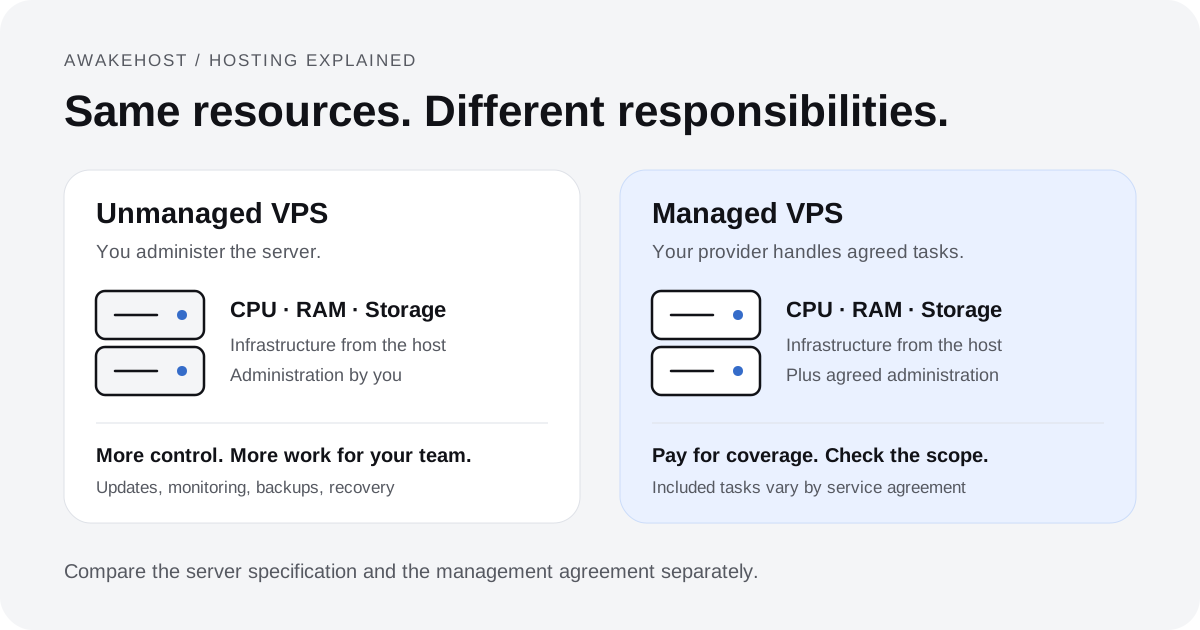
Before ordering, confirm which version of Linux is available for your selected service and what server-management assistance is included. Our managed vs unmanaged VPS guide explains how to review those responsibilities.
You can explore AwakeHost VPS hosting or contact the AwakeHost team if you need clarification about your VPS deployment.
If you're managing the server yourself, keep your access credentials protected and maintain separate backups of important files and databases.
Final Thoughts
Buying a VPS is only the beginning of running your own server.
The settings you configure immediately after deployment can influence how easy it is for an attacker to gain access, how reliably applications operate, and how quickly you can recover from an incident.
Start with the fundamentals.
Keep Ubuntu updated. Use a separate administrator account and SSH keys. Restrict network access. Remove services you don't need. Protect application credentials and encrypt public web traffic.
Then make sure you have backups you can actually restore and enough monitoring to notice when something changes.
You don't need to apply every advanced Linux hardening technique on the first day.
You do need to understand what's running on your server, who can access it, and what you'll do if something fails.
The best time to secure a VPS is before you put important data on it.
Compare AwakeHost VPS hosting plans and choose a server that fits your application and administration requirements.
Frequently Asked Questions
What should I do first after buying a VPS?
Confirm the operating system version, secure your hosting account, and verify how to recover administrative access. Then install available security updates before deploying applications. Configure a separate administrator account and SSH key authentication before disabling existing login methods.
Is a new VPS secure by default?
Modern Linux distributions include important security protections, but your actual VPS configuration depends on the operating system image and hosting provider. Review exposed services, authentication methods, updates, and firewall rules rather than assuming every default is appropriate for your workload.
How do I secure an Ubuntu VPS?
Use a supported Ubuntu release, apply updates, enable appropriate automatic security patching, configure SSH keys, restrict root login, enable a firewall, and protect applications and backups. Review logs and administrative access regularly.
Should I disable root login on my VPS?
Disabling direct root SSH login is generally sensible once you've verified another administrator account with working SSH key authentication and sudo privileges. Do not disable your only working administrative login.
Do I need Fail2Ban on a VPS?
It can be useful for limiting repeated authentication attempts, particularly on publicly accessible services. However, Fail2Ban doesn't replace SSH keys, firewall restrictions, security updates, or strong credentials.
Is UFW enough to secure a Linux VPS?
No. UFW controls network traffic, but it cannot prevent every application vulnerability or account compromise. You also need secure authentication, patched software, protected credentials, appropriate application permissions, and reliable backups.
How often should I update my VPS?
Apply important security updates promptly and maintain an appropriate automatic update process. Review application dependencies and software installed outside Ubuntu's package repositories separately. Plan maintenance or reboots when required.
Do I need antivirus software on an Ubuntu VPS?
Antivirus software may be useful for particular workloads, such as handling uploaded files or scanning content shared with other systems. It isn't a substitute for a properly secured operating system. The need depends on what your server processes and which threats you're addressing.
Does a VPS provider automatically protect my website?
A provider manages the infrastructure and services covered by its agreement. Customers using self-managed servers generally remain responsible for operating system configuration, applications, access controls, and data protection unless additional management is explicitly included.
Can I secure a VPS without a control panel?
Yes. Ubuntu includes tools for administration, firewall configuration, software updates, logging, and access control. A hosting control panel can make certain tasks easier, but it isn't required to secure a Linux VPS.
Is Ubuntu 26.04 LTS better than Ubuntu 24.04 LTS for VPS security?
Ubuntu 26.04 LTS is newer and includes updated software and security features. Ubuntu 24.04 LTS remains a supported production option. Select the release compatible with your applications and keep it patched. A supported older LTS installation with good maintenance is preferable to a newer installation that isn't properly managed.