VPS Snapshots vs Backups: What's the Difference?
You've spent hours configuring your VPS. Your website is running, the database is connected, and everything works as expected.
Then a software update goes wrong.
Your website stops loading, and you need to get the server working again. Fortunately, you created a snapshot before the update. You restore the earlier server state and investigate the problem.
Now imagine a different situation. Someone gains access to your hosting account and deletes the server along with its recovery images. A snapshot stored in that same account may no longer help.
This is where understanding VPS snapshots vs backups becomes important.
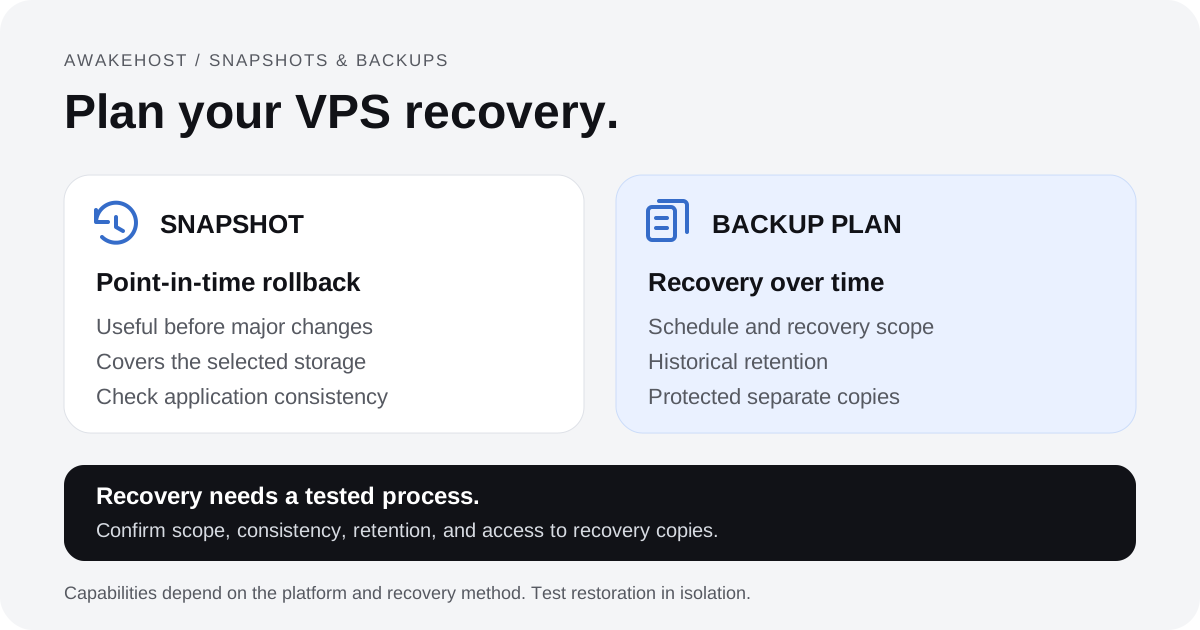
Both can help you recover lost data, but they don't always provide the same protection. A snapshot is typically a point-in-time record of a virtual disk or server state. A backup is a recoverable copy of data or systems maintained as part of a broader recovery process.
The distinction isn't absolute. Some providers use snapshots to produce their automated backups. What matters is where recovery data is stored, how long it's retained, and what you can recover when something goes wrong.
For most production VPS environments, the sensible approach is to use snapshots for convenient rollback and independent backups for longer-term data protection.
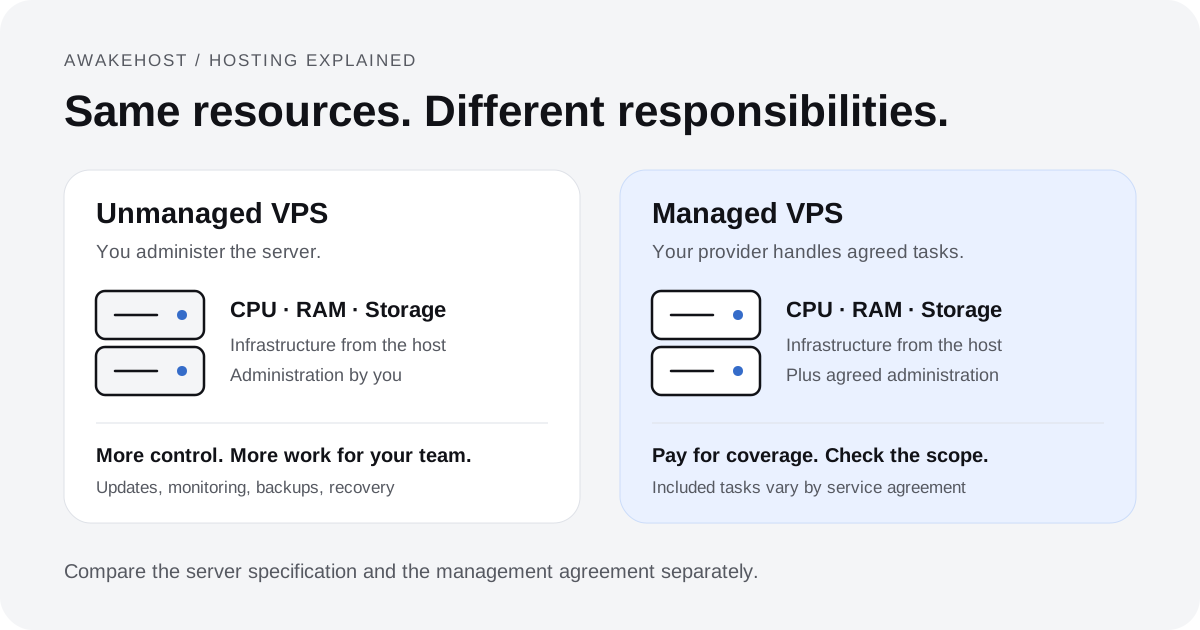
Let's examine how both work and when each is useful. Our managed vs unmanaged VPS guide explains who handles backup jobs, monitoring, and recovery under each service arrangement.
What Is a VPS Snapshot?
A VPS snapshot captures the state of a virtual disk, or a defined set of disks, at a particular point in time.
Depending on the hosting platform, it can preserve the operating system, installed applications, configuration files, databases, and website data stored on those disks.
Think of it as a recovery checkpoint.
For example, suppose you're running Ubuntu 24.04 with Nginx, PHP, and WordPress.
Before upgrading PHP, you create a server snapshot. After the upgrade, your website develops compatibility problems.
If the snapshot covers all the required disks, you may be able to restore the earlier configuration without manually reinstalling the operating system and applications.
How VPS Snapshots Work
The underlying technology depends on the virtualization platform and storage system.
Many modern platforms use incremental or copy-on-write mechanisms to record storage changes efficiently.
Rather than physically duplicating every disk block each time, the storage system can preserve the information required to reconstruct a particular point-in-time state.
Some services expose this as a complete disk image that can be used to create another VPS. Others offer a rollback feature that restores the original disk or virtual machine.
The interface may be simple, but the recovery process varies by provider.
A snapshot may cover:
- The operating system and its installed packages.
- Website files stored on the captured disk.
- Local databases and application configuration files.
- Server settings saved to disk.
- Other selected virtual disks, if supported.
It may not include external block volumes, separately hosted databases, provider networking settings, DNS records, or files stored outside the captured storage.
A snapshot also doesn't necessarily preserve running processes or the contents of RAM.
Important: A disk snapshot normally captures storage at a point in time. Don't assume it records the complete live state of every running application.
When Should You Create a Snapshot?
Snapshots are particularly useful before changes that might require a rollback.
Examples include upgrading Ubuntu, changing PHP versions, modifying a web server configuration, installing a new control panel, or deploying a major application update.
For a development VPS, you might create a snapshot before testing unfamiliar software.
If the experiment fails, you have a known previous disk state to return to.
This is convenient, but a snapshot should not be your only recovery copy.
What Is a VPS Backup?
A VPS backup is a recoverable copy of important server data, application files, databases, or an entire system.
Backups are usually created and retained according to a defined schedule or recovery policy.
For example, a business might maintain daily backups of its website files and database, keep weekly recovery points for a longer period, and store copies in an independent storage account.
Unlike the typical use of a temporary snapshot, a backup strategy is designed around recovering information after accidental deletion, corruption, security incidents, or infrastructure failures.
The important word is strategy.
A single copy of a database stored on the same VPS isn't an adequate backup strategy if losing that server also destroys the copy.
How VPS Backups Work
There are several ways to back up a virtual server.
- Full backups contain all the data covered by the backup job at the time it runs. A full system backup may include an entire disk image, while a full website backup may contain only website files and databases.
- Incremental backups save data that has changed since a previous backup, according to the backup system's design.
- Differential backups generally capture changes since the last full backup.
- Application-aware backups coordinate with an application or database to produce a recoverable copy of its data.
A hosting provider might offer automated full-server backups, while a website owner uses another tool to copy databases and files to external storage.
Both can be useful, but they solve different problems.
A complete recovery plan may require more than one type of backup.
For instance, a WordPress website needs its database as well as its uploaded files, themes, plugins, and configuration.
Recovering only the files may leave the website without its posts, customer records, or settings.
VPS Snapshots vs Backups: Key Differences
Here's a practical comparison of how snapshots and backups are commonly used.
| Feature | VPS snapshot | VPS backup |
|---|---|---|
| Main purpose | Capture a point-in-time state, often for rollback | Preserve recoverable data or systems |
| Typical scope | Selected virtual disks or VM storage | Files, databases, disks, or entire systems |
| Creation | Manual or automated | Manual or automated |
| Scheduling | Depends on provider | Commonly scheduled |
| Storage location | Provider-managed or platform-specific | Local, provider-managed, or independent storage |
| Retention | Often controlled separately | Usually defined by a backup policy |
| Full server recovery | Often supported | Supported by image-based backups |
| Individual file recovery | May require mounting or extracting a disk image | Often supported by file-level backup tools |
| Database consistency | Requires appropriate coordination | Requires appropriate backup method |
| Protection from account compromise | Depends on isolation and access controls | Stronger when stored independently and protected |
| Cost | May incur snapshot storage charges | May include storage, automation, and retention charges |
Neither method is universally faster, cheaper, or safer.
A snapshot may be the quickest way to roll back a particular server configuration, while an independently stored backup may be the only useful recovery option if the original hosting account is unavailable.
The real difference appears when you examine what happens during a failure.
Snapshot vs Backup: Which One Protects You in Different Situations?
Consider these common VPS problems.
| Situation | Usually the better option |
|---|---|
| A software upgrade breaks the server | A snapshot created before the upgrade |
| You accidentally delete one important file | A file-level backup with the correct recovery point |
| A database becomes corrupted | A verified database backup or suitable application-consistent recovery point |
| You want to clone a VPS for testing | A compatible server snapshot or image |
| Your VPS is deleted | A recovery copy that remains accessible independently |
| Your hosting account is compromised | An independently protected backup |
| Your business requires long-term records | A backup system with an appropriate retention policy |
| You need to restore the entire operating system | A suitable snapshot or full-system backup |
The correct option depends on whether the recovery copy exists, covers the required data, and can actually be restored.
Scenario 1: A Failed Ubuntu Update
You maintain a VPS running several websites.
Before a major software upgrade, you create a snapshot. The upgrade causes a configuration problem, leaving your websites inaccessible.
If the snapshot captured the relevant disks and is restorable, you can return the server to its earlier state.
This is a good example of where snapshots can save administrative work.
Without a snapshot, you might need to troubleshoot individual packages or rebuild the environment from a backup.
However, restoring the snapshot also rolls back changes made after it was created.
If customers placed orders or uploaded files during that time, those changes could be lost.
For active production applications, consider what will happen to new data before restoring an older server image.
Scenario 2: Someone Deletes an Important File
Suppose an employee accidentally deletes a customer report from your VPS.
You have a snapshot from yesterday, but restoring the entire server would also roll back other changes.
A file-level backup might allow you to recover only the missing report.
This is often more convenient because you don't need to replace the rest of the server's current data.
Some snapshot platforms also support extracting individual files by mounting a recovered disk image.
That means snapshots aren't always limited to whole-server recovery. The difference is how easily the particular platform lets you retrieve what you need.
Scenario 3: Your Hosting Account Is Compromised
Imagine an attacker gains access to the hosting account controlling your VPS.
If the attacker can delete your server and all its snapshots, those snapshots may offer little protection.
An independently stored backup can provide a separate recovery route, provided the attacker cannot access or erase it.
For stronger protection, backup systems may use different administrative credentials, restricted deletion permissions, immutable storage, or offline copies.
This is one reason backups should be treated as a security measure, not just a convenience. Our Ubuntu SSH security guide covers key-based server access. Protect the hosting and backup accounts separately too; server SSH controls do not secure those account logins.
Scenario 4: A Storage or Infrastructure Failure
A physical storage failure can affect the virtual disks running your VPS.
Whether a snapshot survives depends on where the provider stores snapshot data and how its infrastructure is designed.
Some cloud services retain snapshots in separate, redundantly managed storage systems. Others may use different arrangements.
A snapshot isn't automatically unsafe because it's offered by the hosting provider, but you shouldn't assume it's geographically independent or protected from every failure.
For disaster recovery, confirm where recovery copies are stored and whether they can be restored if the original server or region becomes unavailable.
Are VPS Snapshots the Same as Backups?
Not exactly, although they overlap.
A snapshot can be used as a backup. In fact, some cloud backup systems create point-in-time snapshots as part of their backup process.
The distinction is therefore not as simple as saying snapshots are temporary and backups are permanent.
Neither statement is universally true.
A provider may retain snapshots for months or offer automated snapshot schedules. Another may use snapshot technology to create daily backups with a fixed retention period.
What determines the quality of your protection is the recovery system around those copies.
Consider these questions:
- Is the copy created automatically?
- Does it contain all the data needed to restore the application?
- Can it survive loss of the original server?
- Can it survive compromise of the hosting account?
- How many historical recovery points are available?
- Can you verify and test restoration?
If a snapshot-based service meets your recovery requirements, it can form part of a sound backup strategy.
The risk comes from assuming that every snapshot automatically provides those protections.
Crash-Consistent vs Application-Consistent Snapshots
This is an important technical detail, especially if your VPS runs a database.
A snapshot can be successfully created without guaranteeing that every running application has saved its data in a recoverable state.
Crash-Consistent Snapshots
A crash-consistent snapshot captures disk data in a state comparable to the storage state after an unexpected power interruption.
Applications may have data in memory or pending writes that weren't fully committed when the snapshot was taken.
After restoration, the operating system and databases may need to perform normal recovery procedures.
Many modern databases are designed to recover from certain unclean shutdowns, but that doesn't guarantee every application will recover without data loss or inconsistency.
For a simple static website, this may be less concerning.
For a database handling frequent transactions, the distinction matters much more.
Application-Consistent Snapshots
An application-consistent snapshot coordinates with the application or database so the captured data represents a suitable recovery state.
Depending on the application, this might involve flushing pending writes, briefly pausing operations, or invoking database-specific backup mechanisms. Freezing a filesystem alone does not prove that every application has reached a consistent state. Follow the application's supported procedure and coordinate all required disks and logs.
The exact method varies.
For example, a production database may require transaction-aware backup tools or an application-supported snapshot procedure. PostgreSQL's filesystem backup guide explains why a usable storage snapshot must include the complete database data and required write-ahead logs, with coordinated capture when these span multiple filesystems. Other databases have their own requirements.
A snapshot of a running database should not automatically be treated as a verified database backup.
If your VPS hosts WordPress, WooCommerce, WHMCS, or another database-driven application, confirm how consistent backups are produced and test restoration using a separate environment.
How Often Should You Back Up Your VPS?
Your backup frequency should reflect how much data you're prepared to lose.
A personal testing server may only need occasional backups.
A business application that records orders or financial transactions may need much more frequent recovery points.
To make that decision, it's helpful to understand two terms.
Recovery Point Objective (RPO)
RPO describes the maximum acceptable amount of data loss measured in time: how far back a recovery point may be. See NIST's recovery point objective definition.
Suppose you back up a website database once every 24 hours.
If the server fails shortly before the next backup, you could lose nearly a day's worth of changes.
For a personal blog updated twice a week, that might be manageable.
For an online store receiving orders every few minutes, losing almost 24 hours of data could be unacceptable.
A shorter RPO generally requires more frequent backups, database logs, continuous replication, or another suitable recovery mechanism. Replication alone is not a substitute for historical backups: it can copy accidental deletions or corrupted data to the replica. Keep recoverable earlier versions too.
Recovery Time Objective (RTO)
RTO describes how quickly a service needs to be restored after an interruption. It is a recovery target, not proof that a particular backup can meet it. See NIST's recovery time objective definition.
A development server might tolerate several hours of downtime.
A business-critical application may require a much shorter recovery period.
Your RTO helps determine whether you need an easily restorable server image, a prepared replacement environment, automated restoration tools, or additional infrastructure.
A snapshot doesn't automatically guarantee a short recovery time. Restoring a large disk, checking database consistency, reconfiguring networking, and validating applications can all take time.
Example Recovery Requirements
| Website or application | Illustrative RPO | Illustrative RTO |
|---|---|---|
| Personal development VPS | 24–72 hours | 24 hours |
| Small business website | 24 hours | 8 hours |
| Active online store | 1 hour | 2 hours |
| Business-critical application | 15 minutes | 1 hour |
These are examples of possible business requirements, not guaranteed performance levels or universal standards.
For a website with customer transactions, choose objectives based on the actual financial and operational consequences of data loss.
How Long Should You Keep VPS Backups?
Backup retention determines how far back you can recover data.
Keeping only the latest backup can create problems when damage goes unnoticed.
For example, suppose a plugin corrupts part of your database, but nobody notices for four days.
If your backup system only retains the latest three daily copies, every available recovery point may contain the damaged data.
Maintaining older copies can help you recover from problems discovered after the fact.
A small production website might consider a schedule such as:
| Recovery copy | Illustrative retention |
|---|---|
| Daily backups | 7 days |
| Weekly backups | 4 weeks |
| Monthly backups | 3 months |
| Pre-upgrade snapshot | Until the upgrade is validated |
This is a planning example, not a universal requirement.
Retention should reflect business requirements, storage costs, contractual obligations, and applicable data protection rules.
Be especially careful with backups containing customer information. Keeping copies for longer than necessary can introduce its own security and compliance risks.
The 3-2-1 Backup Rule for VPS Hosting
A widely used approach to data protection is the 3-2-1 backup rule.
It recommends maintaining:
- 3 copies of important data, including the working copy.
- 2 different types of storage media.
- 1 copy stored offsite.
CISA's data backup guidance describes this rule. For cloud hosting, also check separate failure locations and access controls; having two account names alone does not establish two media types or offsite protection.
For a VPS, a practical arrangement might look like this:
- Copy 1: Your live website and database on the production server.
- Copy 2: Automated backups in a managed backup storage service.
- Copy 3: Another protected copy stored offsite, using a different storage medium where practical. For a cloud copy, choose a separate failure location and restrict access independently.
Where appropriate, use immutable or offline storage to prevent unauthorized deletion or alteration.
The aim is to avoid a single failure destroying both your production data and every recovery copy.
For a website that matters to your business, don't keep all recovery files inside a directory on the same VPS.
If that disk fails or the instance is deleted, you may lose the backups alongside the production files.
Can Snapshots Replace Regular Backups?
For temporary development environments, snapshots might provide enough practical recovery capability.
For production websites, relying exclusively on snapshots is usually difficult to justify unless the snapshot system itself satisfies all your backup requirements.
Consider a VPS hosting a customer portal.
You create snapshots before major software changes and keep automated daily backups in independent storage.
The snapshots allow convenient restoration after a failed deployment.
The backups provide historical recovery points and an alternative way to recover important files and databases.
Together, they address more failure scenarios than either method alone.
The exact combination doesn't need to be complicated.
What's important is that no single recovery mechanism becomes an unexamined point of failure.
How Much Do VPS Snapshots and Backups Cost?
Snapshot and backup costs depend on how the hosting platform stores recovery data.
Some providers charge for snapshot storage based on the amount of data retained.
Others offer backup plans billed at a fixed monthly amount, a percentage of the VPS price, or according to stored data and retention.
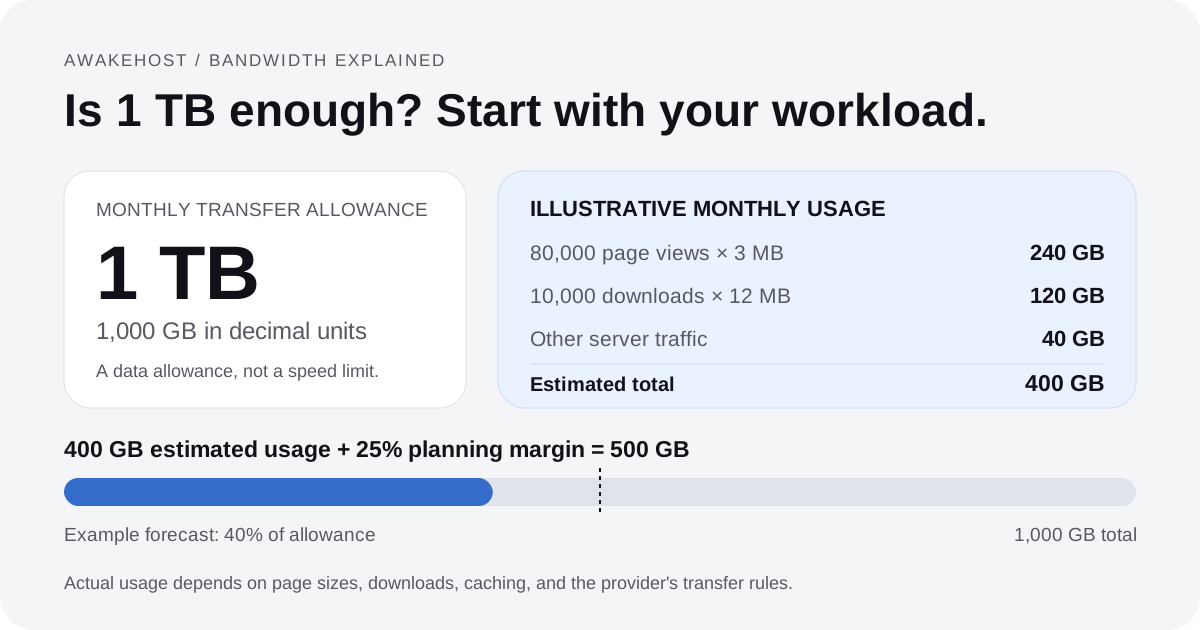
Additional charges may apply for transferring backups to another region or restoring data from certain storage tiers. External backup transfers may also count toward the VPS's network allowance, depending on its accounting rules. Our VPS bandwidth guide explains how to budget for that traffic.
Why Snapshot Storage Costs Can Grow
Incremental snapshots can reduce repeated storage of unchanged blocks.
However, this doesn't mean every new snapshot adds only a small amount of storage.
Imagine you have a 100 GB virtual disk containing files that change frequently.
Your snapshot system may need to preserve historical versions of many disk blocks.
Over time, retaining more recovery points can increase total storage consumption.
Deleting one snapshot also may not free the amount of storage you expect, because other recovery points might still reference shared data blocks.
The actual calculation depends on the provider's storage architecture.
Why the Cheapest Backup Isn't Always the Best
A backup service with a low monthly price may have limitations around frequency, retention, recovery scope, or restoration support.
Before comparing costs, check what you're purchasing.
For example, a daily full-system backup and a backup service offering database-aware recovery every few hours are not equivalent simply because both are called backups.
Evaluate the recovery capabilities first, then compare prices for services that meet your requirements.
How to Create a Practical VPS Backup and Snapshot Strategy
You don't need an enterprise disaster recovery platform to protect an ordinary website.
A reliable process starts by identifying what you need to recover.
Step 1: Identify Your Critical Data
Make a list of the components required to rebuild your website or application.
This might include website files, databases, application configuration, uploaded media, SSL-related configuration, scheduled tasks, and deployment instructions.
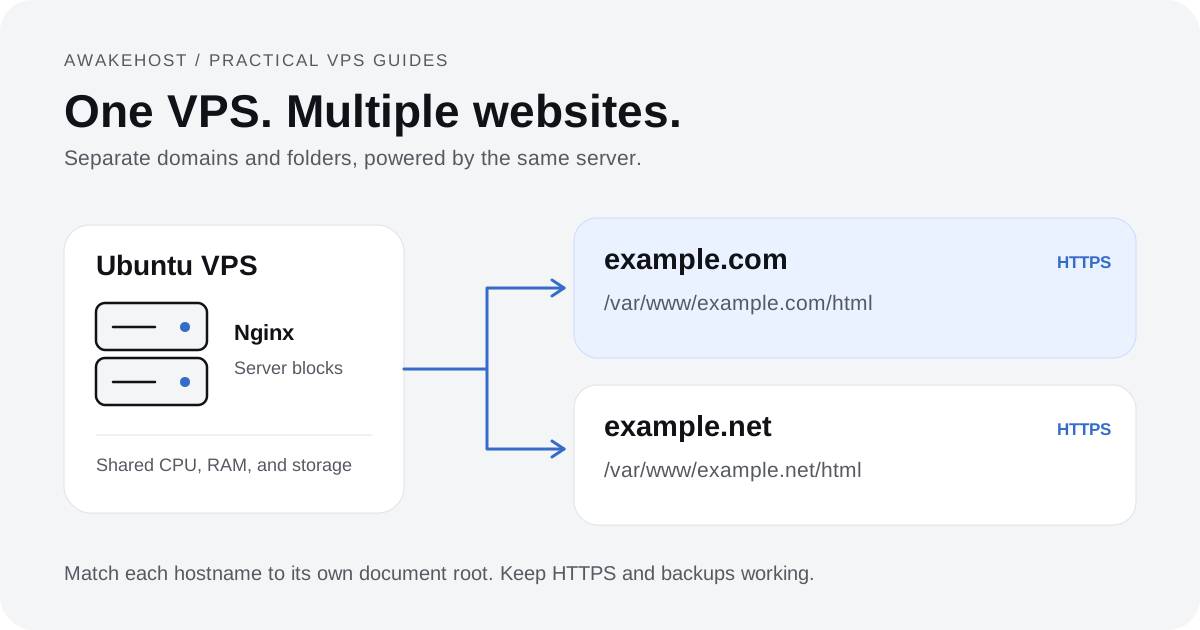
Also identify data stored outside the VPS. If you host several domains, inventory each site's files, databases, and credentials. Our multiple-websites VPS tutorial shows how site configurations can be separated on a shared server.
For example, if your application uses a managed database or external object storage, a snapshot of the VPS disk may not contain that information.
Step 2: Create a Snapshot Before Major Changes
Before installing an important operating system update, changing a database version, or deploying a major application release, create an appropriate snapshot if your platform supports it.
Confirm that the operation has completed successfully before starting the change.
For a database-heavy application, follow the required consistency procedure.
A snapshot requested moments before an upgrade isn't useful if it never finished or cannot be restored.
Step 3: Schedule Automatic Backups
Use a backup tool or service that supports your required frequency and recovery scope.
For example, a website with frequently changing content may need daily database backups and a separate schedule for less frequently changed application files.
More demanding applications may need shorter recovery intervals.
Avoid depending on someone remembering to create a backup manually.
Step 4: Store a Protected Copy Separately
Keep at least one recoverable copy outside the production VPS.
Where your risk assessment requires it, use separate credentials, limited deletion permissions, another account or location, and immutable storage.
Encrypt sensitive backups and manage encryption keys separately.
An encrypted backup isn't useful if its decryption key is lost, so include key recovery in your plan.
Step 5: Test the Restoration Process
This is where many backup plans fail.
A backup job may report success even when the resulting data cannot fully restore your application.
Periodically restore a recovery point into a separate, isolated test environment. Before starting the restored application, disable production email, payment actions, webhooks, and scheduled tasks. Avoid connecting a test restore to live databases or changing production DNS. These steps prevent the restored copy from altering live data or repeating real transactions.
Check that the website loads, the database is accessible, and important records are present.
For a business application, verify critical workflows rather than simply checking that the server starts.
Record the time required for recovery so you can assess whether your RTO is realistic.
Step 6: Monitor Backup Failures
Configure alerts for failed backup jobs, missing recovery points, and unexpected storage usage.
Review those alerts regularly.
If an automated backup fails every night for a week without anyone noticing, the schedule provides less protection than it appears to.
What Should You Check Before Buying VPS Snapshot or Backup Services?
Whether you're choosing a new VPS or evaluating add-ons for an existing server, ask these questions:
- Are snapshots and automatic backups available on my specific plan? Features may vary by region, virtualization platform, or service.
- What data is included? Confirm whether the service covers the main disk, attached volumes, databases, and necessary configuration.
- Where are recovery copies stored? Check whether they survive deletion of the original VPS, account compromise, or a regional failure.
- How frequently are backups created? Establish the actual schedule and whether it supports your RPO.
- How long are copies retained? Ask whether the service automatically removes older backups.
- Can I restore individual files? Determine whether recovery requires replacing the entire VPS or whether selective restore is possible.
- What are the total charges? Check storage, retention, transfer, and restoration costs.
Also confirm whether the backup service is included in the base VPS subscription or must be purchased separately.
These details matter more than a generic claim that a hosting plan includes backups.
VPS Data Protection With AwakeHost
When choosing an AwakeHost VPS, start by matching the server's CPU, RAM, and storage resources to your workload.
Then plan how you'll protect the information stored on it.
AwakeHost provides KVM VPS hosting across multiple locations, and available features can differ according to the selected service and region.
For backup planning, review the specific service details and confirm whether snapshots, automated backups, or relevant add-ons are available for the VPS you're considering.
Don't assume every location or plan includes identical recovery features.
AwakeHost's backup responsibilities in the service terms also advise customers to maintain their own separate copies of important files, databases, email, and configuration data.
That remains sensible advice even when a provider-managed backup option is available.
You can explore AwakeHost VPS hosting to compare server configurations or contact the AwakeHost team to confirm the available recovery options for your selected plan.
Final Verdict: VPS Snapshots or Backups?
Use a snapshot when you need a convenient way to return a virtual server or disk to an earlier state. Use a properly maintained backup system when you need dependable recovery of important data over time.
Snapshots are particularly useful before software upgrades, configuration changes, and testing.
Independent backups are important for recovering deleted files, restoring historical records, and protecting against failures that affect the original server or hosting account.
Neither method should be judged by its name alone.
A well-designed snapshot system can form part of a backup strategy, while a poorly configured backup system may provide little meaningful protection.
What matters is whether you have usable recovery points, whether those copies survive the failures you're preparing for, and whether you've tested the recovery process.
For a production VPS, combining convenient snapshots with scheduled, independently protected backups is often the most practical choice.
Frequently Asked Questions
Is a VPS snapshot a full backup?
A snapshot can capture a complete point-in-time image of a virtual disk, but that doesn't necessarily make it a complete backup of every resource your application uses. External volumes, databases, networking settings, and other resources may require separate protection.
Are VPS snapshots better than backups?
Neither is universally better. Snapshots are useful for point-in-time rollback and server cloning. Backups provide broader recovery options when they include suitable scheduling, retention, independent storage, and restoration capabilities.
Can I restore a VPS from a snapshot?
Often, yes. Many virtualization and cloud platforms support restoring a disk, rebuilding an existing server, or creating a new VPS from a snapshot. The exact options depend on your provider and the snapshot type.
Do VPS snapshots affect server performance?
They can. Some snapshot operations add disk I/O overhead, particularly during creation or when workloads write substantial amounts of data. The impact varies by storage platform and snapshot implementation.
How many snapshots should I keep?
There's no universal number. Keep snapshots long enough to cover the changes they protect, while accounting for storage costs and provider limits. For long-term recovery, establish a separate retention policy rather than accumulating unnecessary snapshots indefinitely.
Can a snapshot recover a deleted database?
Potentially, if the snapshot includes the relevant database storage and represents a recoverable state from before the deletion. However, restoring the snapshot may also roll back unrelated changes. A verified database backup may offer more precise recovery options.
Are VPS backups stored on a different server?
Not necessarily. Some providers use separate backup infrastructure, while others retain copies within the same data center or administrative environment. Confirm the storage location and failure isolation rather than assuming every backup is offsite.
Do I need backups if my VPS provider offers snapshots?
For important production data, you should have a recovery strategy that addresses more than simple server rollback. Independent backups are advisable when snapshots do not provide sufficient retention, consistency, protection from account compromise, or recovery from wider infrastructure failures.
Do snapshots include RAM and running applications?
Standard disk snapshots generally preserve data stored on the selected disks, not the full contents of RAM or the live execution state of applications. Some virtualization systems offer memory-inclusive snapshots, but this is a separate capability that must be confirmed.
Can I use snapshots to migrate a VPS?
Sometimes. Certain platforms support creating a new server from a snapshot or transferring an image between regions. Cross-provider migrations are more complicated because image formats, drivers, partition layouts, and platform requirements may differ.