Best SSH Software: 7 Clients for Windows, Mac & Linux
You usually notice the shortcomings of an SSH client when a simple job becomes awkward. You need to upload a configuration file, connect through a jump server, or find the right machine among a dozen saved sessions. Getting a terminal window open is only part of the work.
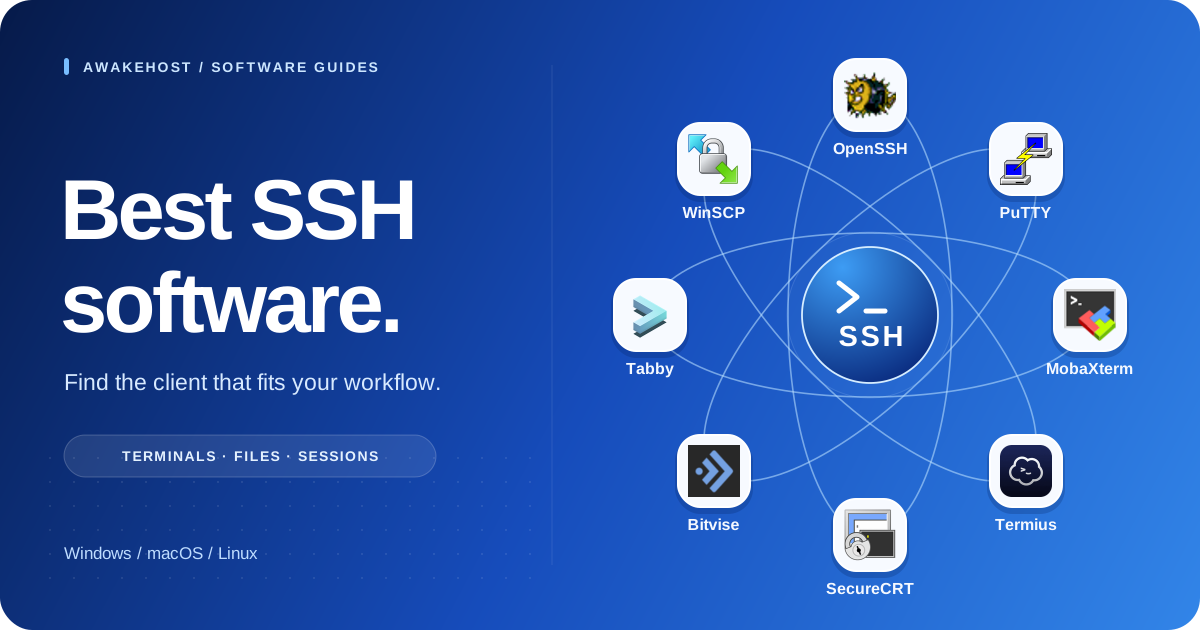
OpenSSH is our starting recommendation for everyday server administration. MobaXterm suits Windows users who want a terminal and graphical file browser together. Termius is worth considering when you move between desktop and mobile devices. The right choice depends on how you work, which operating system you use, and which conveniences you are willing to pay for.
This guide compares seven SSH clients by those needs. Recommendations are editorial judgments based on the projects' documented capabilities, rather than speed benchmarks or claims of hands-on testing.
Quick summary
- Start with OpenSSH for command-line access, reusable connection settings, and scripts.
- Choose PuTTY or Bitvise for a free Windows client; Bitvise also provides a graphical SFTP interface.
- Consider MobaXterm when SSH, file transfers, and other remote-access tools belong in one Windows workspace.
- Look at Termius, SecureCRT, or Tabby for device flexibility, extensive session management, or a customizable terminal respectively.
- Check host fingerprints and protect private keys. A convenient client still needs careful authentication and server configuration.
What is SSH software, and what does it do?
SSH, short for Secure Shell, is a protocol for encrypted remote access. An SSH client runs on your computer and connects to an SSH server on the remote machine. After authentication, you can run commands there, inspect logs, or administer services. SSH can also carry forwarded network connections. See the OpenSSH client manual for the underlying connection model.
For a hosting customer, that might mean connecting from a laptop to a Linux VPS to investigate a failed deployment. The client runs on the laptop; the web server, database, and commands you execute run on the VPS.
Three related terms help when comparing tools:
- Terminal emulator: the application displaying your shell. It may run a separate SSH client or include one.
- SFTP client: a tool for transferring and managing files over an SSH connection. SFTP is distinct from FTP and FTPS.
- Session manager: an interface for organizing connection details, credentials, and groups of servers.
A file browser can make uploads easier, while a session manager can make a large server inventory easier to navigate. Neither changes which commands your remote account is allowed to run.
Best SSH software at a glance
Use this table to choose a shortlist, then read the trade-offs below. Free and paid refer to the products' available editions; check the linked vendor pages before purchasing.
| SSH client | Desktop platforms | Cost model | Our recommended use |
|---|---|---|---|
| OpenSSH | Windows, macOS, Linux | Free, open source | Routine administration and command-line workflows |
| PuTTY | Windows; Unix builds also available | Free, open source | Straightforward Windows terminal access |
| MobaXterm | Windows | Free Home; paid Professional | A combined remote-access workspace |
| Termius | Windows, macOS, Linux; also iOS and Android | Free Starter; paid plans | People working across computers and mobile devices |
| SecureCRT | Windows, macOS, Linux | Paid; evaluation available | Extensive session organization and repeated terminal tasks |
| Bitvise SSH Client | Windows | Free, including organizational use | SSH, graphical SFTP, and tunneling on Windows |
| Tabby | Windows, macOS, Linux | Free, open source | A customizable terminal with integrated SSH |
1. OpenSSH: our first choice for everyday administration
OpenSSH makes sense when you want to connect, run commands, and keep connection settings in a readable configuration file. Its suite includes ssh, sftp, scp, and key-management utilities. It also supports tunneling and several authentication methods. These tools are available under a BSD-style license. OpenSSH project overview.
The practical benefit is that a saved connection can become a short command instead of a collection of fields you enter repeatedly. Host-specific settings in ~/.ssh/config can hold the hostname, username, port, and identity file. OpenSSH configuration reference.
For example, a developer moving between staging and production can give each connection a clear alias. The same familiar command-line approach also suits documented maintenance procedures.
The trade-off: OpenSSH does not provide a graphical server dashboard or drag-and-drop file browser. Choose it if you are comfortable learning a few terminal commands; consider a graphical client if browsing files is a large part of your day.
2. PuTTY: a straightforward free SSH client for Windows
PuTTY is a free, open-source SSH and Telnet implementation for Windows and Unix platforms, with a terminal emulator. Its official site is maintained by Simon Tatham and the PuTTY team. Official PuTTY project.
It is a sensible shortlist option when your goal is narrow: connect to a server and work in its shell. A small support team documenting a familiar connection procedure may value that focus more than an application full of remote-management features.
The trade-off: evaluate a broader workspace if you want graphical file management beside your terminal. PuTTY and a separate file-transfer tool can be a perfectly workable combination, but that is another application to configure.
Download through the official project links, and select SSH for server administration. The presence of Telnet support is not a reason to use an unencrypted login protocol.
3. MobaXterm: a combined Windows remote-access workspace
MobaXterm brings a tabbed terminal, saved remote sessions, an X server, and a graphical SFTP browser into one Windows application. Its SSH file browser lets you drag files between your computer and a remote server. It also supports other remote-session types, including RDP and VNC. MobaXterm feature documentation.
That combination is useful when a task crosses several tools. Imagine inspecting an application log, downloading a copy for investigation, and returning to the same server's shell. Keeping the terminal and file browser together can reduce the number of windows you manage.
The trade-off: the free Home Edition has limits on sessions, tunnels, and macros. Professional removes those limits and adds customization and other features. Review the official edition comparison against your expected server inventory.
We would shortlist it for Windows administrators who regularly need more than a terminal connection. For occasional command-line access, start with a simpler option.
4. Termius: useful for desktop and mobile access
Termius offers SSH applications for Windows, macOS, Linux, iOS, and Android. That platform coverage makes it worth considering if server access sometimes happens away from your primary computer. Termius platform overview.
Its free Starter plan includes a local vault, SSH, SFTP, and port forwarding. The paid Pro plan adds a personal cloud vault, synchronization between mobile and desktop, session logs, and snippet automation. Termius plan comparison.
For example, an administrator who uses a desktop at work and a laptop while travelling may find synchronized connection information valuable. Someone who always works from one machine may get less benefit from paying for that convenience.
The trade-off: distinguish the free local workflow from the paid synchronization workflow before committing. For workplace use, also check whether your organization permits connection details and credentials in a cloud vault. A phone is useful for a quick check; lengthy configuration changes are easier to review on a full keyboard and screen.
5. SecureCRT: worth evaluating for extensive session management
SecureCRT is a commercial terminal client for Windows, macOS, and Linux. Its documented features include tab groups, session organization, a command manager, and scripting. VanDyke provides an evaluation so you can assess it before buying. SecureCRT features and evaluation.
The case for paying becomes stronger when terminal work fills a substantial part of your day. If you repeatedly compare output from different systems, organize many connections, or run carefully reviewed command sequences, those workflow features deserve a trial.
The trade-off: a paid client needs to solve a recurring problem. For someone maintaining one small VPS, a free alternative may already cover the work. During evaluation, recreate a real maintenance task and judge whether the saved effort justifies the license.
SecureCRT integrates with VanDyke's separate SecureFX file-transfer product. Check the relevant product or bundle if a full graphical transfer interface is part of your requirements.
6. Bitvise SSH Client: free Windows SSH with graphical SFTP
Bitvise SSH Client combines a terminal, graphical SFTP, public-key management, and tunneling features on Windows. It supports connections through an SSH jump server and provides Remote Desktop forwarding. The client is free for all types of use, including within organizations. Bitvise SSH Client documentation.
It deserves a place on your shortlist if you want to work with files visually and still have a terminal available. Consider a site administrator who uploads a configuration file, checks its permissions, and then validates the configuration from the shell. Both parts belong in the same working session.
The trade-off: this is a Windows option. If your team needs a consistent application across Windows, macOS, and Linux, compare the cross-platform clients first.
Also distinguish Bitvise SSH Client from Bitvise SSH Server. Connecting to an existing Linux SSH server does not require installing Bitvise's server product.
7. Tabby: a customizable terminal with integrated SSH
Tabby is an open-source terminal and SSH client for Windows, macOS, and Linux. Its features include split panes, themes, configurable shortcuts, an SSH connection manager, jump-host support, and port forwarding. The project's own documentation cautions that it is not lightweight. Tabby project documentation.
We would consider it for someone who wants their local shells and remote connections in a configurable terminal workspace. Split panes can help when you need to keep one command's output visible while working elsewhere.
The trade-off: customization takes time, and a richer application may be unnecessary on a resource-constrained computer. Start with its built-in features and add plugins only when they solve a specific problem.
Tabby was formerly called Terminus. It is a separate project from Termius, despite the similar names.
Need file transfers more than a terminal? Consider WinSCP
WinSCP belongs beside this list as a file-transfer companion. It is a free, open-source Windows application supporting SFTP and SCP over SSH, along with other protocols. It provides directory synchronization, an integrated editor, scripting, and PuTTY integration. WinSCP introduction and features.
If your main task is uploading website files or downloading logs, a visual file manager may be the feature you actually need. Choose SFTP for an SSH-based transfer connection, and keep a terminal client available for interactive administration.
How to choose an SSH client without overbuying
Start with a task you do every week. Then check the details that could make that task awkward:
- Match your operating system. A Windows-only tool can work well for an individual; a mixed-device team may prefer a shared cross-platform application.
- Separate shell access from file work. Decide whether command-line SFTP is sufficient or you need a visual directory browser.
- Check the actual authentication flow. Confirm compatibility with your keys, SSH certificates, hardware tokens, or organizational MFA requirements.
- Test the network path. If access requires a bastion or jump host, verify that setup before migrating saved sessions.
- Decide where credentials belong. Local storage and cloud synchronization have different operational implications. Use the option your access policy supports.
- Review the paid feature you need. A free edition is useful only if its session limits and feature boundaries fit your work.
Try the same modest task in two shortlisted clients: connect to a test server, locate a log, transfer a harmless file if needed, and reconnect using saved settings. That gives you more useful evidence than comparing screenshots or counting features.
A practical first SSH connection
Before installing another application, check whether OpenSSH is already available. Run this in Terminal, PowerShell, or your usual shell:
ssh -VIf the command is unavailable, enable or install the OpenSSH client for your operating system. Windows exposes it through Optional features; Microsoft's Windows Terminal SSH guide explains the connection setup. Windows Terminal is the interface in that workflow; OpenSSH makes the SSH connection.
Using the username and address supplied for your server, the basic connection format is:
ssh admin@203.0.113.10This is a documentation-only address. Replace it and admin with your actual details. If your server uses a custom SSH port, supply it with lowercase -p:
ssh -p 2222 admin@203.0.113.10On the first connection, verify the displayed host-key fingerprint against a trusted source, such as your provider's console, before accepting it. Then complete the server's configured authentication. The OpenSSH manual documents these connection options.
To save a connection, add a host block to your OpenSSH user configuration file, ~/.ssh/config. On Windows, this is normally the .ssh folder inside your user profile. Replace these example values:
Host staging-vps
    HostName 203.0.113.10
    User admin
    Port 2222
You can then run ssh staging-vps. The alias applies the saved settings; it does not bypass authentication. See the host configuration reference for additional options.
Security habits that matter with every SSH client
Keep the client updated, verify server identity, and protect the account you use to connect. A paid application does not remove those responsibilities.
Use an individually assigned account and the authentication method your server requires. For key-based access, protect the private key with a passphrase where supported, keep a secure recovery copy, and upload only the public key to the server. If generating a new key, use a new filename rather than overwriting an existing identity. The OpenSSH key-management manual explains key creation and passphrases.
Treat an unexpected host-key change as something to investigate. A server rebuild can explain it, but confirm that through a trusted channel before replacing the saved key. See the host-key checking documentation.
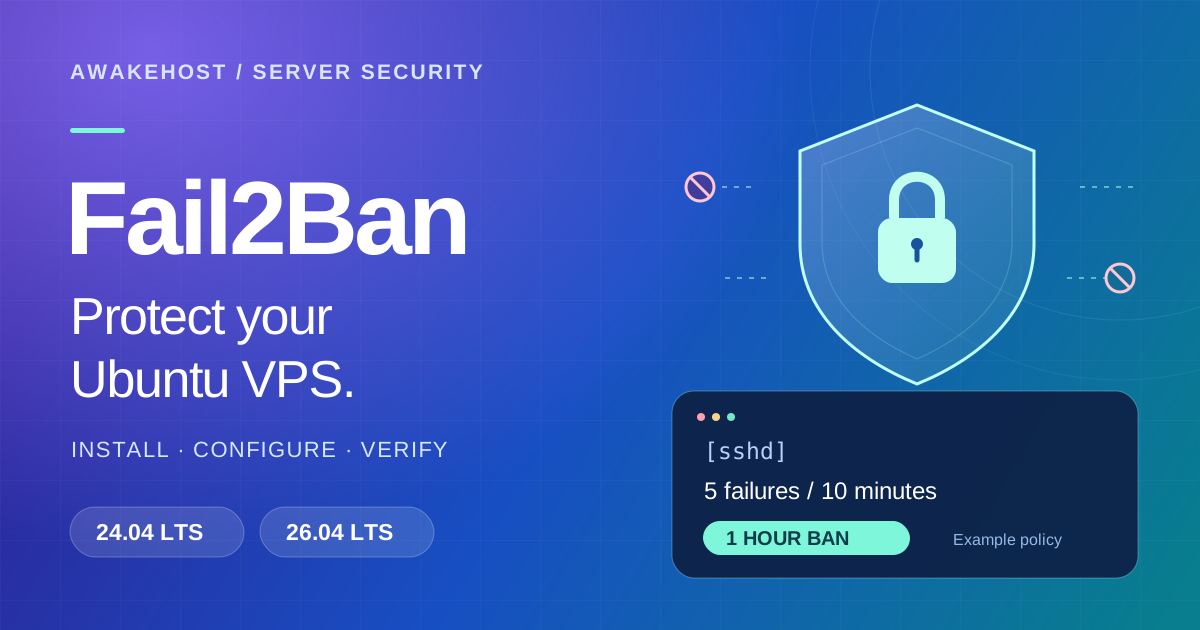
For the server side, follow our Ubuntu VPS SSH security guide. Keep a working session and recovery-console access while changing authentication or firewall settings. Our new VPS security checklist covers the wider maintenance work.
Frequently asked questions
What is the best free SSH software?
Our starting recommendation is OpenSSH for routine terminal access. On Windows, compare PuTTY for a focused terminal workflow and Bitvise when you also want graphical SFTP. Tabby is another free option if a customizable cross-platform workspace matters more to you.
Do Windows users still need PuTTY?
PuTTY is an option, rather than a requirement. You can use the Windows OpenSSH client from PowerShell or Windows Terminal. Choose PuTTY when its workflow suits you or your team's established procedures.
Which SSH client should I use on macOS or Linux?
Start by checking for OpenSSH with ssh -V. If you want a graphical session manager or more terminal customization, compare Termius, SecureCRT, and Tabby using the tasks you actually perform.
Is WinSCP a replacement for PuTTY?
WinSCP focuses on file management and transfers. PuTTY focuses on terminal access. They can complement each other when you need both visual file operations and an interactive remote shell.
Will changing SSH clients fix a slow server?
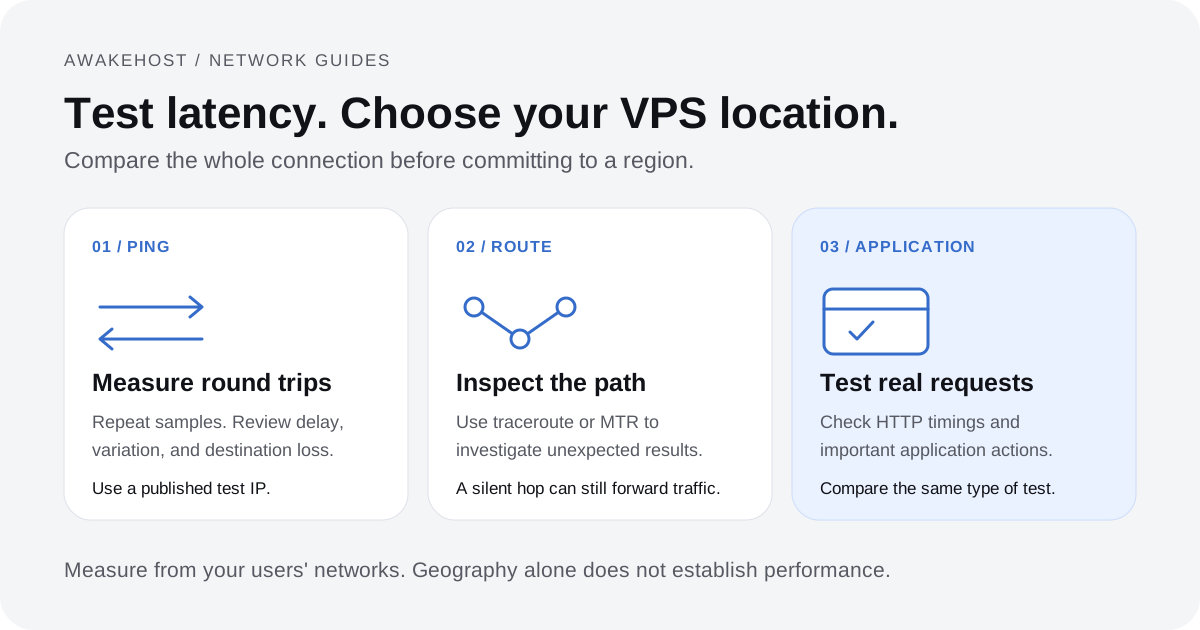
A client can affect your local working experience, but it cannot add CPU, memory, or disk capacity to the remote machine. Investigate network latency, packet loss, and server load separately. Our VPS latency testing guide helps you examine the network side.
Do I need the same software on my computer and VPS?
You need a compatible SSH client on your computer and an SSH server on the VPS. The product names do not have to match. You also need valid credentials, network access, and permission to log in.
Which client should a beginner choose?
Choose the simplest option that covers your task. Start with OpenSSH if you are happy to learn terminal commands. On Windows, try Bitvise or MobaXterm if seeing files beside your terminal would make administration easier. Learn what each command does before running it on a production server.
The most useful SSH software is the client that makes your normal work easy to understand and repeat. Start with one or two real requirements, try a suitable free option, and pay for additional features when they solve a problem you regularly encounter.